 Talli
Your ticket in the Talli app
People who registered for your event can open their ticket and their day in the Talli app, without a Talli account or a password. The ticket's QR code is the same one as in the ticket email and on the web ticket page, so door staff scan it the usual way.
Open your ticket
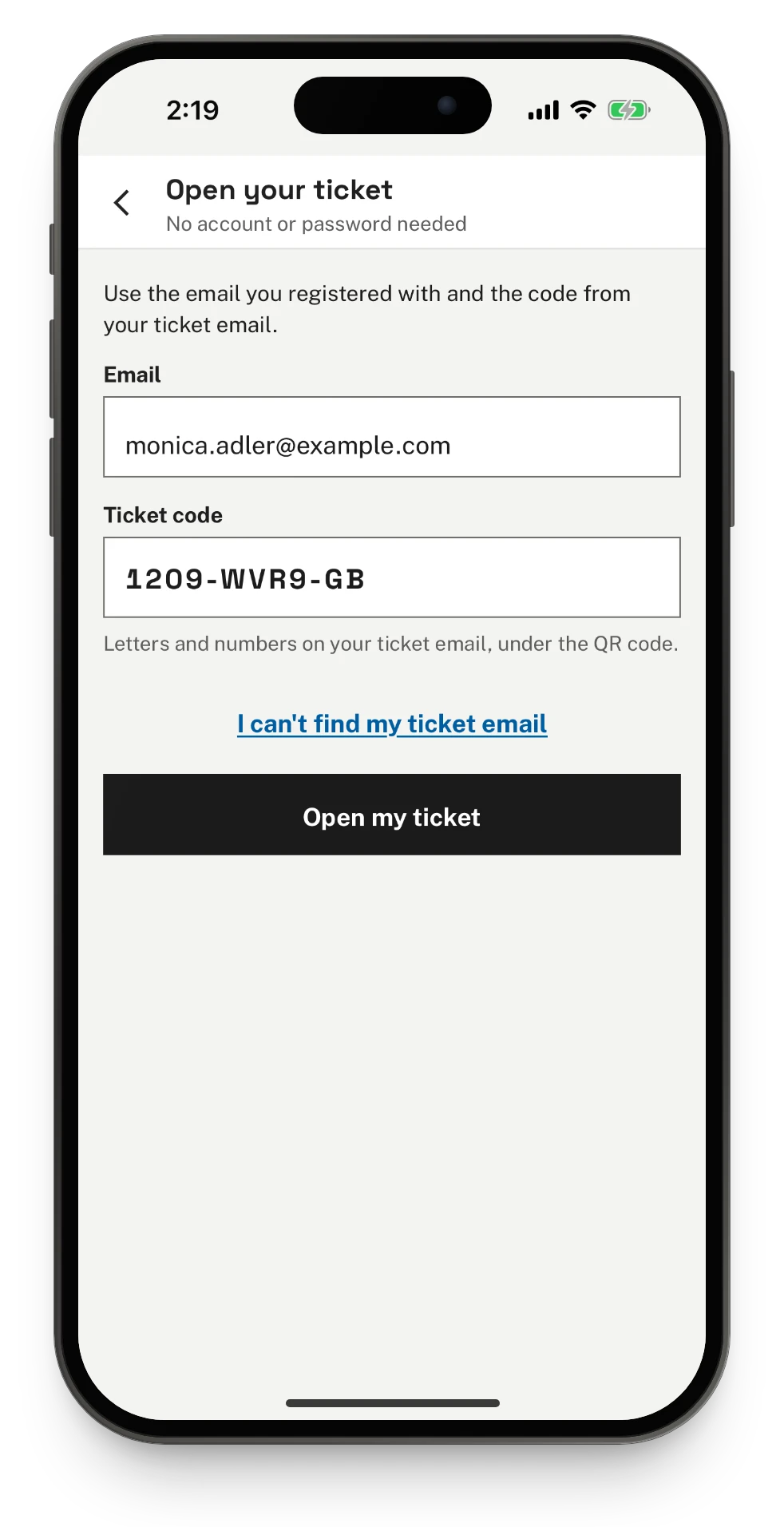
- Open Talli and tap I have a ticket.
- Enter the email you registered with and the ticket code from your ticket email, for example 7KQ4-MX29-RD. The code can be typed in lower or upper case, with or without dashes.
- Tap Open my ticket.
A ticket code has 10 characters. A shorter or longer code is caught on the phone, under the field, before anything is sent. An email and code that do not match any ticket show "We couldn't find a ticket with that email and code." The phone can look up about 10 tickets a minute; after that it says Too many tries and asks the person to wait a minute.
I can't find my ticket email gives a few tips: search the inbox for the event's name, check the spam folder, ask the organizer to send it again, or give your name at the entrance, where staff can find you.
Open your ticket from a link
On an iPhone with Talli installed, the ticket link in the ticket email opens the ticket in the app instead of the browser. A link that names a language, for example ?lang=es, opens the ticket in that language.
If the person works the door or a booth on that phone, the ticket opens on top of their shift, and they stay signed in. Tap the close button to go back to checking people in or scanning visitors. The phone does not keep a ticket opened this way, since it may be someone else's: closing it removes it from the phone, and a ticket already saved on the phone stays as it was.
Your ticket
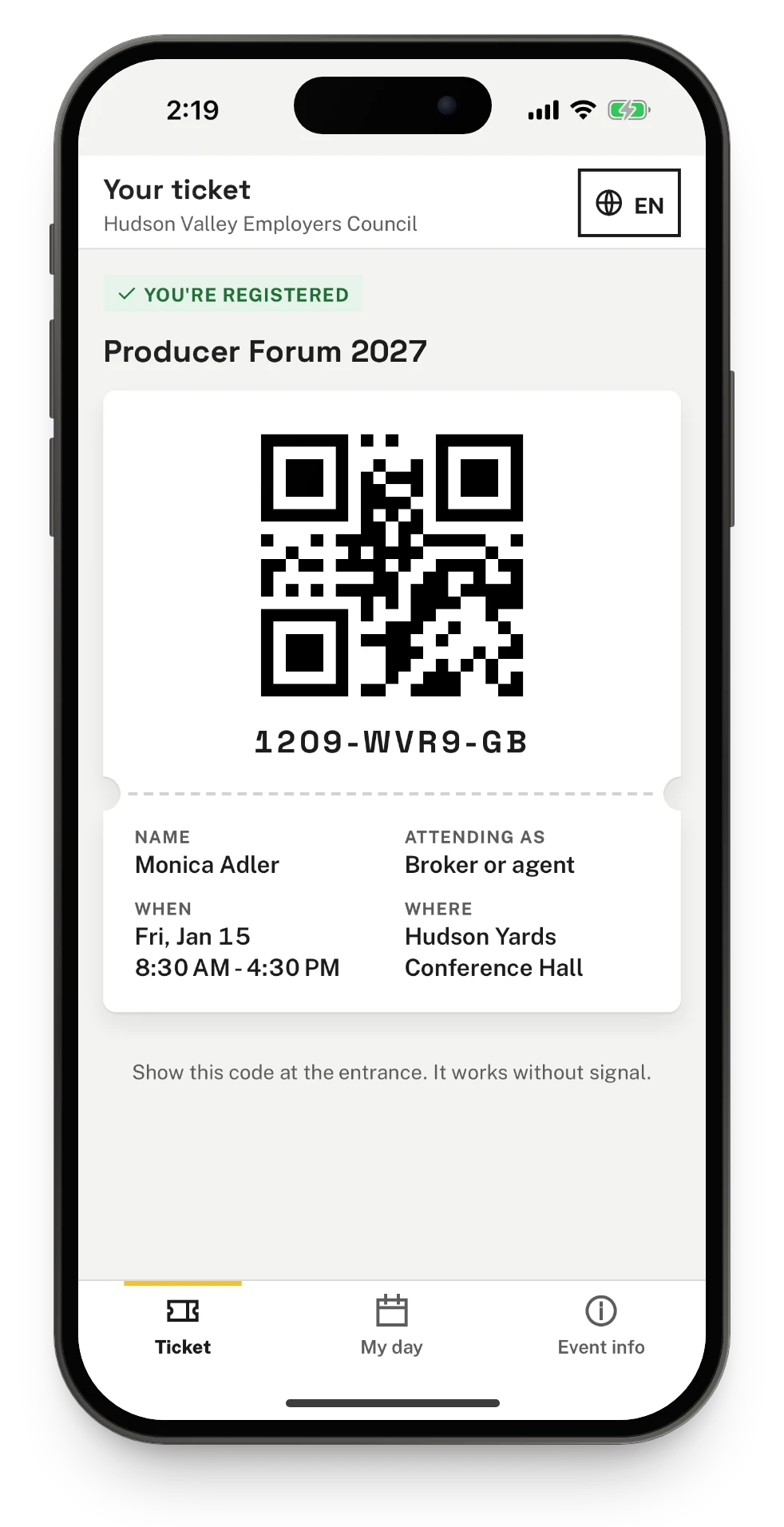
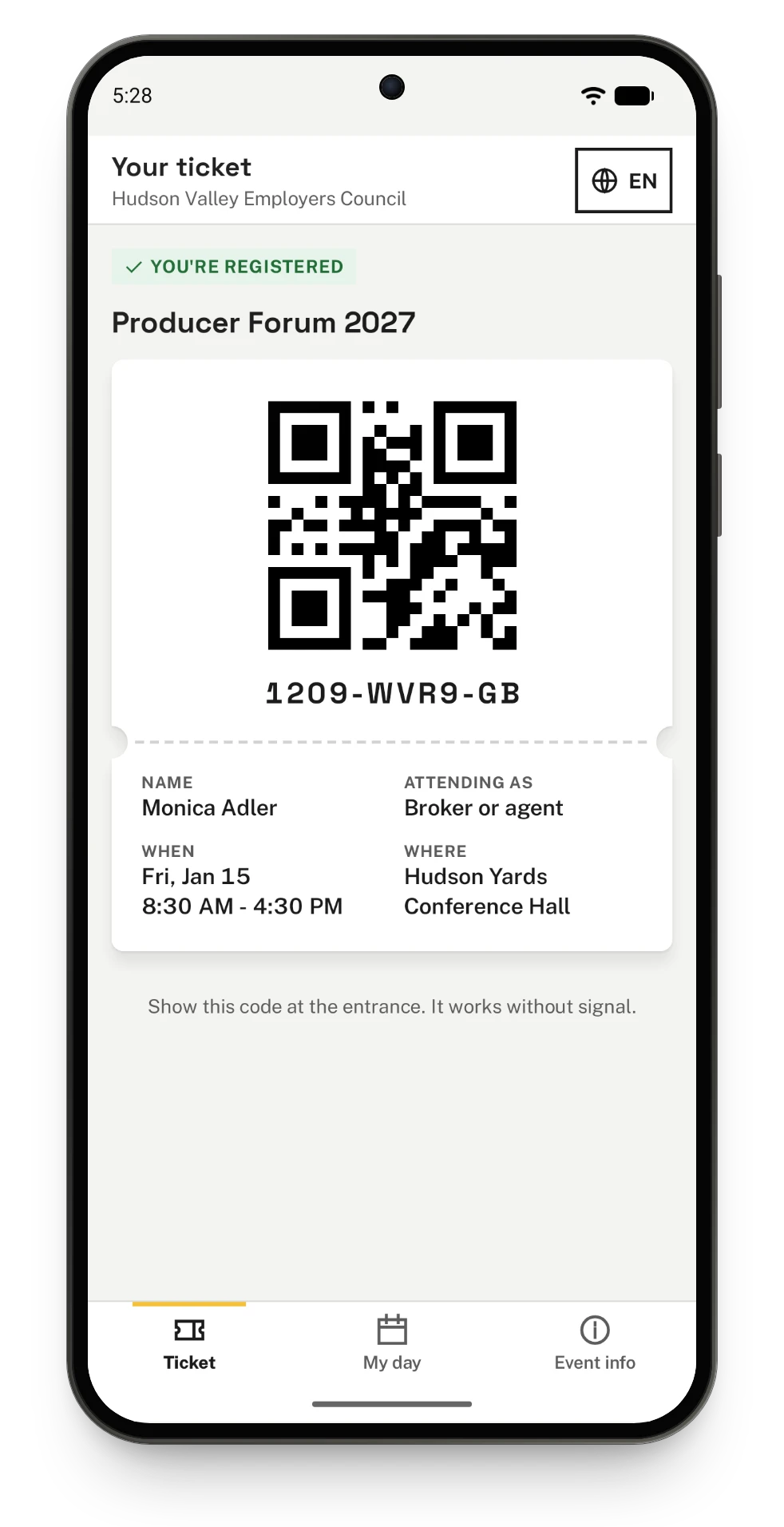
The Ticket tab shows:
- the organizer's name at the top;
- You're registered, the event, and the ticket with its QR code and its code under it;
- the name on the ticket, the ticket type (Attending as), when the event runs and where.
Show the QR code at the entrance. The app does not change the screen's brightness; turn it up if a scanner has trouble reading the code.
Someone on the waitlist sees On the waitlist and their place in line, for example "You're number 3 on the waitlist", and no QR code until they have a seat. A cancelled registration shows Cancelled, a line saying the ticket no longer gets the person in, and no QR code. When an event is cancelled, a red banner says This event was cancelled over the ticket, and no QR code is shown.
Change the language
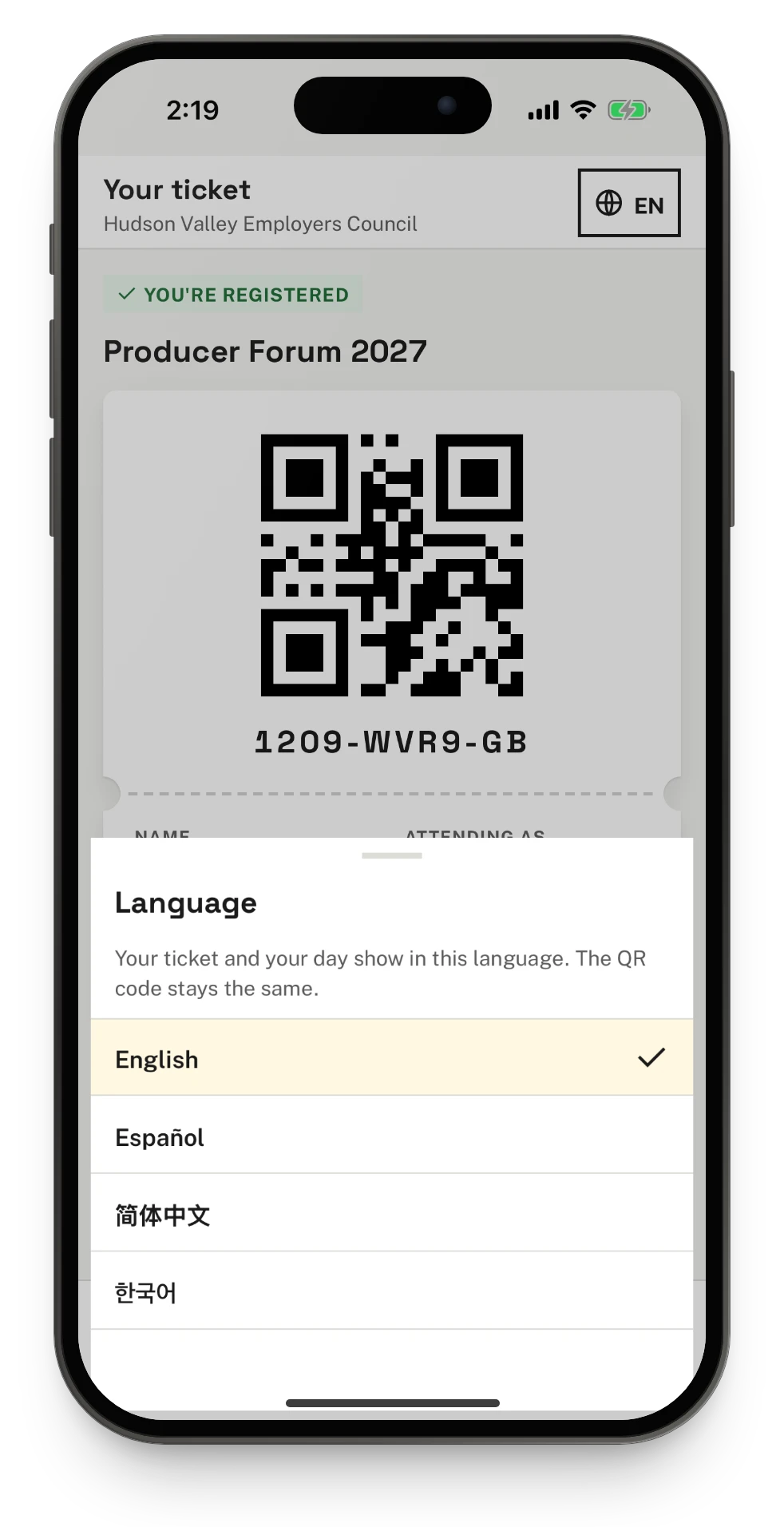
- Tap the language button at the top right, for example EN.
- Pick a language. The list shows every language the event offers, each in its own name, for example Español.
The ticket and the day load again in that language: the event's title, the ticket type and the session titles follow it. The QR code and the ticket code stay the same. The app's own buttons and labels are in English for now.
My day
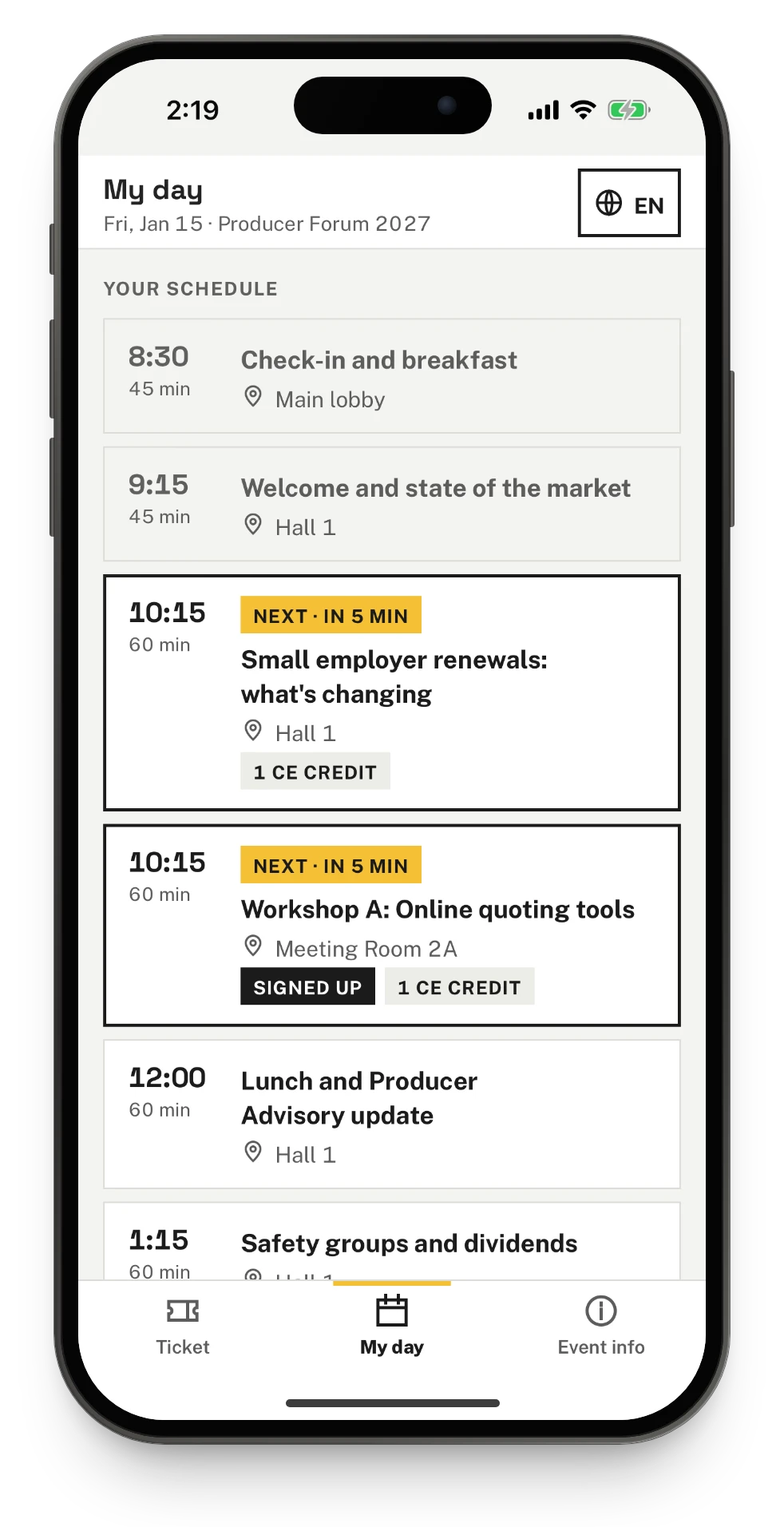
The My day tab lists the sessions that are open to everyone and the ones the person signed up for, by start time, in the event's own time zone.
- The session running now is marked Now; before it starts, the next one is marked Next with how long until it starts, for example Next · in 20 min.
- Sessions that ended are faded.
- Sessions the person signed up for say Signed up, or Waitlisted while they wait for a seat.
- Sessions that give continuing education credit say how many, for example 1.5 CE credits.
When the event has a public venue map, Venue map at the top opens it in Safari. Pull down to load the day again.
Event info
The Event info tab shows when the event runs (and in which time zone), the venue and its address, and Event page, which opens the event's public page in Safari.
Ticket and app, at the bottom, shows the ticket on this phone, this app's version, and Use another ticket.
Without signal
The phone keeps the last ticket it opened, and its day. Opened again without signal, the app shows them with Saved on this phone and the time they were last updated, and the QR code still works at the door. The phone keeps one ticket at a time: opening another ticket replaces it.
Use another ticket
- On the Event info tab, tap Ticket and app.
- Tap Use another ticket, then confirm.
The phone forgets the ticket and goes back to the screen where you enter an email and code. The ticket itself is not changed, and it can be opened again at any time.
Limits and edge cases
- A ticket whose event was taken down shows "This ticket is no longer available" with Enter email and code, and the phone forgets it. An old link for another event leaves the ticket saved on the phone as it was. Opened over a staff or booth shift, it offers only the close button.
- A ticket that has not been opened on the phone yet needs signal the first time.
- Each phone can make about 10 ticket requests a minute, and each address (a venue's shared Wi-Fi) about 120. Opening a ticket uses two: the ticket and the day.
- Ticket links open in the app only from
app.tallievents.com; on a phone without the app they open the web ticket page.
On Android
The ticket, My day, Event info and Use another ticket work the same way on Android, including a dead link for another event leaving the saved ticket in place.
Ticket links in the ticket email open the app once Android has verified the domain, which it does on its own after the app is installed. Until then, and on a phone without the app, the link opens the web ticket page, and the ticket can still be opened in the app with the email and code.
Venue map and Event page open in the phone's default browser, for example Chrome. The Back gesture (or Back button) leaves Ticket and app, goes back to the Ticket tab from the other tabs, and closes a ticket opened over a staff shift.
Coming soon
- Add to calendar and Add to Wallet on the ticket.
- The app's own buttons and labels in the event's languages.
- A link from a session on My day to its room on the venue map.