 Talli
Docs / Team
Team and roles
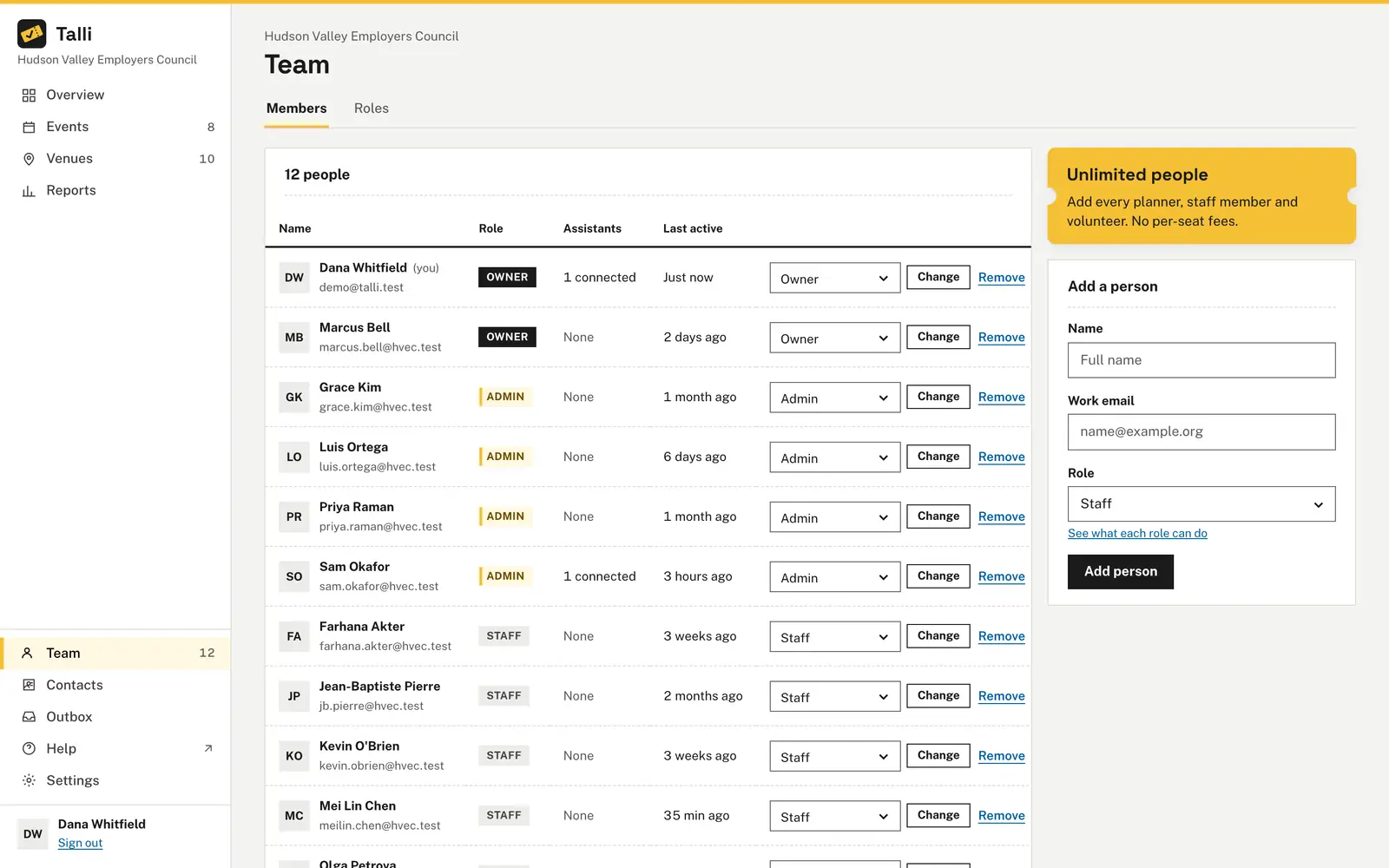
The Team page lists everyone in your organization and lets owners and admins add people. Every person has one role - Owner, Admin or Staff - and the role decides what they can change.
Add a person
- Open Team in the sidebar.
- In Add a person, enter the person's full name and work email, and choose a role. The team knows them by the name you enter.
- Select Add person.
- If the email is new to Talli, Talli creates their account and shows a temporary password once. Copy it and give it to them yourself. Talli does not email it, and it is not shown again after you leave or reload the page.
- The person signs in with their email and that password. Before they can use anything else, Talli asks them to choose their own password. Once they do, the temporary password stops working, so you no longer hold working credentials for their account.
If the email already has a Talli account, Talli adds them under the name you entered and emails them to say they were added. They keep signing in with their own password. Talli never shows you anything about an existing account, such as its name or which other organizations it belongs to.
There is no limit on the number of people you can add.
Next to each person, Last active says how long ago they last signed in, made a change or checked someone in at the door, for example "3 hours ago" or "2 weeks ago".
Choose or change your own password
- If you were given a temporary password, sign in with it. Talli asks you to choose your own password before you can open anything else.
- At any time, open Settings > Your account, enter your current password, and choose a new one (at least 8 characters, typed twice).
- Changing your password signs out your other sessions.
Add a person from an AI assistant
When an assistant adds someone, nobody is shown a password. Instead:
- The assistant asks you to confirm, naming the person and role. Nothing is added or emailed until you say yes.
- Talli adds the person and emails them a "Set your password" link.
- The link works once and expires after 7 days. Opening it shows a page where they choose their password, then they sign in.
- If the link was used or has expired, the page says so. Add the person again from the Team page, or ask your assistant to, to send a new one.
In this version emails are written to the Outbox instead of being delivered outside Talli.
Add Sam Rivera (sam.rivera@example.com) to our team as staff.Select the prompt and copy it into Claude or ChatGPT connected to Talli. Uses add_member. Connect an assistant
Change a person's role
- Open Team.
- In the person's row, choose the new role and select Change.
The change applies right away, also to their open sessions and their connected AI assistants. An organization always keeps at least one owner, so the last owner cannot be demoted.
List our team with each person's role and when they were last active, then make Sam Rivera an admin.Select the prompt and copy it into Claude or ChatGPT connected to Talli. Uses list_members, set_member_role. Connect an assistant
Remove a person
- Open Team and select Remove in the person's row.
- Read the question, which names the person, and confirm.
The person loses access right away. Every AI assistant they connected is disconnected at once and any confirmations they had waiting are cancelled. Their past activity stays in the activity log. The last owner cannot be removed. You can add the same person again later.
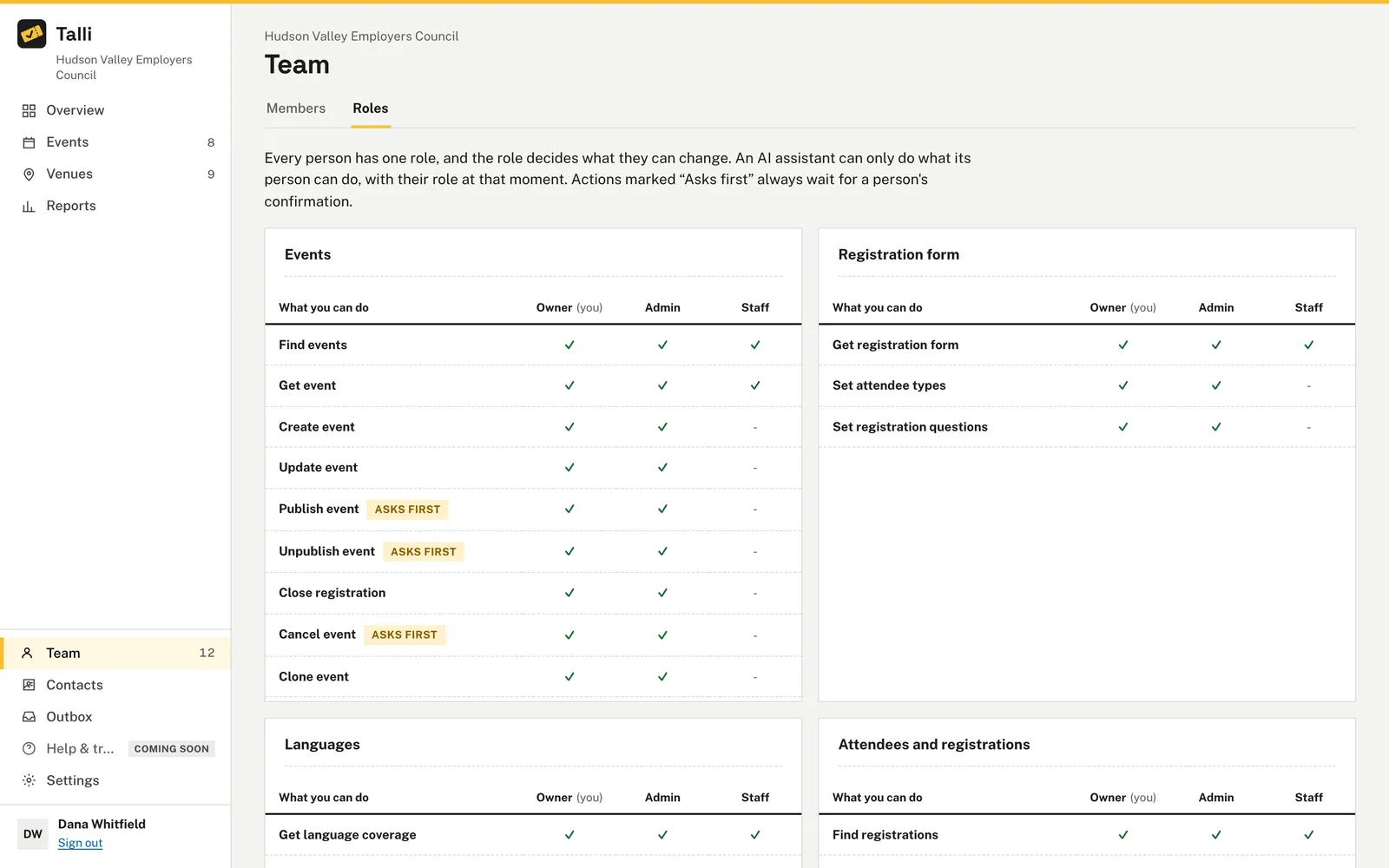
See what each role can do
- Open Team, then the Roles tab.
- Find the action in its group. A check mark means the role can do it, a dash means it cannot. Actions marked "Asks first" always wait for a person's confirmation.
The Roles tab is built from the same list Talli uses to enforce permissions, so it always matches what is allowed.
Who can use it
| Task | Owner | Admin | Staff |
|---|---|---|---|
| See the team and the Roles tab | Yes | Yes | Yes |
| Add a person as Admin or Staff | Yes | Yes | No |
| Change your own password | Yes | Yes | Yes |
| Add a person as Owner | Yes | No | No |
| Change a role | Yes | No | No |
| Remove a person | Yes | No | No |
Limits and edge cases
- Roles are Owner, Admin and Staff. Owners do everything an admin can, plus manage the team and the AI assistant settings. Admins change events, venues, registration forms, attendees and branding. Staff look, check people in and use the attendee list; the Roles tab lists every action.
- An organization always has at least one owner. Demoting or removing the last owner is refused with a clear message. Make someone else an owner first.
- Adding someone who is already on your team is refused.
- A temporary password has 14 letters and digits, without look-alike characters. It is stored only as a hash, so Talli cannot show it again, and the person must replace it at first sign-in.
- A set-password link works once, expires after 7 days, and is stored only as a hash.
- An AI assistant always acts with its person's current role. If an owner makes an admin Staff and the owner has limited staff to read-only assistants in Settings > AI assistants, that person's assistants become read only at the same moment.
- Removing a person keeps their account and the history they created. If they have no other organization they see an access message when they sign in.
- The sidebar shows how many people are on the team.
Coming soon
- Inviting people from the Team page by email, so they choose their own password without a temporary one.
- Limiting a Staff member to selected events.
- A page to browse the whole activity log.
From an AI assistant
An assistant acts as the person who connected it, with their current role; see AI assistants.
list_memberswith{}: everyone on the team withuserId,name,email,role,joinedAt,lastActiveAtandassistantCount.add_memberwith{ name, email, role }: adds a person (roleisowner,adminorstaff). Always asks the person to confirm first (the assistant gets apendingActionIdto confirm withconfirm_action), because Talli emails the person. A new person is emailed a single-use link, valid 7 days, to choose their own password. An assistant is never given a password, and the result is the same for new and existing accounts:{ userId, name, email, role, emailed }. Only owners can add owners.set_member_rolewith{ userId, role }: owners only.remove_memberwith{ userId }: owners only. Always asks the person to confirm before it runs; the assistant gets apendingActionIdto confirm withconfirm_action.