 Talli
Docs / Getting started
Getting started
Talli runs in your web browser. There is nothing to install. Signing up creates your account and your organization together, and you become the organization's owner.
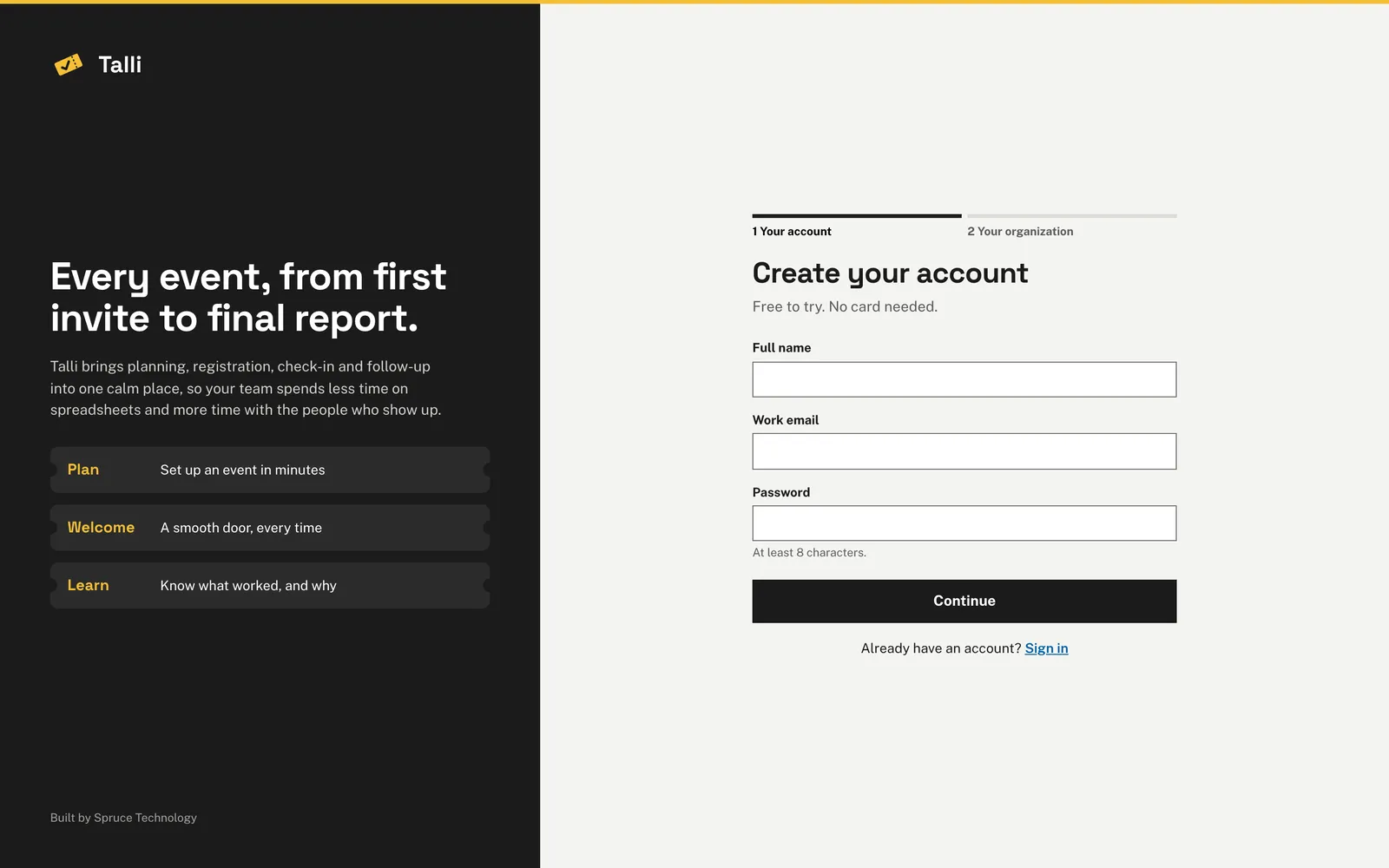
Create your account
- Open the sign-up page and choose Create account.
- Step 1 asks for your full name, your work email and a password. The password needs at least 8 characters (and at most 128). A check mark appears once it is long enough.
- Choose Continue.
- Step 2 asks for your organization's name. This is the name attendees see on your registration pages, tickets and emails. It can be up to 120 characters.
- Choose Create organization. You are signed in and taken to your Overview page.
If something is missing or wrong, Talli shows a message next to the field and keeps what you typed. If an account with your email already exists, Talli tells you to sign in instead.
Your organization also gets a web address name, made from its name (for example "Capital Region Safety Council" becomes capital-region-safety-council). It becomes part of every registration page address. It is set once, when the organization is created, and does not change if you rename the organization later. If another organization already uses the name, Talli adds a number to yours.
Sign in
- Open the sign-in page.
- Enter your work email and password, then choose Sign in.
If the email and password do not match an account, Talli says so without telling you which one is wrong. If you were sent to the sign-in page because you opened a link inside Talli, you land on that page after signing in. If you are already signed in, the sign-in and sign-up pages send you straight to your Overview.
Password reset is Coming soon.
Sign out
Choose Sign out under your name at the bottom of the left sidebar. You return to the sign-in page.
What you see first
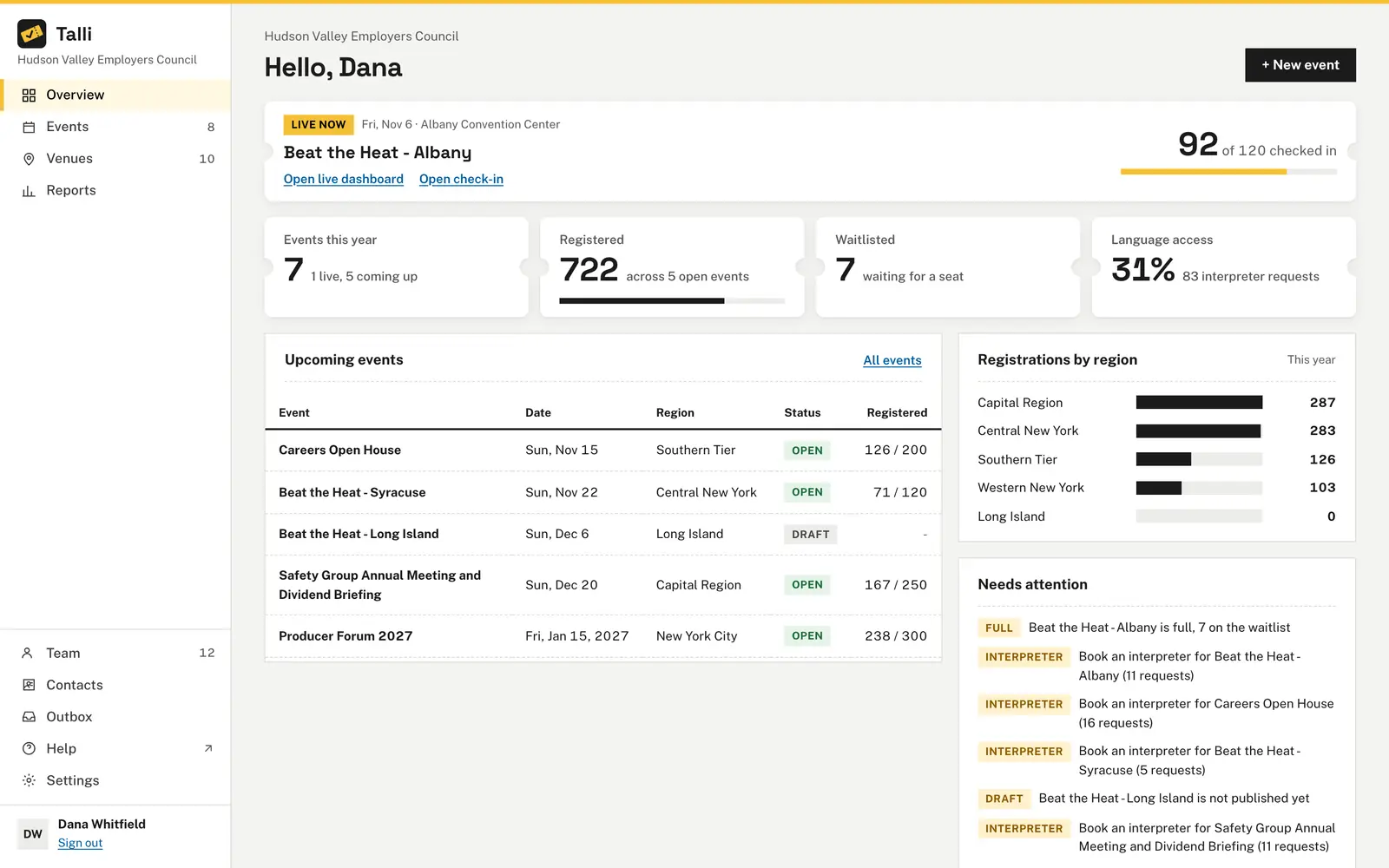
The Overview page greets you by first name. Until you have events, it points you to the next step: add a venue, then create your first event. Once you have events it shows:
- Events this year, registered people, open seats and how many upcoming events offer more than one language.
- A list of upcoming events with their status and how full they are.
- Registrations by region for this year.
- A "Live now" card while an event is running.
Give me a quick overview of our organization in Talli: live and upcoming events, this year's totals and anything that needs attention.Select the prompt and copy it into Claude or ChatGPT connected to Talli. Uses get_overview, get_organization. Connect an assistant
A good order for setting up
- Add your logo and brand color.
- Add a venue.
- Create an event.
- Set up the registration form.
- Publish the event and share its link (see registration).
Teams
Today a new organization has one person: the owner. Owners and admins add teammates on the Team page. See roles and activity for what each role can do.
From an AI assistant
Connect an assistant first: see AI assistants. Signing up, signing in and signing out happen in Talli only. Once connected, an assistant can read your organization with get_organization with {} and get_overview with {}, and follow the same setup order with create_venue, create_event, set_ticket_types, set_form_fields and publish_event.