 Talli
Docs / Reports and AI
AI assistants
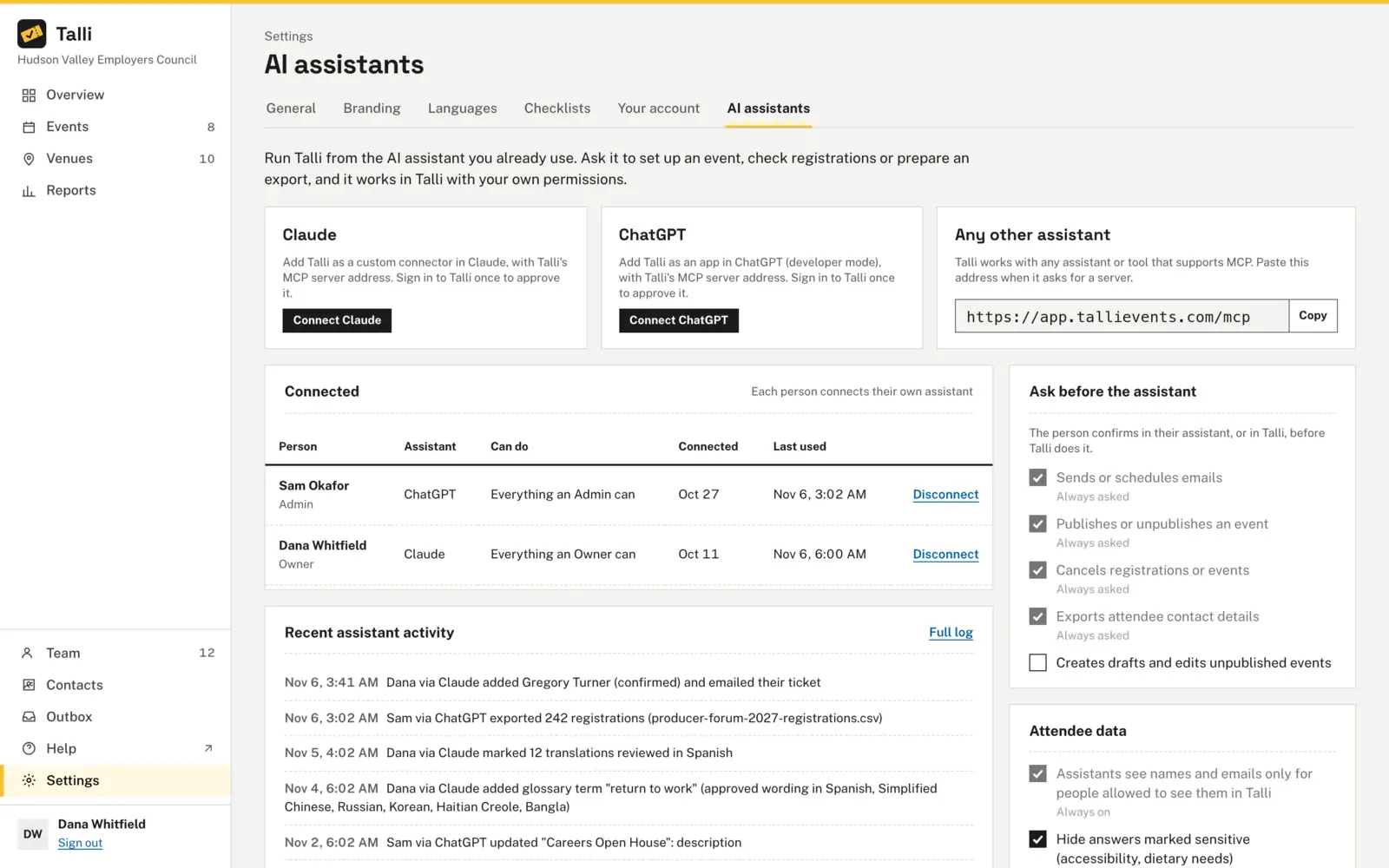
Run Talli from the AI assistant you already use, such as Claude or ChatGPT. The assistant works in Talli as you, with your role's permissions, and asks for your OK before anything risky.
Connect Claude
- Open Settings, then the AI assistants tab.
- Copy Talli's MCP server address from the Any other assistant card.
- Choose Connect Claude. Claude's connector settings open in a new tab.
- Add a custom connector and paste the address.
- Claude sends you to Talli. Sign in if you are asked to.
- On Connect Claude to Talli, choose the organization (if you belong to more than one) and what Claude can do: Everything you can do or Read only.
- Choose Approve. You are sent back to Claude, and the connection appears in the Connected table in Talli.
Connect ChatGPT or another assistant
- Copy Talli's MCP server address from Settings > AI assistants.
- In ChatGPT, choose Connect ChatGPT and add Talli as an app (developer mode). In any other assistant that supports MCP, add a server and paste the address.
- Sign in to Talli and approve the connection, as for Claude.
Each person connects their own assistant. An assistant works in one organization: connect it again to use it in another.
Read-only connections
Choose Read only on the approval screen to let an assistant look things up and prepare answers without changing anything. A read-only assistant is only offered the tools that read, so it cannot try to change anything.
An owner can require read-only connections for staff: in Settings > AI assistants, tick Staff can only connect read-only assistants under Staff and choose Save assistant settings. Staff then only see Read only on the approval screen. Owners and admins always choose for themselves.
Confirm what an assistant wants to do
Some actions always wait for the person's OK:
- Sending or scheduling emails, including adding an attendee with their ticket email.
- Publishing or unpublishing an event.
- Cancelling registrations or events, and giving a waitlisted person a seat.
- Exporting attendee contact details.
When an assistant wants to do one of these:
- If the assistant can ask you in the chat, it shows what it is about to do, for example "Publish Beat the Heat - Albany?". Confirm to go ahead, or decline: nothing is changed.
- If it cannot ask in the chat, Talli saves the request and the assistant gives you a link to Talli. Open the link, read the request on Waiting for your OK and choose Confirm (then Confirm again in the dialog) or Cancel.
- You can also tell the assistant yes or no. It then calls Talli's confirm or cancel tool for the saved request. Assistant apps treat the confirm tool as one that changes things, so they usually ask you before calling it. If the app can show a question, Talli also asks you there itself, with the same words as the request, and only goes ahead when you confirm; if you decline, the request is cancelled. If the question cannot be shown, nothing runs and you can still confirm in Talli with the link.
A saved request:
- Waits 10 minutes, then expires without changing anything.
- Runs at most once: confirming it again does nothing.
- Belongs to the assistant connection that asked: another assistant, even your own, cannot confirm it, and only you can see it in Talli.
- Runs exactly the change you were asked about; if the request was changed in any way after it was saved, Talli refuses it and nothing runs.
Talli trusts your assistant app to show you its questions. An app connected with your account can act as you, so connect only assistants you trust, and disconnect any you no longer use.
An owner can also ask for confirmation before an assistant creates drafts or edits unpublished events: tick Creates drafts and edits unpublished events under Ask before the assistant. This covers creating, editing and cloning events, and changing the attendee types and questions of a draft.
What requests are waiting for my OK in Talli?Select the prompt and copy it into Claude or ChatGPT connected to Talli. Uses list_pending_actions. Connect an assistant
Attendee data
Assistants see names and emails only where the person who connected them can see them in Talli. Answers marked sensitive on the registration form (such as accessibility or dietary needs) are hidden from assistants, in attendee details, check-in lists and exports. An owner can allow them by unticking Hide answers marked sensitive under Attendee data.
See what assistants did
Every change an assistant makes is recorded with who asked and which assistant did it, for example "Dana via Claude cloned Beat the Heat - Albany to Rochester, Jul 20".
- Settings > AI assistants lists the most recent assistant activity. Choose Full log to see more.
- Events and attendees an assistant created are labelled "via Claude" in lists, and "Created by Dana via Claude" on the event's page.
- The Connected table shows when each connection was made and last used.
Which assistants are connected to our organization, and when was each one last used?Select the prompt and copy it into Claude or ChatGPT connected to Talli. Uses list_assistant_connections. Connect an assistant
Disconnect an assistant
- Open Settings > AI assistants.
- In the Connected table, choose Disconnect on the connection's row.
The assistant stops working in Talli straight away. Connect it again to keep working. If someone leaves the organization, their assistants stop working too, and a role change applies to their assistant's next request.
Who can use it
Everyone in an organization can connect their own assistant and disconnect it. Owners can disconnect anyone's assistant and change the settings on the AI assistants page. Admins and staff see the settings but cannot change them. An assistant can never do more than the person who connected it, and it cannot change the assistant settings itself.
Limits and edge cases
- Times on the AI assistants page are shown in UTC.
- An assistant cannot upload a logo; logos are uploaded in Talli.
- A request that was confirmed but then failed (for example because the event changed in the meantime) goes back to waiting, so it can be confirmed again or cancelled.
- Disconnecting does not undo what the assistant already did; the activity log keeps every change.
Coming soon
- Assistants drafting, scheduling and sending emails to your contacts.
- A full activity log page for all changes, not only assistants'.
From an AI assistant
Every Talli action is a tool with the same name, inputs and permissions; each page's "From an AI assistant" section lists its tools. These tools are about the connection itself:
list_assistant_connectionswith{}: the organization's connections, withmineandcurrentmarking yours and the one asking.disconnect_assistantwith{ connectionId }: your own connection, or anyone's for owners.get_assistant_settingswith{}:confirmDraftEdits,hideSensitiveAnswersandstaffReadOnly.update_assistant_settingswith any of{ confirmDraftEdits, hideSensitiveAnswers, staffReadOnly }(owners, and only from Talli itself: an assistant is always refused).list_pending_actionswith{}andget_pending_actionwith{ pendingActionId }: requests waiting for your OK, with theirconfirmUrl.confirm_actionwith{ pendingActionId }: runs the request once, after the person said yes. It is advertised as destructive, and when the app supports elicitation Talli asks the person again before running it.cancel_actionwith{ pendingActionId }: drops the request; nothing is changed.find_activitywith{ via?, connectionId?, targetType?, targetId?, limit? }: the activity log, newest first;viaisweborassistant.get_provenancewith{ targetType, targetIds }: who created each record, and through which assistant.
When a tool needs the person's OK and the assistant cannot ask in the chat, or asking fails, the result has status confirmation_required, a pendingActionId, the confirmation title and text, a confirmUrl and expiresAt.