 Talli
Check people in at a door
Scan the QR code on a ticket with the phone's camera, type the code printed under it, or find someone by name. Each ticket counts once, whichever phone or browser scans it first, and every scan shows a clear result. Before you start, choose your door; see Getting started with the Talli app.
Scan a ticket
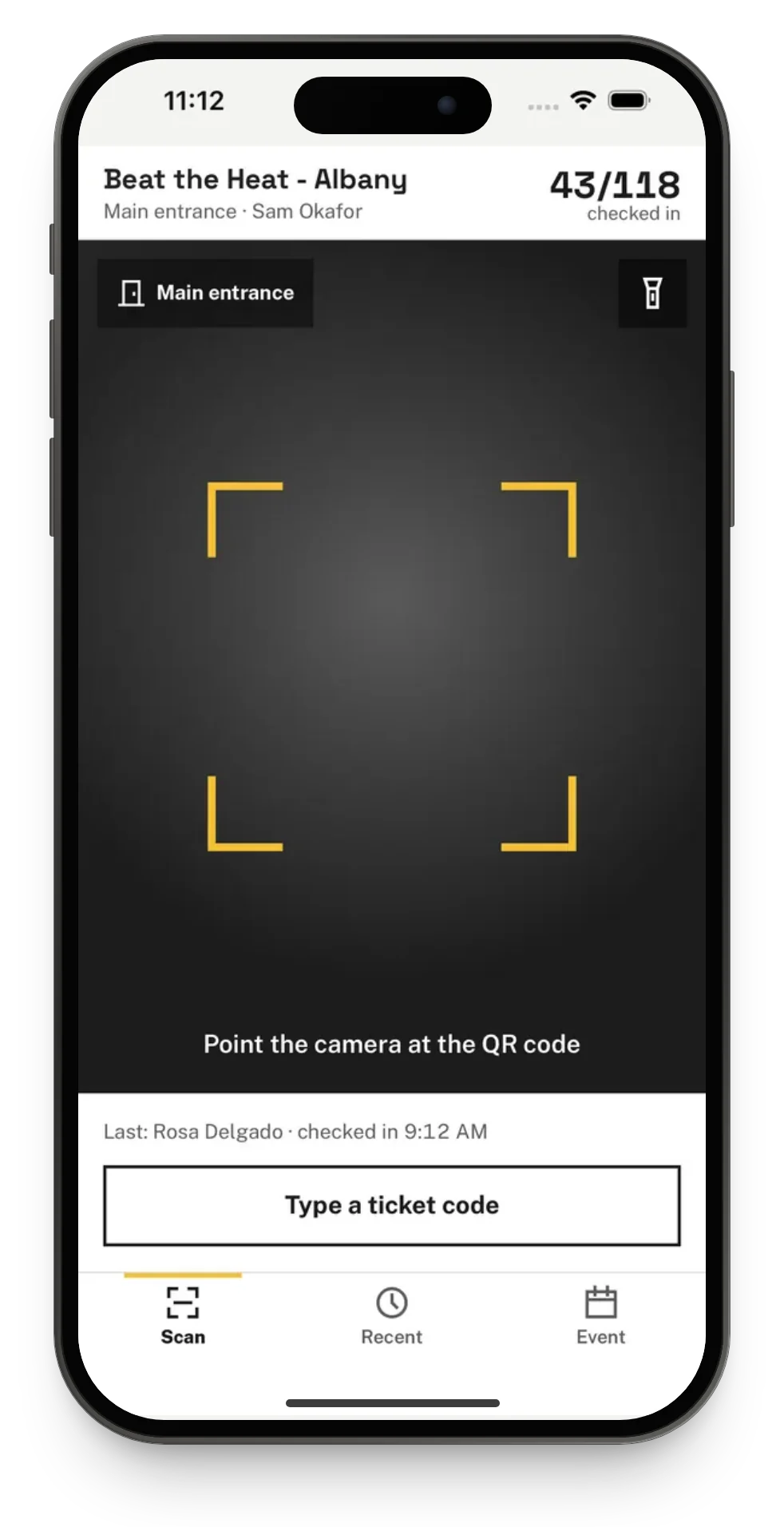
- Point the camera at the QR code on the attendee's ticket, on their phone or printed. The first time, the app asks to use the camera.
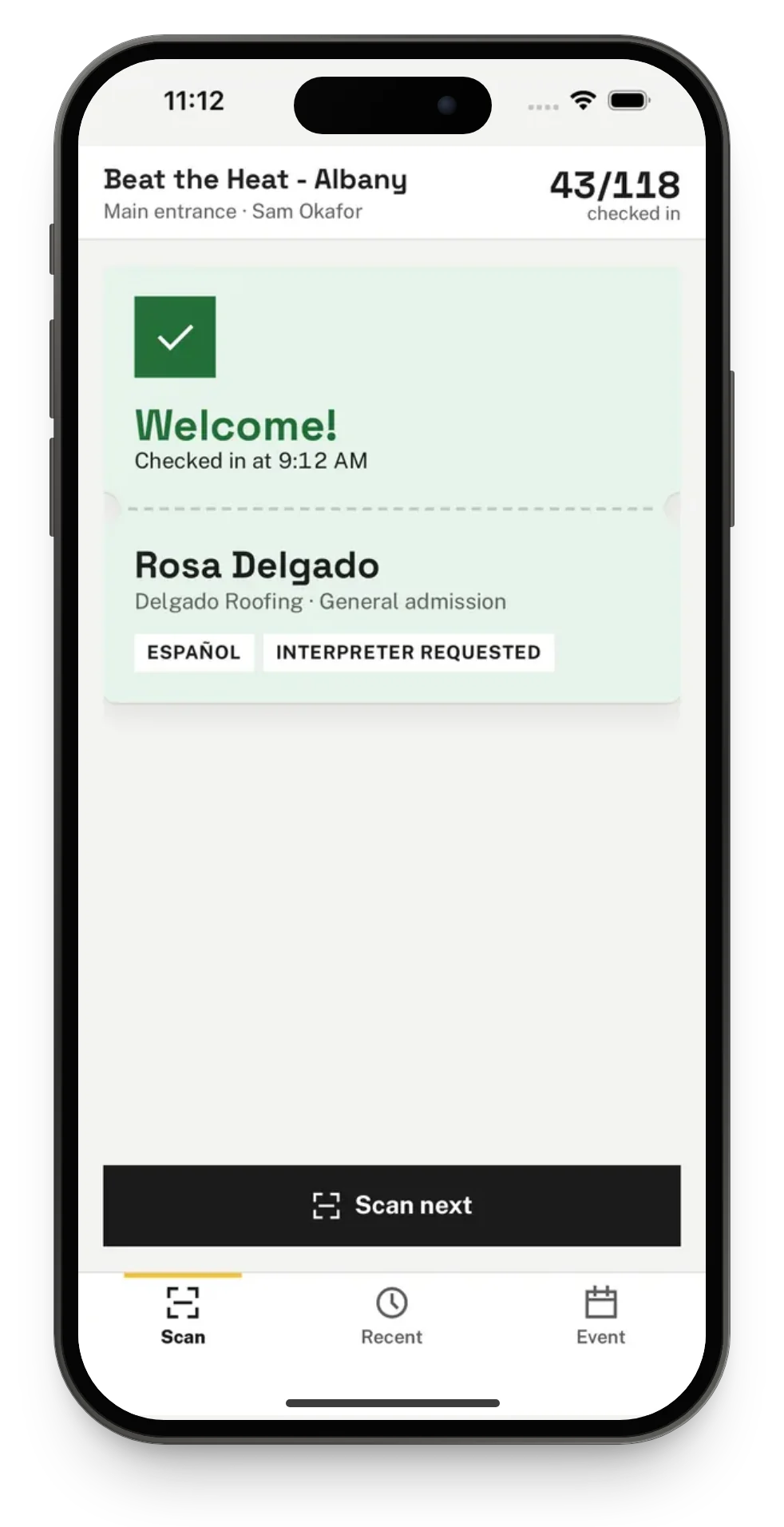
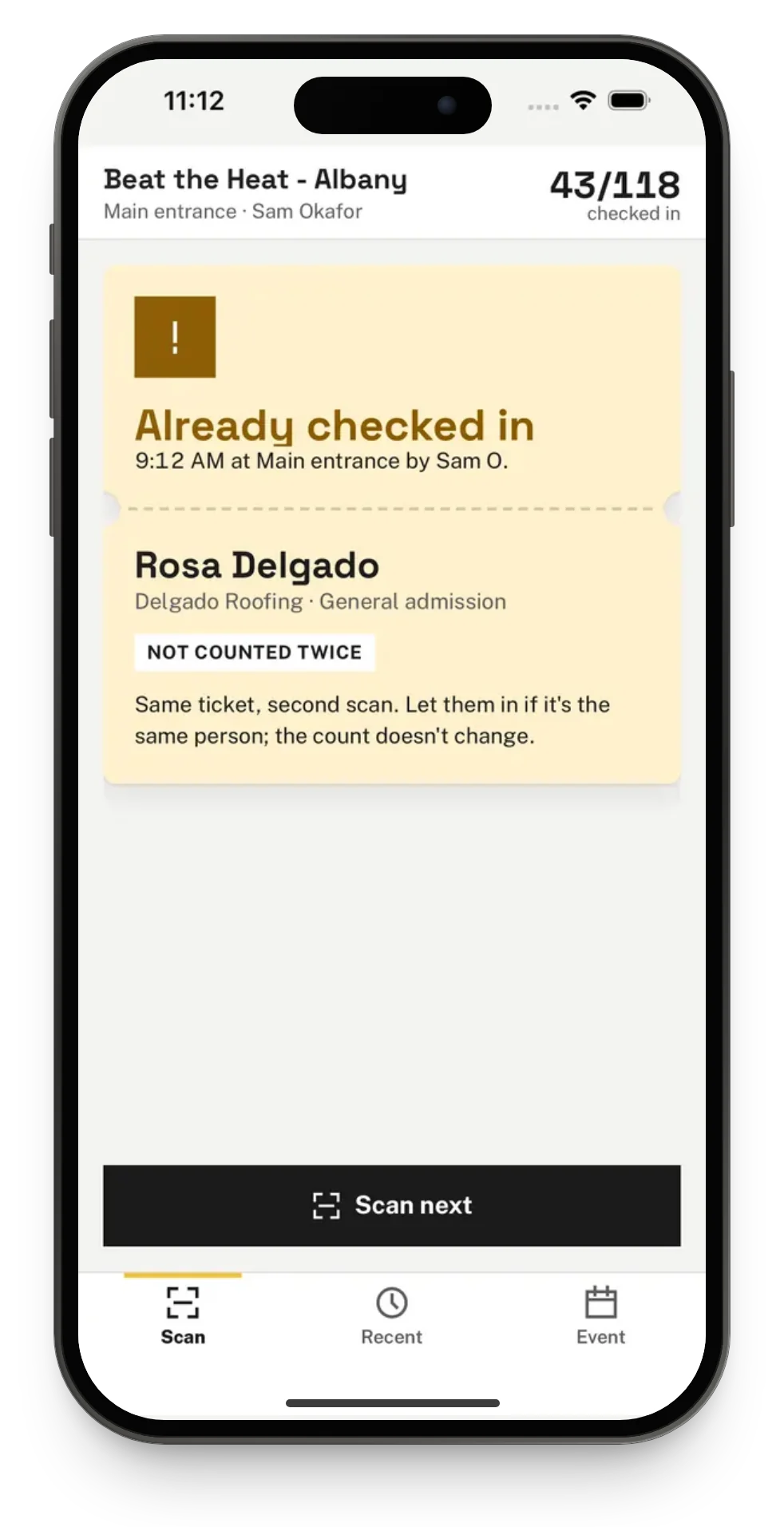
- Read the result card:
- Welcome! (green): they are checked in now. The card shows their name, attendee type, language, and whether they asked for an interpreter or have accessibility needs.
- Already checked in (amber): the ticket was checked in before. The card says when, at which entry point and by whom, and the second scan is not counted.
- Ticket not found (red): the code matches no ticket for this event.
- Wrong event (red): the ticket is for another of your organization's events, named on the card. Nobody is checked in.
- Waitlisted or Cancelled (red): they have no seat, so they are not checked in.
- Tap Scan next for the next person.
The phone gives a short vibration for each result, different for welcome, warnings and problems. With a screen reader on, the app reads each result aloud; see Accessibility. A ticket held in front of the camera is read once; to scan the same ticket again, take it out of view for 3 seconds.
The top of the screen shows the event, the entry point, who is signed in, and how many attendees are checked in.
Type a ticket code
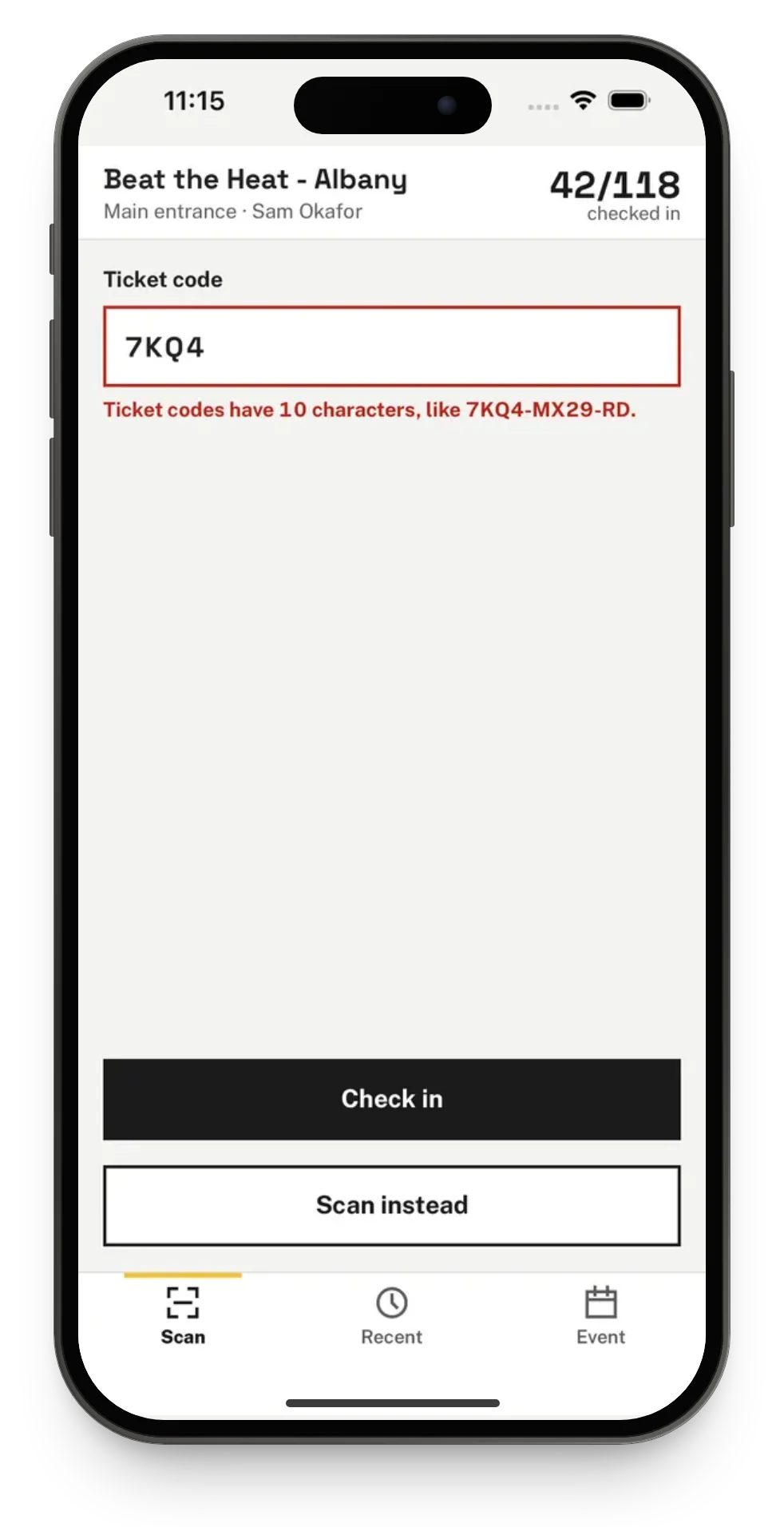
Tap Type a ticket code under the camera, type the code printed under the QR code (for example 7KQ4-MX29-RD), and tap Check in. Capitals and dashes do not matter. Typing works on every phone, also when the camera is not allowed or not available.
If the camera was turned off for Talli, the scan screen says so and offers Open Settings to turn it back on.
Find someone by name
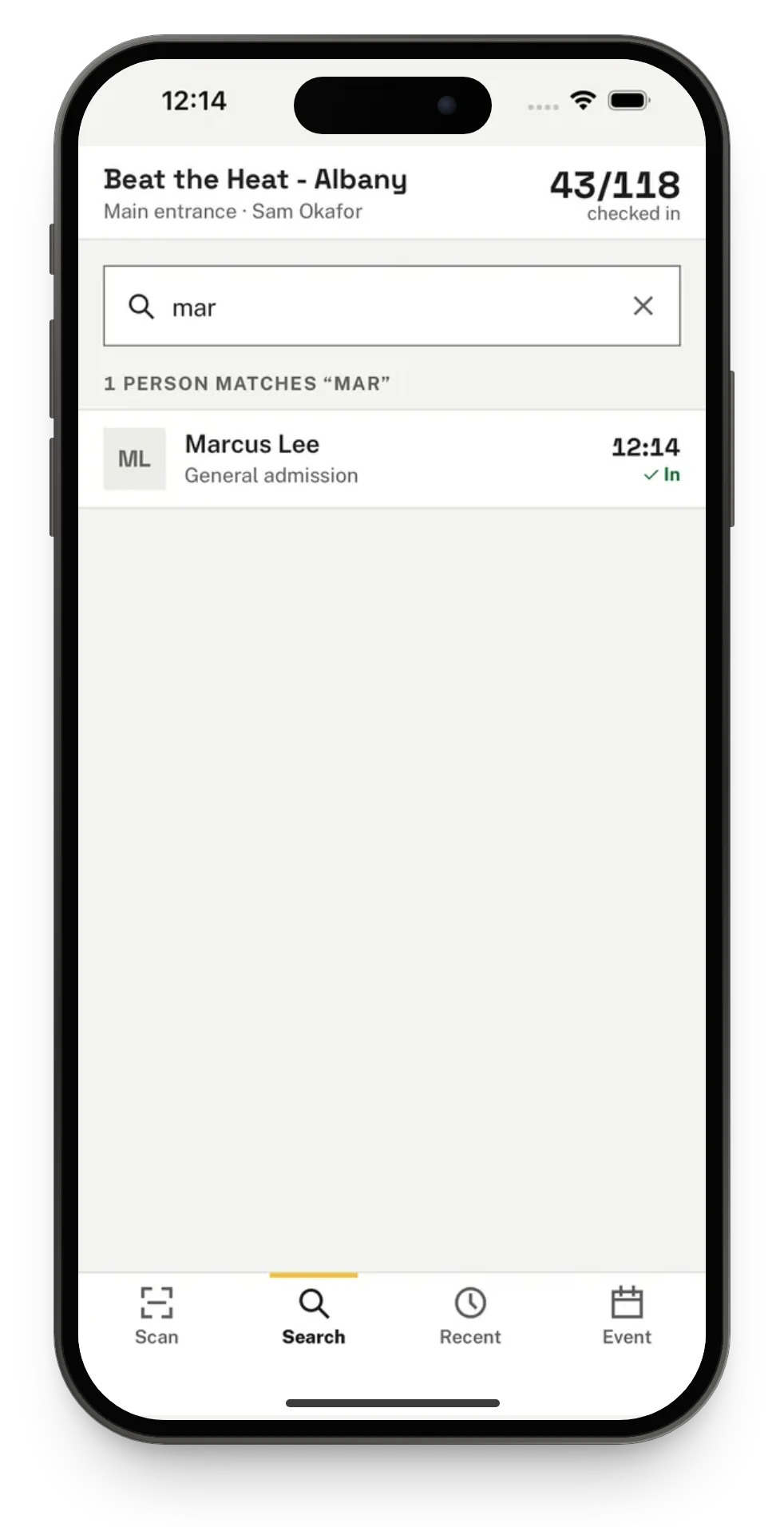
For someone without their ticket, use the Search tab.
- Type part of their name, or the code on their ticket. Capitals and accents do not matter: "ramirez" finds Luis Ramírez.
- Find them in the list. Each row shows their company and attendee type, and either a Check in button or the time they were checked in. Waitlisted and cancelled registrations show as such and cannot be checked in from the list.
- Tap Check in on their row. The same result card as a scan appears, for example Welcome!, and the person is counted once, like a scan.
- Tap Back to search for the next person. Their row now shows the time they were checked in.
Online, Talli searches the event's registrations as you type, so people who registered a minute ago are found too. Without signal, the phone searches the attendee list it saved, and a banner says Offline - Searching this phone's list. Check-ins made from the list then wait on the phone and sync like offline scans, each person counted once. If Talli does not answer for a moment, the phone also searches its own list and says so. See Offline check-in and sync.
Check in to a session
At a session, scan, type or search the same way; see Check people in to a session.