 Talli
Docs / Events
Agenda
An event's agenda lists its sessions: talks, workshops, panels, keynotes, breaks and meals. Each session has a time, a room of the event's venue or another place, speakers, and optional details such as a track or CE credits. Attendees see the agenda on the registration page and on their ticket, in their language, and your team can print it.
Open the agenda
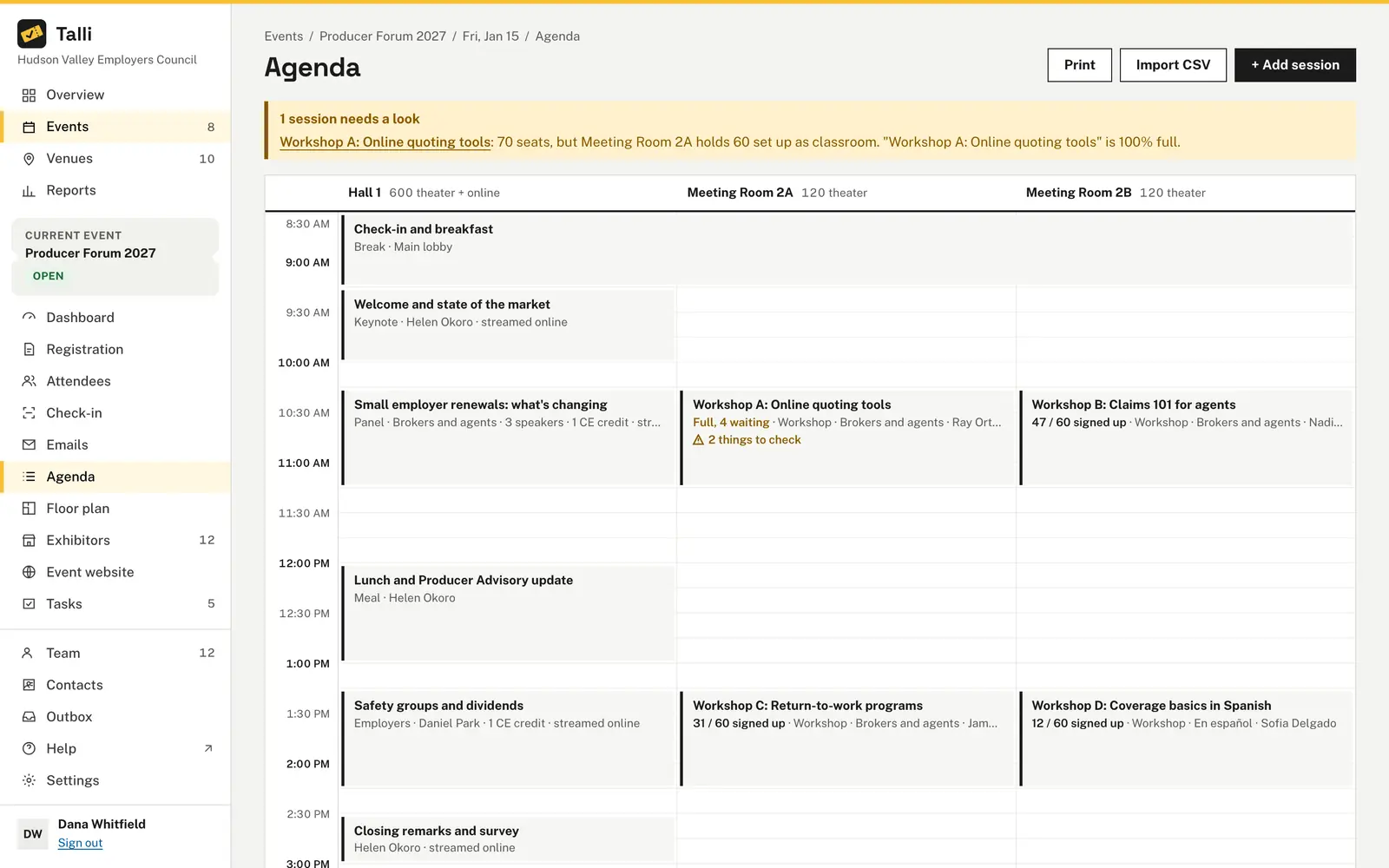
Open an event and choose Agenda in the left sidebar. The agenda is a grid with one column for each room of the event's venue, in the venue's order, and the day's times down the side. Each column header shows how many people the room seats in its largest setup, for example "120 theater", with "+ online" when a session in it is streamed. A session without a room spans every column when nothing else happens at that time, such as a lunch break in the lobby. When it overlaps another session, it goes to an extra Elsewhere column instead. An event over several days shows one tab per day.
If the venue has no rooms yet, every session sits in one column, and the page links to the venue's Rooms tab to add them (see Venues).
Add a session
Owners and admins:
- Choose + Add session.
- Fill in the side panel.
- Choose Save session. The session appears in its room's column.
| Field | Required | Notes |
|---|---|---|
| Title | Yes | Up to 200 characters, for example "Workshop A: Online quoting tools". |
| Starts and Ends | Yes | In the event's time zone. The session must end after it starts. |
| Kind | Yes | Talk, Workshop, Panel, Break, Meal or Keynote. Talk is the default. |
| Room | No | One of the venue's rooms, each shown with the seats it holds for the session's kind. Choose "No room (somewhere else)" for a place that is not a room. |
| Where | No | Shown when there is no room, for example "Lobby". |
| Track | No | Who it is for, for example "Brokers and agents". For your team only. |
| Session sign-up | No | No sign-up, optional or required. Attendees sign up on the registration form or their ticket page (see Session sign-up and CE credits). Turning it off while people are signed up asks first and cancels their spots. |
| Seats | No | A whole number. Leave it empty to use the room's size. |
| CE credits | No | Continuing education credits, for example 1 or 1.5, awarded when attendees are scanned in at the session. |
| Also streamed online | No | Shown to attendees with the session. |
| Speakers | No | Up to 20. Pick from your speaker list, or type a new name and choose Add "name" as a new speaker. New speakers are added when the session is saved, so a session that cannot be saved adds nobody. A name already on the list, in any capitalization, is that speaker. |
| Description | No | Up to 5,000 characters, shown to attendees. |
Choose a session in the grid to change it in the same panel. A session that takes sign-ups shows them on its card and in the panel, for example "52 / 60 signed up" or "Full, 3 waiting". Choose Delete at the bottom of the panel to delete it. Talli asks first; the session's speakers stay on your speaker list. A session that people earned CE credits in cannot be deleted until those credits are revoked.
An event's agenda holds up to 300 sessions.
Add a 45-minute workshop called Claims 101 to the agenda of the Spring Safety Seminar at 10:15 in Room A, with Nadia Haddad speaking and 1 CE credit.Select the prompt and copy it into Claude or ChatGPT connected to Talli. Uses get_agenda, list_speakers, create_session. Connect an assistant
Warnings
Talli checks the agenda each time it changes and lists anything that needs a look above the grid. The session in the grid and its side panel show the same warnings.
- A speaker in two places: the same speaker is in two sessions at the same time.
- A room used twice: two sessions are in the same room at the same time.
- Outside the event: a session starts before the event does or runs past its end.
- More seats than the room holds: a session's seats are more than its room holds for the session's kind. Workshops are checked against the room's classroom capacity, meals against rounds of 8, and everything else against theater.
- Nearly full: sign-ups fill 90% of a session's seats or more, for example "Room A is 90% full. Move to Room B?". Talli suggests the smallest larger room that is free at that time, when there is one.
- People in two places: people signed up for the session also hold another session at the same time, for example after one was moved.
Warnings never stop you from saving. They are there so you can decide, for example when a session intentionally overflows into a hallway.
Check the agenda of the Spring Safety Seminar for room conflicts and sessions that are close to capacity, and suggest fixes.Select the prompt and copy it into Claude or ChatGPT connected to Talli. Uses get_agenda. Connect an assistant
Speakers
Speakers belong to your organization and are shared by all of your events, so you enter a speaker once and pick them in any session. Below the grid, Speakers lists the speakers of this event's sessions with their title, company and how many sessions they have here.
Owners and admins choose Edit next to a speaker to change their name, title, company and bio. Names, titles and companies are up to 120 characters, and a bio up to 2,000. Changes show at every event the speaker speaks at.
Import from a spreadsheet
Owners and admins can add many sessions at once:
- Choose Import CSV.
- Choose a CSV file, up to 256 KB, or paste the rows.
- Choose Import sessions.
The first row names the columns. title, start and end are required; room, track, speakers and description are optional.
title,start,end,room,speakers
Welcome,8:30,9:15,Main hall,Maria Chen
Claims 101,10:15,11:15,Room A,Nadia Haddad; Tom Becker- Times are written like 13:30 or 1:30 PM and fall on the event's first day; write "2027-09-14 13:30" for another day.
- Rooms are matched by name, ignoring case. A name that is not one of the venue's rooms becomes the session's "Where".
- Speakers are separated by semicolons and matched by name, ignoring capitals and extra spaces. New names are added to your speaker list, and a name given twice in one row counts once.
- Up to 200 rows at a time.
Importing adds sessions and never replaces the ones already there. If any row has a problem, nothing is imported, and Talli lists each problem with its line number, for example Line 3: Start "noon" is not a time. Write it as 13:30 or 1:30 PM.
Import this agenda into the Spring Safety Seminar: [paste your CSV with title, start, end, room and speakers]Select the prompt and copy it into Claude or ChatGPT connected to Talli. Uses import_agenda. Connect an assistant
What attendees see
The event's public registration page shows the agenda below the event's details, day by day. Each session shows its time, title, where it is, CE credits, whether it is streamed, and its speakers with their titles and companies. The description and the speakers' bios open under Session details. The ticket page shows a shorter agenda with times, titles and places.
Session titles and descriptions, and speakers' titles and bios, are translated into the event's languages with the rest of its text, and your team can review them under Translations (see Languages and translation). Changing a session or a speaker translates it again. Rooms and speakers' names and companies are shown as written. Tracks are for your team's planning and are not shown to attendees.
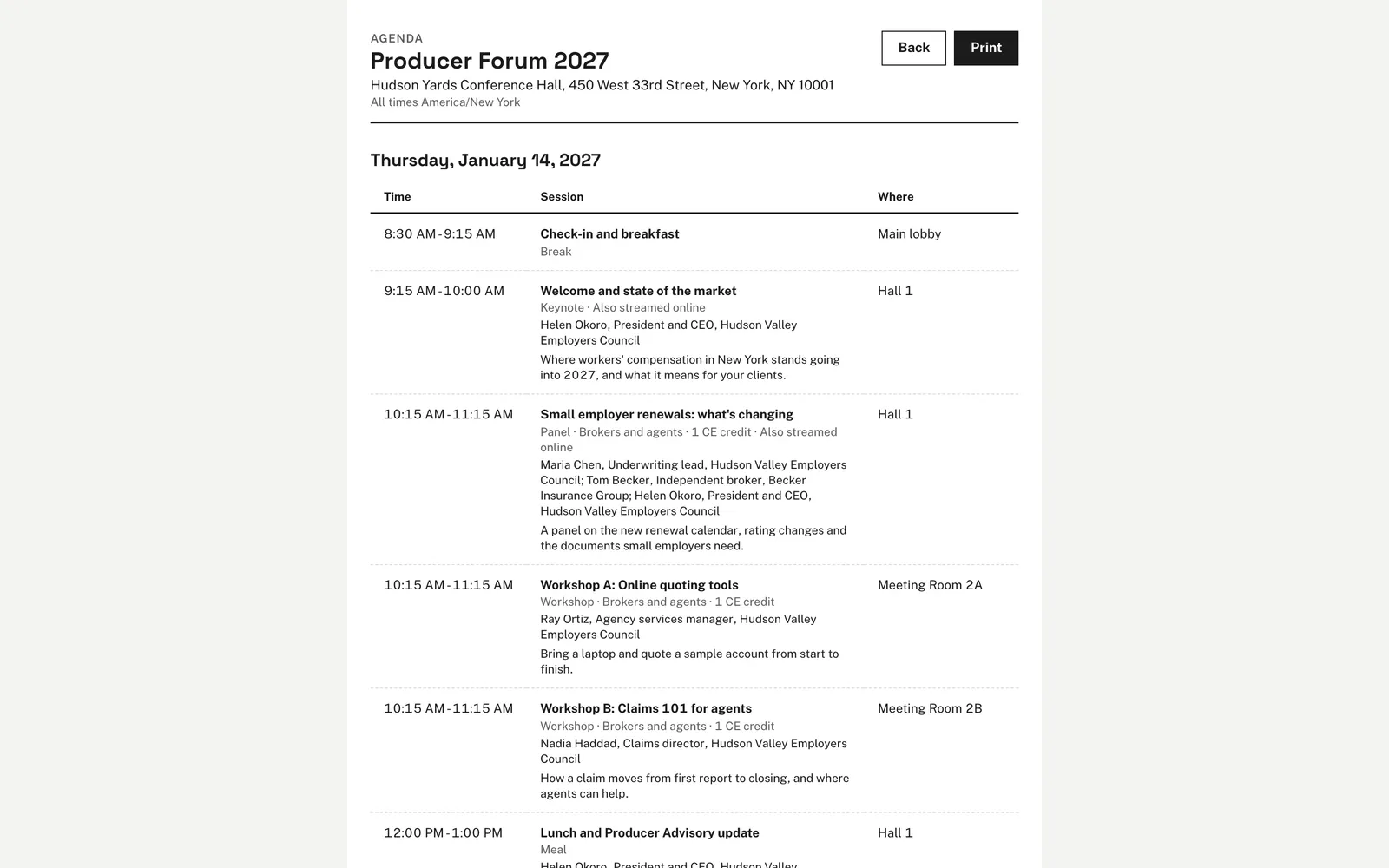
Choose Print for a printable agenda: one table per day with times, sessions, speakers and places, sized for letter paper. Use your browser's print command, or save it as a PDF.
Cloning and changing the venue
When you clone an event, its agenda is copied with it. Sessions keep their local time of day on the copy's date and their speakers, and are placed in the room of the same name at the copy's venue. A session whose room the new venue does not have keeps the room's name as its "Where".
Moving an event to another venue places its sessions the same way. A session whose "Where" names a room of the new venue is put in that room, so a session that lost its room on one move gets it back when the event moves to a venue that has it.
Who can use it
Owners and admins add, change, import and delete sessions and edit speakers. Staff see the agenda, its warnings and the printable agenda, but cannot change them.
Limits
- Up to 300 sessions per event, 20 speakers per session and 200 rows per import.
- Speaker photos are Coming soon.
- Sessions are placed with the form; dragging them on the grid is Coming soon.
From an AI assistant
get_agendawith{ eventId }: the venue's rooms, every session withstartsandendsas wall-clock time in the event's time zone, its room orlocationLabel, track, kind, streamed, sign-up, seats, CE credits and speakers, itssignups(seats,confirmedandwaitlisted, or null when it takes no sign-ups), and thewarnings(speaker_overlap,room_overlap,outside_event,over_capacity,near_capacity,signup_overlap), each with a sentence.create_sessionwith{ eventId, title, starts, ends }and any ofdescription,roomId,locationLabel,track,kind,streamed,signUp,capacity,ceCredits,speakerIdsornewSpeakers(owners and admins).startsandendsare"YYYY-MM-DDTHH:mm"in the event's time zone, for example2027-09-14T10:15.kindistalk,workshop,panel,break,mealorkeynote;signUpisnone,optionalorrequired.roomIdcomes from the rooms inget_agenda, andspeakerIdsfromlist_speakers, in the order they are listed.newSpeakersis a list of{ name, title?, company? }for people not on the speaker list yet: they are added with the session, afterspeakerIds, and a name already on the list is that speaker.update_sessionwith{ sessionId }and any of the fields above (owners and admins).speakerIdsreplaces the session's speakers, andnewSpeakersadds people after them.delete_sessionwith{ sessionId }(owners and admins): asks the person to confirm before deleting.end_session_signupwith{ sessionId }(owners and admins, needs the person's confirmation): turns off sign-up and cancels everyone's spot;update_sessionrefusessignUp: "none"while people are signed up.import_agendawith{ eventId, csv }(owners and admins): the CSV text described above, header row first. A bad row stops the import, and the error names each line.list_speakerswith{}: your organization's speakers by name, with title, company, bio, the language their title and bio are written in, and how many sessions each speaks in.upsert_speakerwith{ name }and any oftitle,company,bioorsourceLanguageadds a speaker; addspeakerIdto change one (owners and admins).
Find eventId with find_events. Every change is recorded in the activity log.