 Talli
Getting started with the Talli app
Sign in with your Talli account, choose the event and where you are standing, and start checking people in. This page also covers your account screen, signing out and switching events, and what happens when an organizer signs a phone out.
Install the app
On iPhone, Talli is coming to the App Store as Talli Events, free, in the United States. Once it is there, open the App Store on the iPhone, search for Talli Events and tap Get. Updates then arrive through the App Store, like any other app.
Until then, and to try a new version early, Talli reaches your iPhone through a TestFlight invitation.
- Open the invitation email on the iPhone and tap View in TestFlight (or Start testing).
- If TestFlight is not on the phone yet, install it from the App Store when it asks.
- In TestFlight, tap Install next to Talli.
If you did not get an invitation, ask the person who runs Talli for your organization to send one.
Sign in and choose your door
- Open Talli and tap I'm working the door.
- Sign in with the email and password of your Talli account.
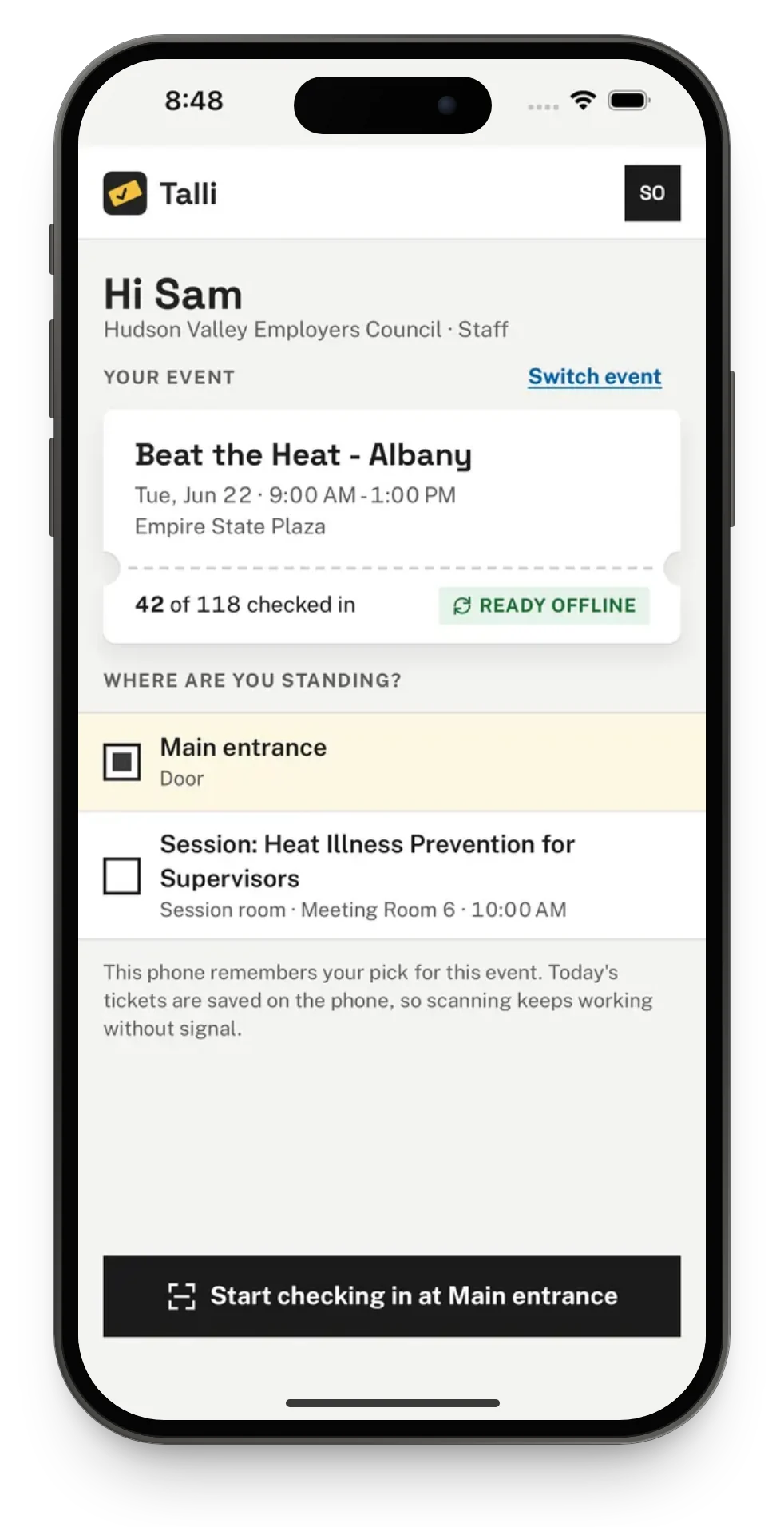
- Choose the event, then where you are standing, for example Main entrance.
- Tap Start checking in at your entry point.
When the event is chosen, the phone saves its attendee list, and the home screen says Ready offline. From then on the phone can check people in even with no signal. See Offline check-in and sync.
Your account
Tap your initials at the top right of the Event tab to open your account. It shows:
- Your name, your organization and your role in it, for example Hudson Valley Employers Council · Staff.
- Switch organization, when your Talli account works with more than one organization. Pick another one and tap Switch; the app then lists that organization's events.
- Open Talli on the web, which opens Talli in the phone's browser (Safari on iPhone), where organizers set up events, see who came and change their password.
- About Talli, with the app's version, its environment (for example Production) and the Talli address it talks to.
- Sign out, which asks before signing you out.
When you sign out, the phone forgets the attendee list it saved. Your choice of event and entry point stays, so signing in again opens the same door.
Sign out and switch events
The app does not let anyone sign out, or switch to another event or organization, while scans on the phone have not reached Talli. It first tries to send them; if that does not work, it says how many have not synced and offers Try again. Nothing waiting on the phone is ever deleted by signing out or switching.
If the sign-in expires while scans are waiting, the banner asks to sign in again, and the scans are sent once the same person is signed in.
A phone signed out by an organizer
An organizer can sign a lost or stolen phone out on the Devices page in Talli on the web, for good. See Devices and offline check-in. The app then signs out and says "This phone was signed out by an organizer." Scans that could not be sent from it are never dropped quietly: the message says how many there are, and they stay on the phone.
The phone reports in to Talli so organizers can see it; see Offline check-in and sync.
On Android
Talli for Android reaches your phone through a Google Play internal testing invitation.
- Open the invitation link on the Android phone, in the Google account the invitation was sent to.
- Tap Accept invite, then Download it on Google Play.
- On Talli's page in the Play Store, tap Install.
- Open Talli from the home screen or the app list.
If the link says the app is not available to you, ask the person who runs Talli for your organization to add your Google account. Updates arrive through Google Play, like any other app.
Signing in is the same as on iPhone: tap I'm working the door, then sign in with the email and password of your Talli account. Choosing the event and where you are standing, and the Ready offline list, work the same way too.
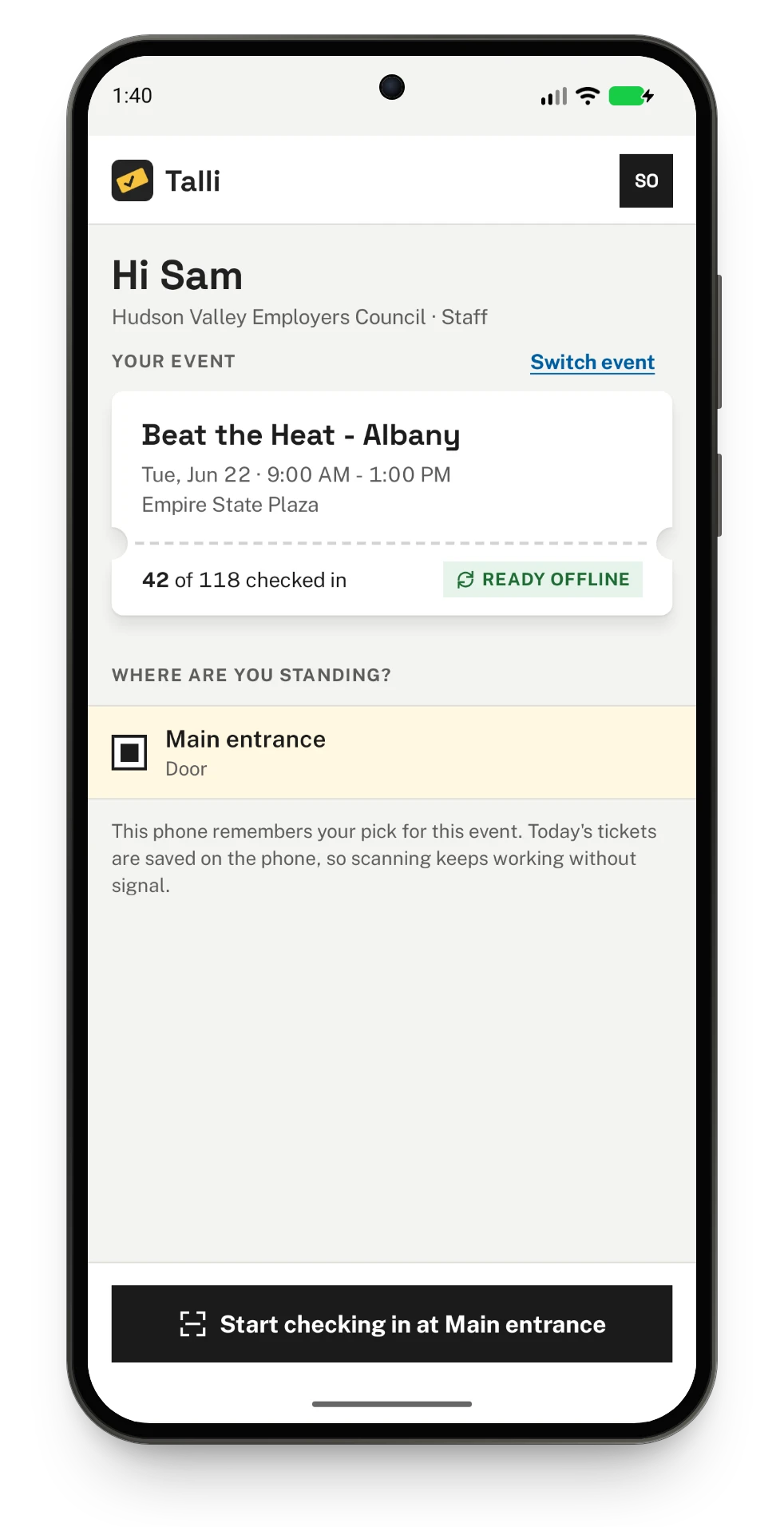
Your account screen has the same parts as on iPhone. Open Talli on the web opens Talli in the phone's default browser, for example Chrome. The Back gesture (or Back button) leaves About Talli, then the account screen.