 Talli
Docs / Communication
Emails and contact lists
Each event has a timeline of emails: invitations to your contact lists, reminders before the event, follow-ups after it, and announcements. Talli sends each one at its time, to each person in their own language, with their own name, ticket link and session picks filled in. The confirmation and waitlist emails are part of the same timeline and go out on their own when someone signs up.
Open an event's emails
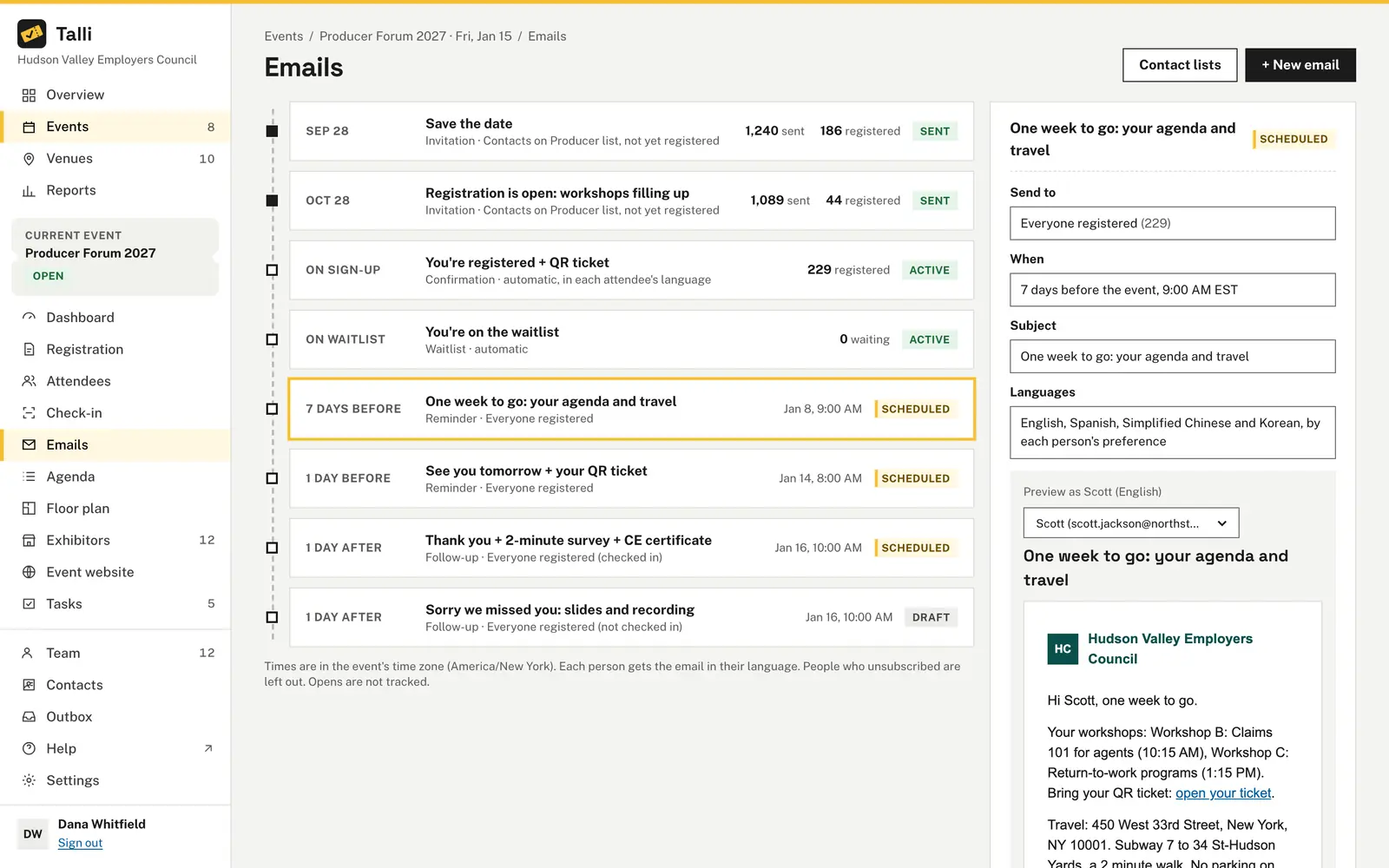
Open an event and choose Emails in the left sidebar. The timeline lists the event's emails in the order they go out:
- Emails already sent, with when they went out, how many people they were sent to and, for invitations and announcements, how many of those people registered after.
- On sign-up: the confirmation email with the QR ticket, sent to each person who registers.
- On waitlist: the waitlist email, sent to each person who joins the waitlist.
- Emails still to come, with when they go out ("7 days before", "1 day after") and their status: Draft or Scheduled.
Choose an email to see it in the panel on the right: who it goes to, when, its subject, its languages and a preview.
Write an email
Owners and admins:
- Choose + New email.
- Fill in the side panel.
- Choose Save draft. The email is saved as a draft and nothing is sent.
| Field | Required | Notes |
|---|---|---|
| Kind | Yes | Invitation, Reminder, Follow-up or Announcement. Each kind starts with its own audience and time. |
| Name | No | For your team's timeline, up to 120 characters. Without one, the subject is used. |
| Subject | Yes | Up to 200 characters. May use merge tags. |
| Yes | Up to 20,000 characters, in Markdown: paragraphs, **bold**, *italic*, [link text](https://...) and lists with - or 1.. Anything else is shown as text. | |
| Send to | Yes | People registered for the event, or contact lists (see below). |
| When | Yes | A number of days before or after the event's start or end at a time of day, or a date and time. Times are in the event's time zone. |
Choose Write with AI to draft the subject and the email in your tone, as for an event description (see Write with AI). The draft is checked against the event's facts before you keep it. For an email already saved, keeping the draft saves it; for a new one, it fills in the fields and you save the draft.
Choose Edit email in the panel to change a draft or a scheduled email. A scheduled email stays scheduled, at its new time if you changed it. Sent emails cannot be changed.
Merge tags
Write a tag in the subject or the email and each person gets their own value:
| Tag | Becomes |
|---|---|
{{firstName}} | The person's first name. |
{{eventTitle}} | The event's title, in the person's language. |
{{eventDate}} | The event's date, written in the person's language, for example "Tuesday, June 22, 2027". |
{{eventTime}} | The event's hours with its time zone, for example "9:00 AM - 1:00 PM EDT". |
{{venueName}} | The venue's name. |
{{venueDirections}} | The venue's address, transit and parking notes. |
{{ticketLink}} | A link to the person's ticket, opening in their language. Empty for contacts who have not registered. |
{{registerLink}} | A link to the event's registration page, in the person's language. |
{{sessions}} | The sessions the person signed up for, with their times. Empty for people with no picks. |
{{surveyLink}} | Each person's link to the event's open survey, in their language. When several are open, the one opened last. On a named survey it carries the person's ticket and is given only to confirmed attendees; on an anonymous survey it never carries a ticket and everyone gets it. Empty while no survey is open, and on a named survey for contacts and people on the waitlist. The editor warns you when that would happen. |
A link can go to a web address, an email address (mailto:) or {{ticketLink}}, {{registerLink}} or {{surveyLink}}; any other tag in a link's address is shown as text, so a person's own values never become a link. A link whose tag is empty for someone is shown to them as plain text. Talli refuses to save an email with a tag it does not know, for example {{event_date}}, and names it.
Who gets it
- People registered: confirmed people, waitlisted people or both. You can narrow it to some attendee types, some languages, or only people who checked in (or did not), for example a "Sorry we missed you" follow-up.
- Contact lists: one or more of your organization's lists. Someone on several lists gets the email once. Leave out people already registered is on by default, so an invitation never goes to someone who already has a ticket.
The audience is counted again when the email goes out, so people who register in the meantime get a reminder too.
Draft a reminder for confirmed attendees of the Spring Safety Seminar, sent 7 days before it starts at 9:00, with the date, the venue and a link to their ticket.Select the prompt and copy it into Claude or ChatGPT connected to Talli. Uses draft_email. Connect an assistant
Preview and test
The panel previews the email as one real person of its audience would get it, with their name, ticket link and sessions, in their language. Choose another person in Preview as to see theirs. Before anyone is in the audience, the preview uses your name.
Choose Send a test to me to send it to your own address only, with "Test:" before the subject. Nobody else is emailed and the email's status does not change.
Preview the reminder for the Spring Safety Seminar as one of the attendees who registered in Spanish, then send me a test.Select the prompt and copy it into Claude or ChatGPT connected to Talli. Uses list_campaigns, preview_campaign, send_test_email. Connect an assistant
Schedule or send
- Schedule asks first, naming how many people it goes to, when and in which languages, for example "It goes to 238 people on Thu, Jan 7, 9:00 AM EST, in each person's language. You can cancel it until then." The time must be in the future, and must exist that day: a time in the hour the clocks skip in spring is refused.
- Send now asks first and sends right away. It cannot be undone. A large audience starts at once and finishes within a few minutes.
- An email that would reach nobody (no contact list chosen, an empty list, or everyone unsubscribed) is refused. A reminder to registrants can still be scheduled before anyone registers: everyone registered by its time gets it.
- Cancel sending (or Cancel draft) stops a scheduled email or a draft. Nobody is emailed, and you can edit it and schedule it again later.
Talli checks for emails to send every 5 minutes, so a scheduled email goes out within 5 minutes of its time. A large audience goes out over a few runs; the email shows Sending until everyone has it. If a run stops part way, the next run carries on where it stopped. Only someone whose email was being handed over at the very moment a run stopped could get it twice.
When the event's date or time changes, scheduled emails timed from the event ("7 days before") move with it. If the new time puts a scheduled email in the past, Talli asks before saving and moves that email back to draft, so it never goes out by surprise.
Cancelling the event cancels its scheduled invitations, reminders and follow-ups, and stops one that is going out. Announcements still go, so you can tell people.
Schedule the reminder for the Spring Safety Seminar as planned.Select the prompt and copy it into Claude or ChatGPT connected to Talli. Uses schedule_campaign. Connect an assistant
Translation
Each person gets the email in the language they registered in, or a contact's language from your list, when the event offers it; otherwise in the event's own language. The subject and the email are translated automatically into the event's languages when you save them, and your team can review them on the event's Languages tab like the rest of the event's text (see Languages and translation).
The confirmation and waitlist emails use Talli's wording until you reword them, and Talli's wording is translated into every language already. Reword them with Edit email; your words are then translated like any other email.
Unsubscribe
Every email from the timeline ends with a link to unsubscribe from your organization's event emails, and tells email apps how to unsubscribe in one click. Opening the link shows the address and an Unsubscribe button, in the person's language; only the button unsubscribes, so a mail scanner that opens links unsubscribes nobody. Unsubscribing again changes nothing. An email app's one-click unsubscribe works too. People who unsubscribed are left out of every later invitation, reminder, follow-up and announcement of your organization, and the confirmation before scheduling says how many. Tickets and confirmations of events they register for still reach them.
Contact lists
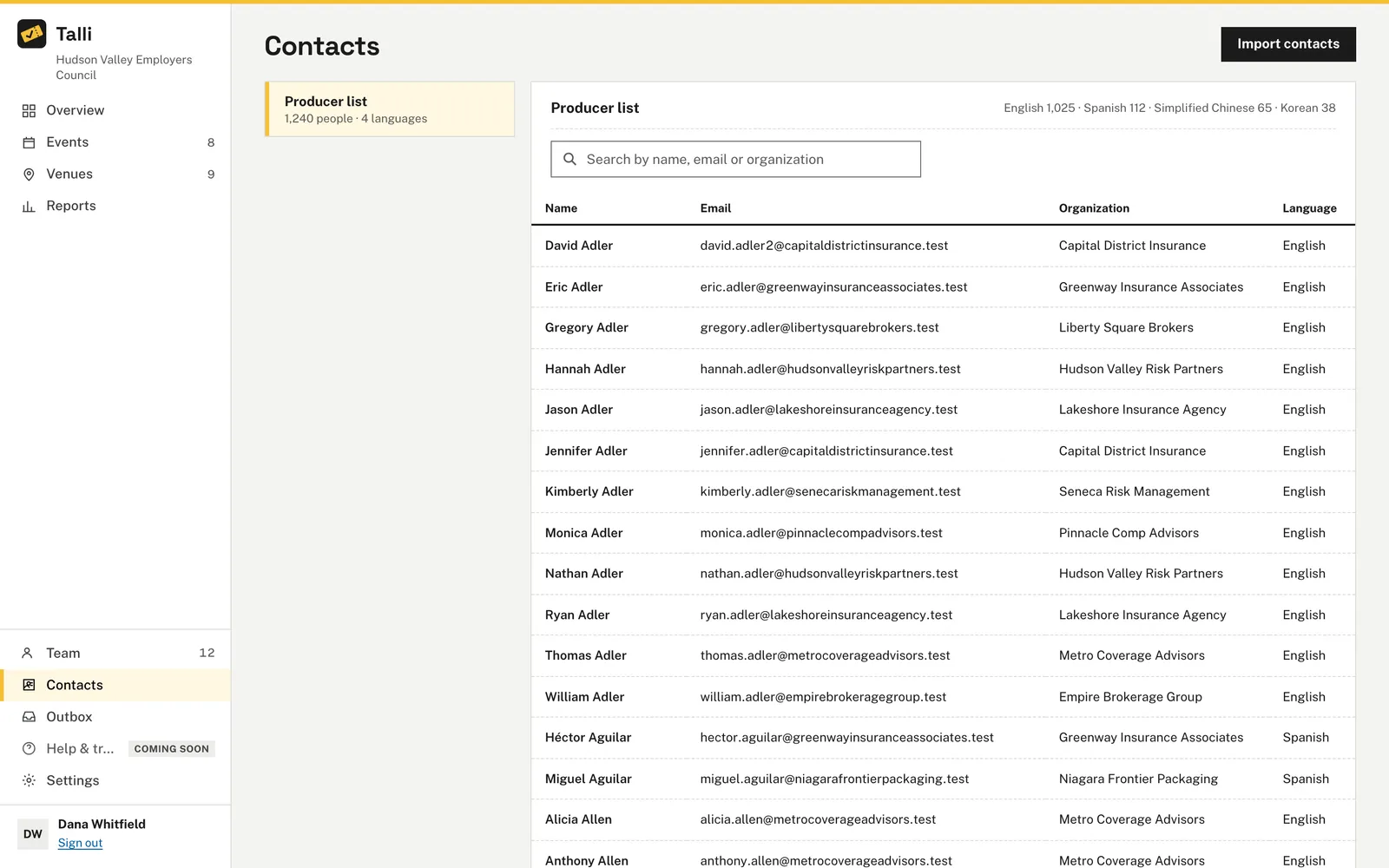
Choose Contacts in the sidebar to see your organization's contact lists: the people you invite to your events. Each list shows how many people it has and their languages, and a table of its people that you can search by name, email or organization.
To add people from a spreadsheet:
- Choose Import contacts.
- Pick a list, or A new list and name it.
- Choose a CSV file, or paste the rows.
- Choose Import.
The first row names the columns: email is required, and first name, last name, language and organization are used when present (name works for a full name). A language can be a tag such as es or a name such as Spanish or Español.
- Someone already on the list is updated with the file's name, language and organization, never added twice.
- An email that appears twice in the file is imported once, from its first row.
- Rows without a valid email are left out. Talli lists the rows it left out, with their line numbers.
- An unknown language is set to English, and Talli says so.
Who can use it
- Owners and admins write, schedule, send and cancel emails, send tests, and manage contact lists.
- Staff can see an event's emails and their results, but not the editor, previews or contact lists.
- Everyone sees the Emails tab of Reports (see Dashboard, overview and reports).
Limits and edge cases
- One contact import takes up to 5,000 people and a file up to 1 MB.
- List names are up to 80 characters and unique in your organization.
- A cancelled event can only send announcements; cancelling it stops its other emails.
- Opens and clicks are not tracked: Talli adds no tracking to emails. "Registered after" counts people emailed who registered for the event later with the same address, not cancelled.
- Talli does not deliver email outside Talli yet. Every email lands in the Outbox, one per person, exactly as they would receive it.
- Cloning an event copies its emails as drafts (see Cloning events).
Coming soon
- Removing people from a contact list, and deleting lists.
- Delivery to real inboxes.
From an AI assistant
list_campaignswith{ eventId }: the event's emails in timeline order withkind,status,audienceLabel,when,at,recipientsand, once sent,statswithsentandregisteredAfter.draft_emailwith{ eventId, kind, subject, body, name?, audience?, schedule? }(owners and admins): creates a draft; nothing is sent.kindisinvitation,reminder,follow_uporannouncement.audienceis{ source: "registrants", statuses: ["confirmed"], ticketTypeIds?, languages?, checkedIn? }or{ source: "contacts", listIds, excludeRegistered }.scheduleis{ type: "relative", days: -7, time: "09:00", anchor: "start" }or{ type: "at", at: "2027-06-15T09:00" }in the event's time zone.update_campaignwith{ campaignId }and any ofname,subject,body,audienceorschedule(owners and admins); the built-in confirmation and waitlist emails takesubjectandbodyonly.preview_campaignwith{ campaignId, recipientEmail? }(owners and admins): the email as one person of the audience gets it, withsubject,html,textand the first people to preview as.send_test_emailwith{ campaignId, recipientEmail? }(owners and admins): sends the email to the person asking only.schedule_campaignwith{ campaignId, schedule? }(owners and admins, needs the person's confirmation): the question names how many people, when and in which languages.send_campaign_nowwith{ campaignId }(owners and admins, needs the person's confirmation).cancel_campaignwith{ campaignId }(owners and admins).get_campaign_statswith{ campaignId }:sentandregisteredAfter.get_email_reportwith{ from, to }: dates asYYYY-MM-DD, each on the calendar of the email's event; every email sent in the period with its event,sentandregisteredAfter, plus totals.list_contact_listswith{ listId?, search?, limit?, offset? }(owners and admins): the lists with their size and languages; withlistId, a page of its people.import_contactswith{ csv, listId? | listName? }(owners and admins): returnsadded,updated,skippedand theproblemsby line.
Find eventId with find_events and campaignId with list_campaigns.