 Talli
Docs / Reports and AI
Dashboard, overview and reports
See how an event is going while it happens, how the whole organization is doing, and how your events performed over a period. Download an event's registrations or check-ins as a spreadsheet.
Watch an event live
- Open the event and choose Dashboard in the event's section of the menu.
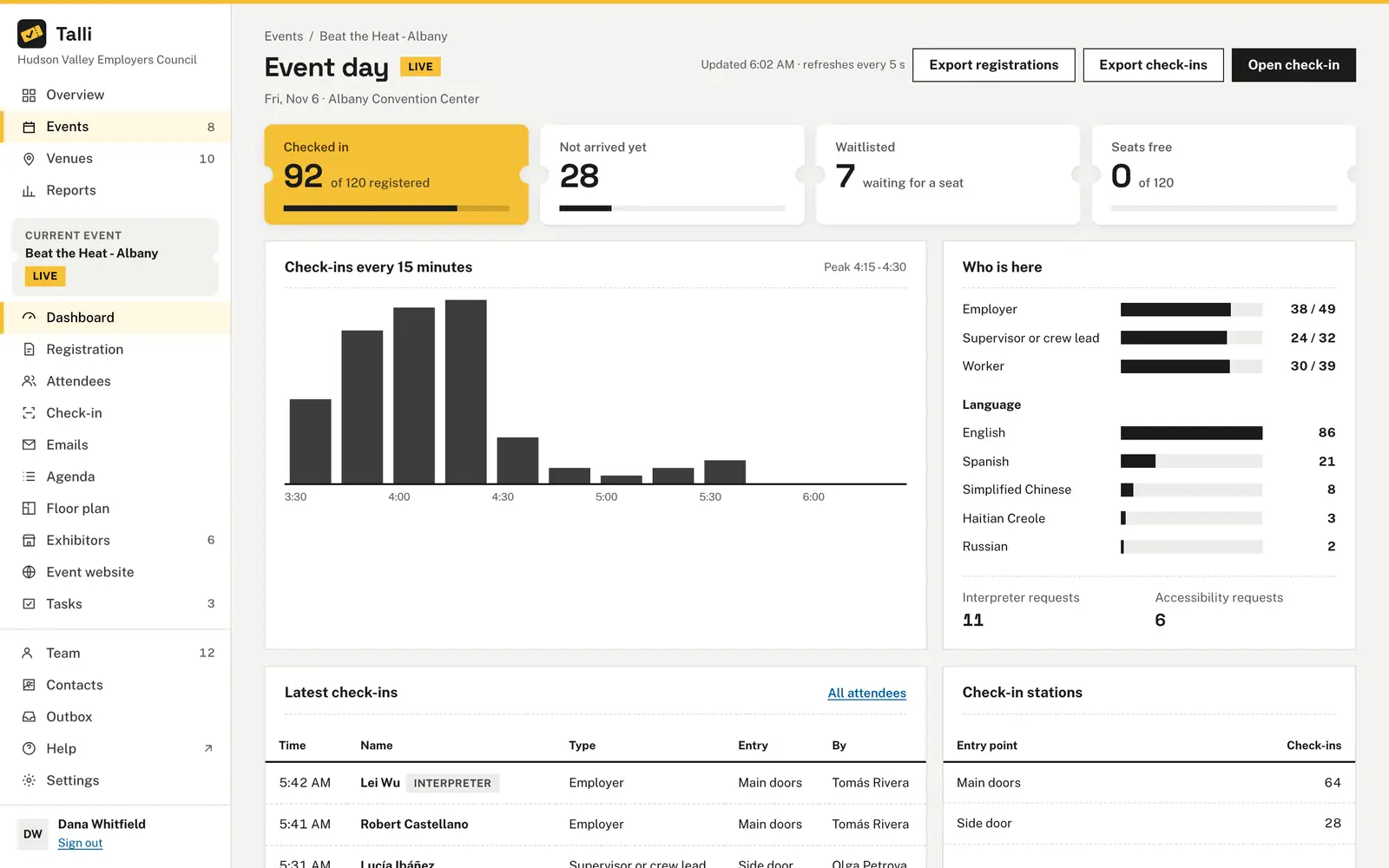
- While the event is running, the page says Event day with a Live badge and refreshes by itself every 5 seconds. It pauses while the browser tab is in the background and catches up when you come back. For an event that has not started it shows Dashboard and refreshes once when the event begins.
- Read the four cards at the top:
- Checked in (yellow): people checked in, out of everyone registered.
- Not arrived yet: registered people who have not been checked in.
- Waitlisted: people waiting for a seat.
- Seats free: capacity minus confirmed registrations.
- Check-ins every 15 minutes is a bar chart in the event's time zone, from the start of the event (or the first early arrival) to now. The latest interval is yellow while the event is live, and the heading names the busiest interval.
- Who is here shows each attendee type as checked in out of registered, each language people registered in, and how many asked for an interpreter or have accessibility needs.
- Latest check-ins lists the last 10 arrivals with time, name, attendee type, entry point and who scanned them. Check-in stations counts check-ins per entry point.
- Use Open check-in to scan tickets from the same page.
How many people are checked in at the Spring Safety Seminar right now, and how many asked for an interpreter?Select the prompt and copy it into Claude or ChatGPT connected to Talli. Uses get_event_stats. Connect an assistant
Export an event's registrations or check-ins
- On the event's dashboard choose Export registrations or Export check-ins.
- Read the question in the dialog and choose Download registrations (or Download check-ins). Exports contain contact details, so Talli always asks first.
- The file downloads right away and the page stays where it is.
The registrations file has one row per registration (confirmed, waitlisted and cancelled) with: first name, last name, email, organization, attendee type, language, status, ticket code, registered at, checked in at, interpreter needed, accessibility needs, whether they share details with exhibitors, and one column per custom registration question. The check-ins file has one row per check-in, oldest first: checked in at, name, email, organization, attendee type, entry point, who checked them in and ticket code. Times are in the event's time zone.
The files open correctly in Excel, Numbers and Google Sheets, including accented and non-Latin names. Cells that start with =, +, - or @ get a leading apostrophe so a spreadsheet never runs them as formulas.
Prepare a download of the registrations for the Spring Safety Seminar.Select the prompt and copy it into Claude or ChatGPT connected to Talli. Uses export_registrations. Connect an assistant
See the whole organization
- Choose Overview in the menu.
- A Live now card appears for each event that is running, with its check-in count and links to its dashboard and check-in.
- The cards show this year's events (with how many events are live and coming up, next year's included), confirmed registrations across the open events (published and not over yet, whatever their year) against their seats, the waitlist and the share of people who registered in a language other than the event's own.
- Upcoming events lists what is coming (drafts included), Registrations by region compares regions this year, and Needs attention flags full events with a waitlist, events still in draft and events with interpreter requests.
Run a report
- Choose Reports in the menu.
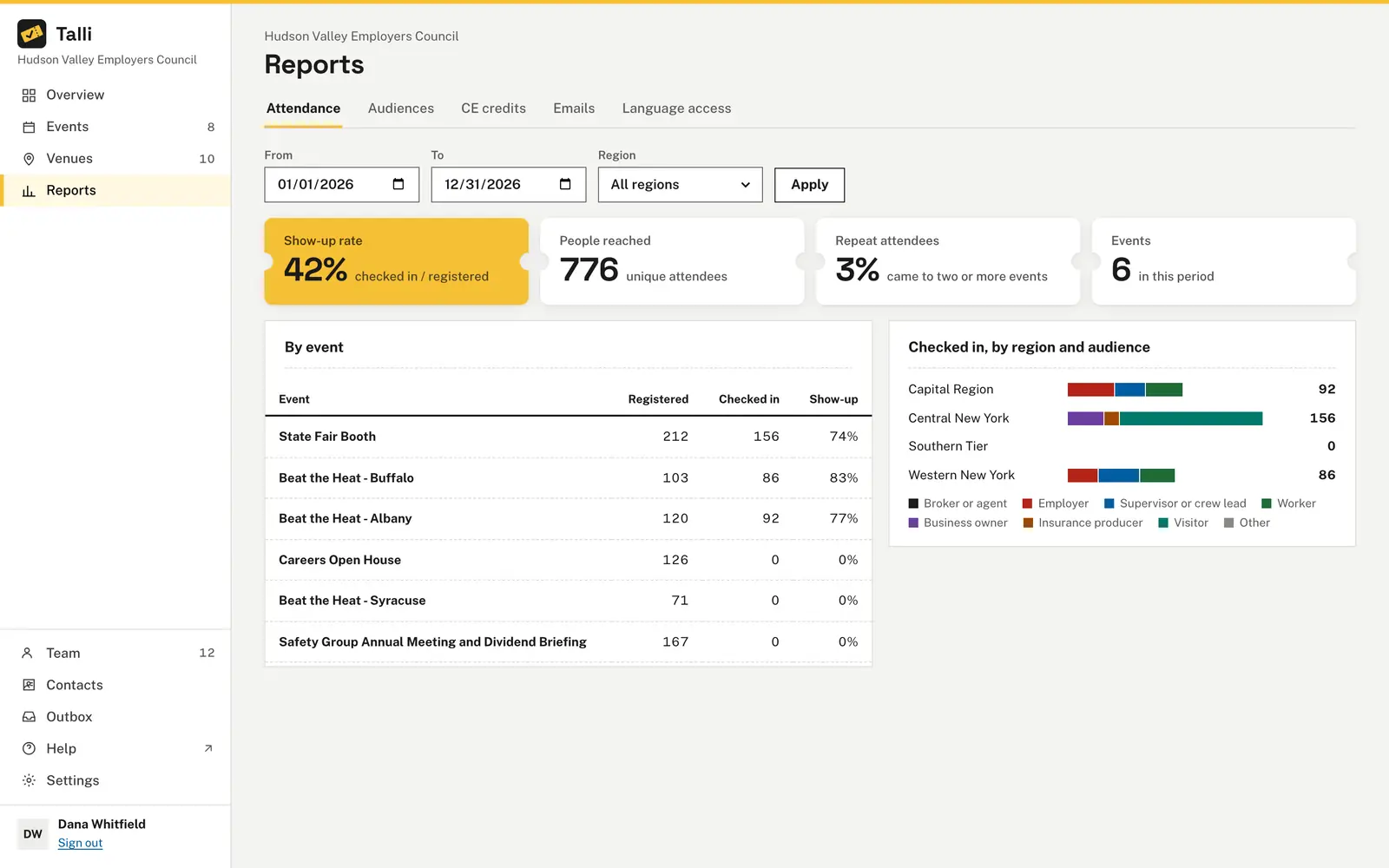
- Set From and To (the default is the current calendar year) and, if you like, a Region, then choose Apply. The filters stay when you switch tabs.
- Pick a tab:
- Attendance: show-up rate (checked in out of registered), people reached (distinct email addresses), repeat attendees (people who registered for two or more events in the period), results by event, and check-ins by region and attendee type.
- Audiences: registered, checked in and show-up per attendee type.
- CE credits: credits issued, people credited and sessions, with each person's license number, event, sessions and credits. It counts sessions that start between the two dates in each event's own time zone, and owners and admins can download it with Export CSV; see Session sign-up and CE credits. The region filter does not apply to it.
- Emails: emails sent in the period, with how many people each went to and how many of them registered after, and the totals; see Emails and contact lists. It counts each email on the day it went out where its event is, and the region filter does not apply to it.
- Language access: registrations per language, the share in another language than the event's own, and interpreter requests.
Reports count published and closed events that start between the two dates (last day included), counting each event on the calendar day where it happens, and only confirmed registrations. Drafts and cancelled events are left out.
Compare show-up rates by event for January through June 2027, and list registrations per language.Select the prompt and copy it into Claude or ChatGPT connected to Talli. Uses get_org_report. Connect an assistant
Who can use it
- Everyone in the organization (owners, admins and staff) can see the dashboard, the overview and the reports.
- Owners and admins can export registrations, check-ins and CE credits. Staff do not see the export buttons.
Limits and edge cases
- Download links last 10 minutes and work once; after that, export again. The link only works for the person who exported, signed in to the same organization.
- The chart shows at most the latest 3 days of 15-minute intervals.
- Counts of confirmed registrations include only confirmed people; waitlisted and cancelled people are never counted as registered or checked in.
- A person who registered for two events counts once in people reached.
- Reports use the date in each event's own time zone, so an evening event in New York counts on its own day, not the next UTC day.
- Every export is recorded in the activity log with who made it and how many rows it held.
Coming soon
- Scheduled monthly summaries by email.
- Comparing events side by side and saving report exports.
- Walk-in counts and per-device figures on the dashboard.
From an AI assistant
get_event_statswith{ eventId }: capacity, registered, waitlisted, checked in, counts per attendee type and language, interpreter and accessibility request counts, check-ins per 15 minutes, check-ins per entry point and the latest 10 check-ins.get_overviewwith{}: live and upcoming events, this year's totals, totals for the open events, registrations by region, language access and what needs attention.get_org_reportwith{ from, to, region? }: dates asYYYY-MM-DD; show-up rate, people reached, repeat attendee rate, results by event, check-ins by region and attendee type, registrations per language and interpreter requests.export_registrationswith{ eventId }(owners and admins, needs the person's confirmation): returnsfilename,url,linkandrows. The person openslinkwhile signed in to Talli; it works once, for 10 minutes.export_check_inswith{ eventId }: the same for check-ins.get_email_reportwith{ from, to }: the Emails tab (see Emails and contact lists).get_credit_reportwith{ from, to, eventId? }andexport_credit_reportwith the same: the CE credits report and its spreadsheet (see Session sign-up and CE credits).
Exports prepared by an assistant leave out accessibility needs and any question marked sensitive, and the latest check-ins shown to an assistant hide accessibility needs, unless an owner allows assistants to see them; see AI assistants.