 Talli
Docs / Events
Languages and translation
Offer each event in any languages your attendees read, and Talli translates its registration page, attendee types, questions, tickets and emails automatically. Your team reviews and edits the translations side by side, and a glossary keeps names and approved wording right in every language.
Add languages to an event
- Open the event and choose the Registration tab, then Languages.
- Choose + Add language.
- Type a language's name or code (for example Haitian Creole or
ht) and pick it from the list. Any language works: if it is not in the list, type its code (for examplept-BRorsw) and choose Add. - Choose Save languages.
Talli starts translating right away, usually within a minute. The Languages tab shows each language filling up to 100% and refreshes itself for a few minutes while it works. If translating could not start, Talli says so when you save: choose Translate again a minute later. The language your event is written in stays the original; you can change it on the event's edit page.
To stop offering a language, remove it in the same dialog. It disappears from the public page at once; its translations are kept, so adding it back later brings your edits back too.
Offer the Spring Safety Seminar in Spanish, Simplified Chinese and Haitian Creole as well as English.Select the prompt and copy it into Claude or ChatGPT connected to Talli. Uses set_event_languages, get_language_coverage. Connect an assistant
What gets translated
- The event's title and description.
- Attendee type names.
- Registration questions (including reworded built-in questions) and their choices.
- The agenda's session titles and descriptions, and its speakers' titles and bios (see Agenda).
- The words of the registration page, the ticket page and the confirmation emails ("Register", "You're registered", and so on).
- The subject and text of the event's emails: invitations, reminders, follow-ups, announcements, and confirmation and waitlist emails you reworded (see Emails and contact lists). They appear on the Languages tab under Emails, and each person gets them in their language.
- The title, questions and choices of the event's surveys.
- Live booth pages of the event's exhibitors: heading, text and offer, translated when you approve them.
- The published event website: its headings, text, buttons and questions and answers, translated when you publish it.
- Comments attendees write in a survey in their own language, into the event's own language for your team. These are for the team only: they do not appear on the Languages tab, and the results show the original next to each translation.
Dates and times are written in the attendee's language from the event's data, never translated by AI. Venue names and addresses are shown as you wrote them.
Check the Languages tab
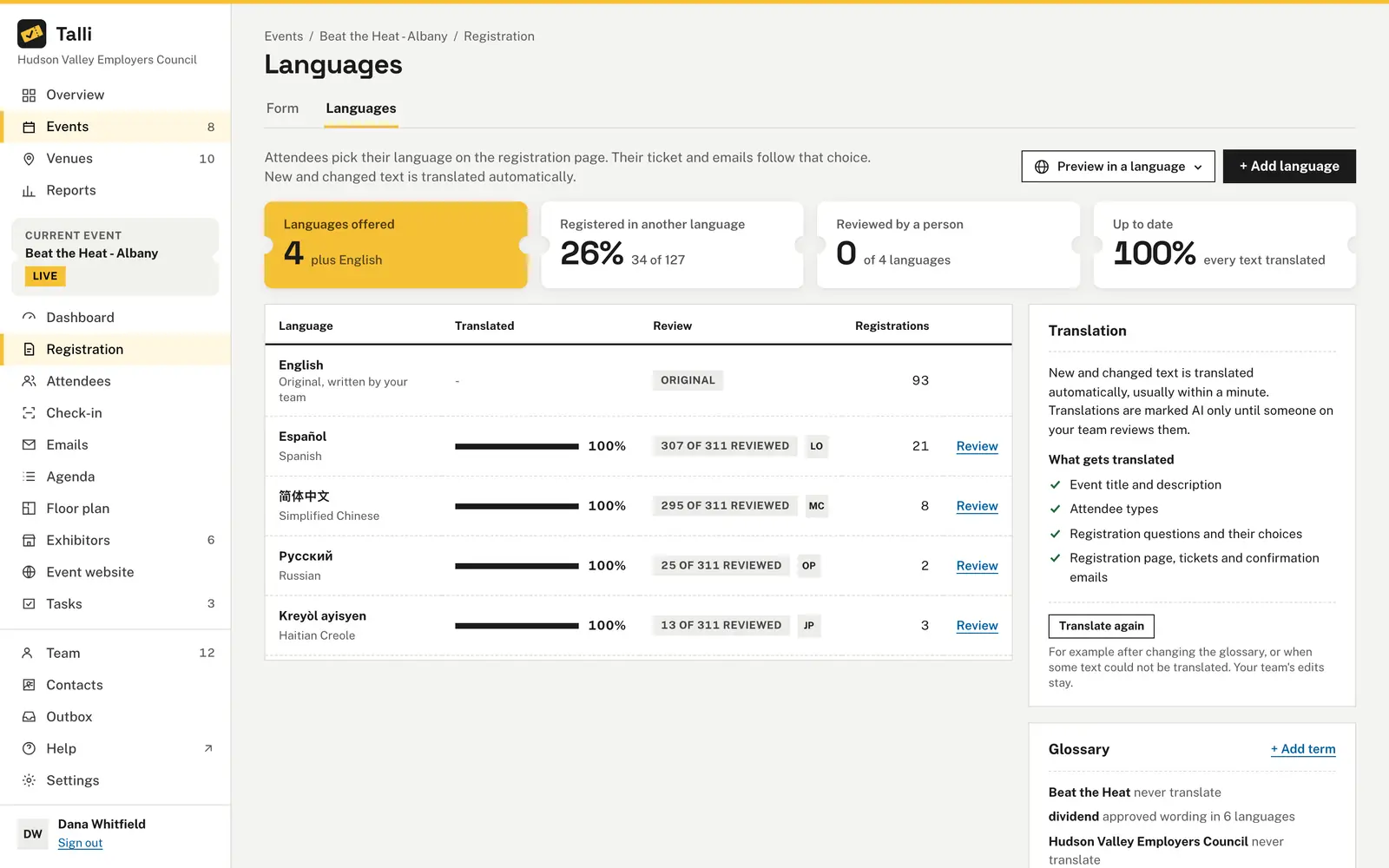
The four figures at the top show:
- Languages offered: how many languages the event is translated into, plus the one it is written in.
- Registered in another language: the share of registrations that chose a language other than the original.
- Reviewed by a person: how many languages have every translation checked or written by your team.
- Up to date: how much of the event's text is translated into every language right now, or how many texts could not be translated.
The table lists each language with how much is translated, its review state, the initials of the people who reviewed or wrote its translations, and how many people registered in it:
| Review state | Meaning |
|---|---|
| Original | The language the event is written in. |
| Translating | Some text is still being translated. |
| N could not be translated | Automatic translation failed for these texts; attendees see them in the original language. |
| AI only | Everything is translated automatically and nobody has checked it yet. |
| N of M reviewed | Your team has checked or written N of the M texts. |
| Reviewed | Your team has checked or written every text. |
| N need review | Your team edited these texts, then the original changed: check that the edit still fits. |
Review translations side by side
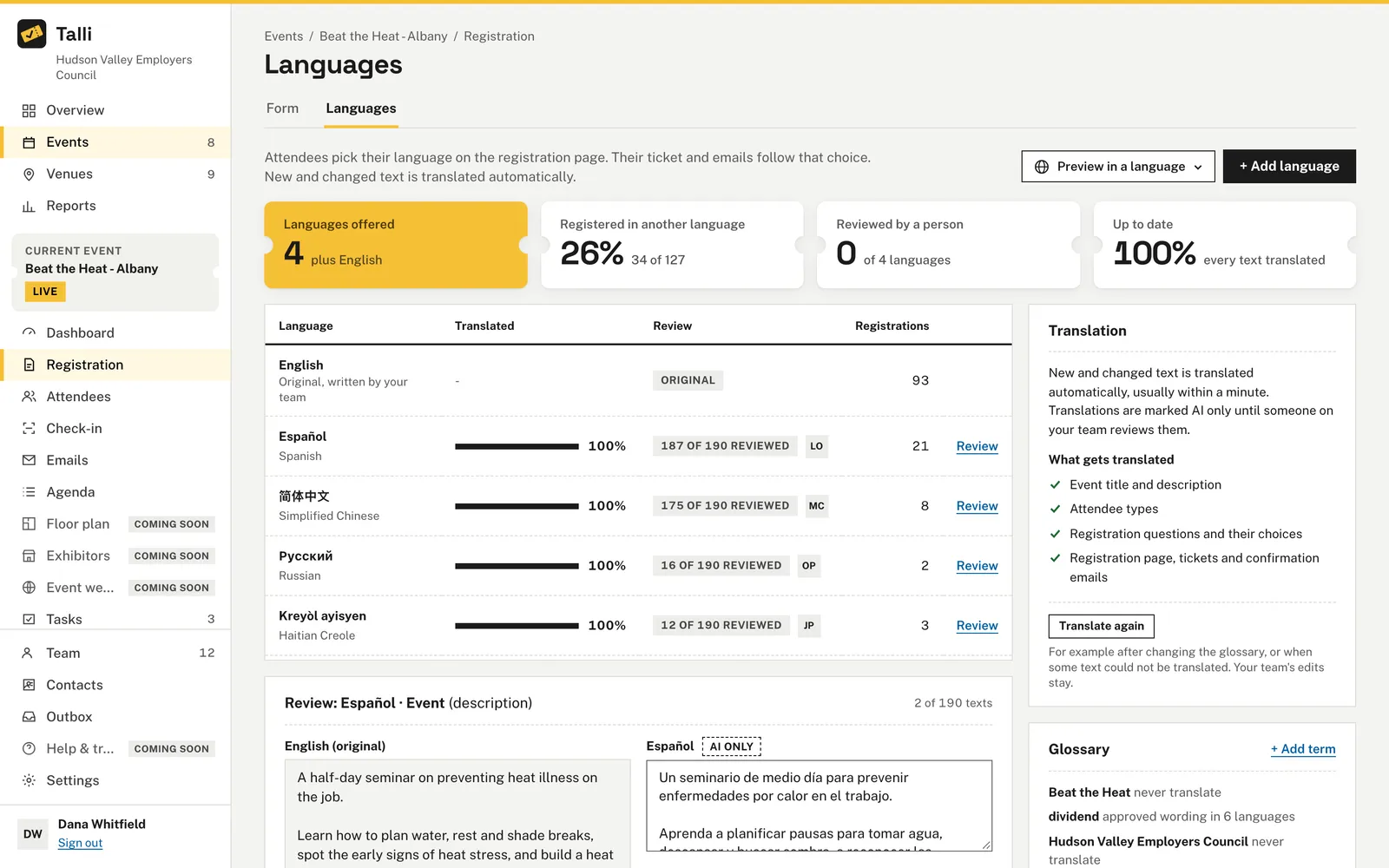
- On the Languages tab, choose Review next to a language.
- Talli opens the first text that needs a look, with the original on the left and the translation on the right.
- If the translation reads right, choose Looks right: it becomes Reviewed and the next text that needs a look opens.
- To change it, edit the text and choose Save edit: it becomes Edited, and the public page shows your wording at once.
- Use Previous and Next to move through every text.
Each text shows its status:
- AI only: translated automatically, not checked yet.
- Reviewed: checked by someone on your team.
- Edited: written by someone on your team.
- Needs review: edited by your team before the original text changed.
- Not translated: not translated yet, or automatic translation failed on it; you can write the translation yourself.
If you change your text in the original language, Talli translates it again automatically. Edited translations are never overwritten: they stay as your team wrote them and are marked Needs review. If you change the original back, the edit no longer needs review.
Show me the Spanish texts of the Spring Safety Seminar that still need review, next to the English originals.Select the prompt and copy it into Claude or ChatGPT connected to Talli. Uses find_translations. Connect an assistant
When text could not be translated
Now and then automatic translation fails on a text, for example when the translation service declines it or is unavailable for a while. Talli translates everything else and keeps what it translated. The language shows N could not be translated, and the Translation panel says Some text could not be translated. Attendees see those texts in the original language until they are translated.
To fix it, choose Translate again, or open Review and write the translation yourself. Changing the original text also tries again.
Translate again
- In the Translation panel, choose Translate again, for example after changing the glossary or when some text could not be translated.
- Talli asks you to confirm, naming the event and its languages.
- Choose Translate again in the dialog.
The event's own text (its title, description, attendee types, questions and choices) is translated again into every language. Translations that were AI only or Reviewed are replaced by new automatic translations, so reviewed ones go back to AI only. Your team's edits are never replaced. The registration page and email words your events share are not translated again, so their reviews stay.
Set your organization's languages and glossary
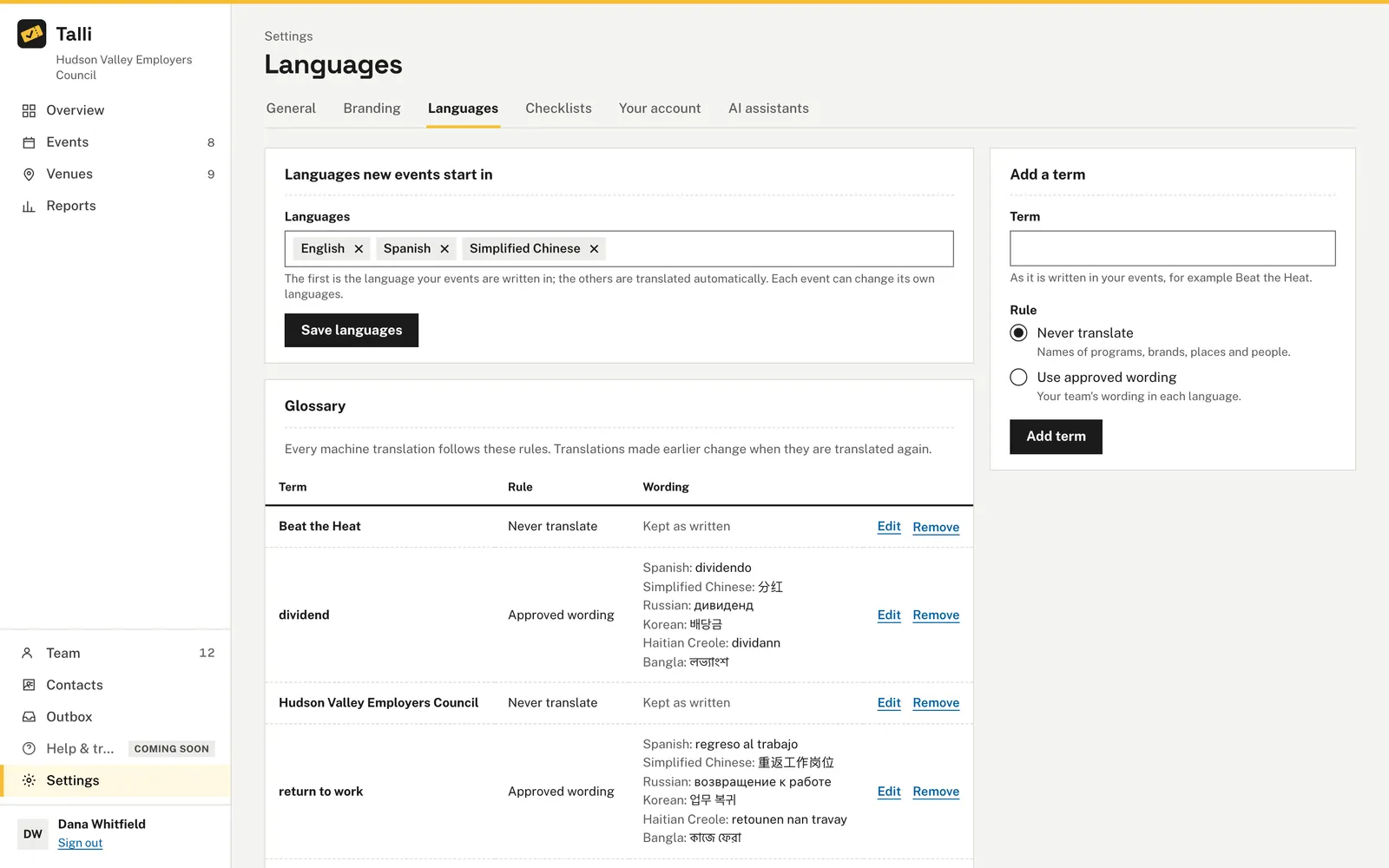
- Go to Settings, then Languages.
- Under Languages new events start in, choose the languages every new event starts with and choose Save languages. The first is the language your events are written in. Existing events keep their own languages.
- Under Add a term, write a term as it appears in your events and choose its rule:
- Never translate: names of programs, brands, places and people stay exactly as written (for example "Beat the Heat").
- Use approved wording: give your team's wording in each language (for example "Crédito de equipo" in Spanish).
- Choose Add term.
Use Edit or Remove next to a term to change it. Every new automatic translation follows the glossary. Translations made before a glossary change keep their wording until they are translated again: choose Translate again on the event's Languages tab.
Add a glossary term so our organization's name is never translated.Select the prompt and copy it into Claude or ChatGPT connected to Talli. Uses list_glossary, upsert_glossary_term. Connect an assistant
What attendees see
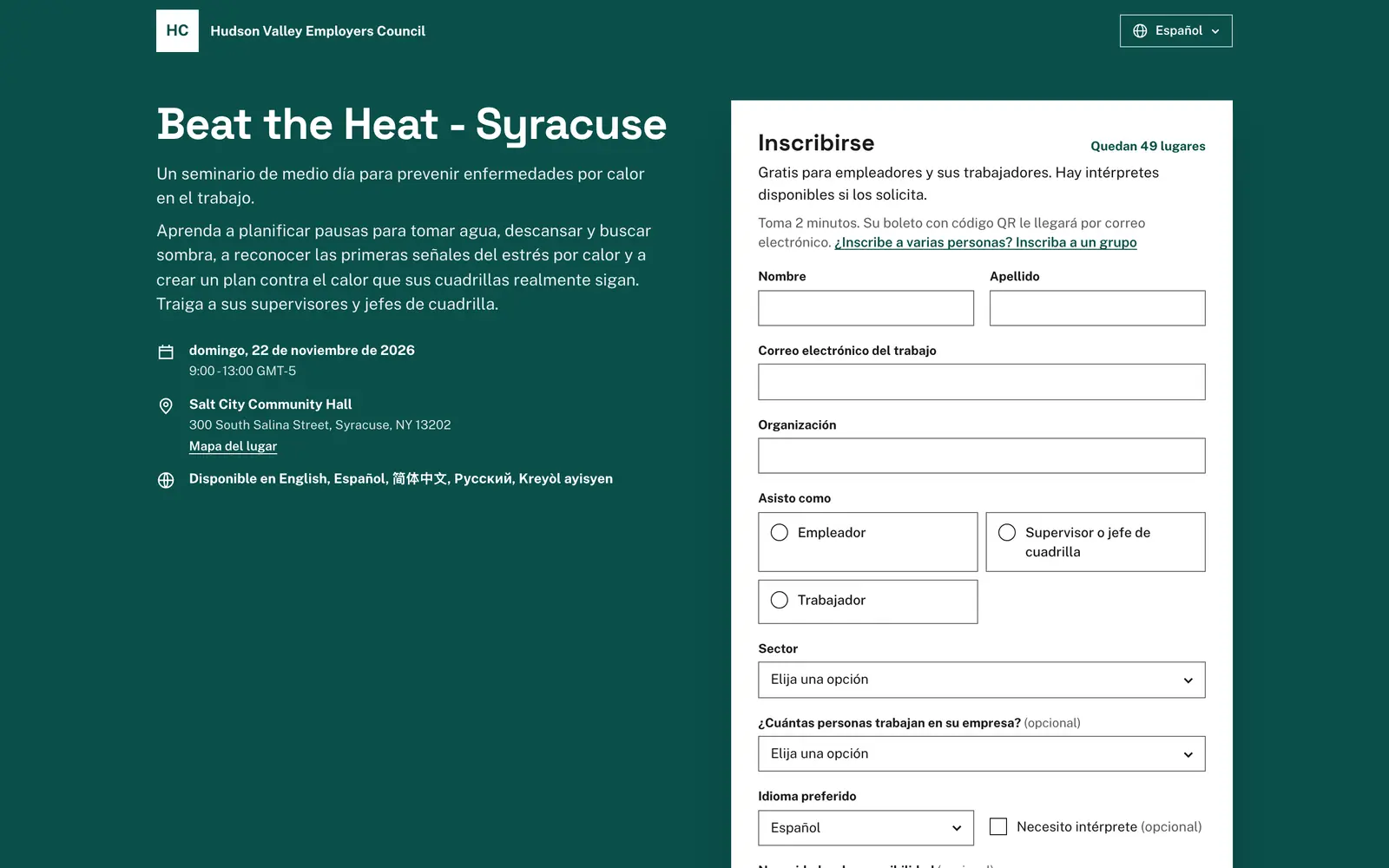
Attendees pick their language from the menu at the top of the registration page or the links at the bottom, or open a link with ?lang= and the language code (for example ?lang=ht). A language the event does not offer opens the page in the event's original language. Languages written right to left, such as Arabic, Hebrew, Persian and Urdu, are laid out right to left. When some of the text on the page is an automatic translation nobody has reviewed, the page shows a small "Translated automatically" note with a link to the original. The ticket page and the confirmation email use the language the attendee registered in.
Who can use it
Owners and admins add and remove languages, review and edit translations, translate again, and manage the default languages and the glossary. Staff can see the Languages tabs, the coverage and every translation, but cannot change them.
Limits and edge cases
- An event can be translated into up to 30 languages; your organization can start new events in up to 30.
- The glossary holds up to 500 terms of up to 100 characters each, and each term is unique regardless of capitals.
- A translation is up to 10,000 characters.
- While a text is being translated again after a change, the public page shows the original text in its place, never an outdated translation. Edited translations stay on the public page even when they need review.
- Talli's own page words (buttons, messages, email text) are translated once per language for your whole organization: a review or edit of them on one event applies to all your events. Translate again on an event never changes them.
- The Languages tab stops refreshing itself after a few minutes; reload the page to see later progress.
- Copying an event copies its translations with their status; the copy's title is translated anew because it names the new venue.
- Removing a question, a choice or an attendee type removes its translations.
Coming soon
- Choosing which parts of an event are translated automatically.
- Translating venue directions and accessibility notes.
From an AI assistant
get_language_coveragewith{ eventId }: for each language,total,translated,machine(AI only),reviewed,edited,stale(needs review),failed(could not be translated),reviewers({ id, name }of the people who reviewed or wrote its translations) andregistrations.set_event_languageswith{ eventId, targetLanguages, sourceLanguage? }(owners and admins):targetLanguagesis the full list of BCP 47 tags to translate into, for example["es", "zh-Hans", "ht"]; translation starts in the background, andqueuedsays whether it started.find_translationswith{ eventId, language, status? }: every text in that language next to its original, withentityType,entityId,field,status(missing,machine,reviewed,edited),staleandfailed;statusfilters bymissing,machine,reviewed,edited,staleorfailed.update_translationwith{ eventId, language, entityType, entityId, field, text }(owners and admins): saves your wording asedited.mark_translations_reviewedwith{ eventId, language, items? }(owners and admins):itemsis a list of{ entityType, entityId, field }; without it, every translated text in the language is marked reviewed.regenerate_translationswith{ eventId, language? }(owners and admins): translates the event's own text again and retries text that could not be translated, never touching edited text or the shared page words; assistants ask you before running it, because reviewed translations go back to AI only.list_glossarywith{}: the terms and the languages your organization translates into.upsert_glossary_termwith{ term, rule, translations?, id? }(owners and admins):ruleiskeeportranslate;translationsmaps a BCP 47 tag to the approved wording.delete_glossary_termwith{ id }(owners and admins).set_default_languageswith{ languages }(owners and admins): the languages new events start with.