 Talli
Docs / Planning and websites
Tasks and checklists
Each event has a board of tasks your team moves from To do to Done, and checklists made from your organization's templates. Events offered in more than one language get the Multilingual event checklist by themselves.
Open the task board
- Open an event and choose Tasks in the left sidebar. The number next to it is how many of the event's tasks are not done yet.
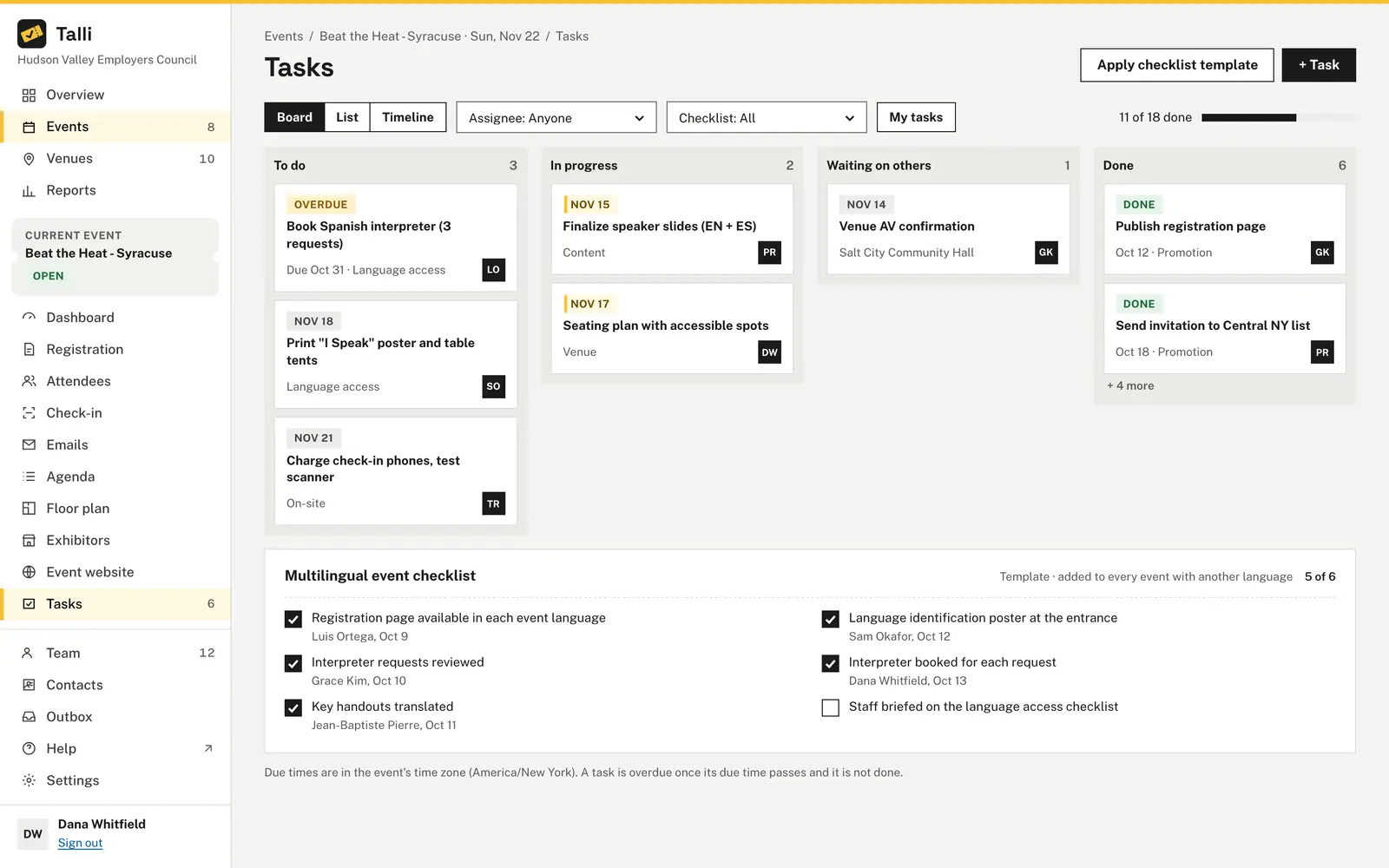
- The board shows four columns: To do, In progress, Waiting on others and Done. Each card shows the task's title, category, due time and who does it. A task whose due time has passed and that is not done is marked Overdue.
- The header shows the event's progress, for example "11 of 18 done". It counts the tasks and every check on the event's checklists.
Choose List for a table of every task, or Timeline for the tasks in order of their due time, with today and the event day marked. Tasks without a due time are listed under No due date.
Add a task
- Choose + Task.
- Fill in the side panel.
- Choose Add task. The task appears at the end of its column.
| Field | Required | Notes |
|---|---|---|
| Title | Yes | Up to 200 characters, for example "Book Spanish interpreter (3 requests)". |
| Status | No | The column it starts in. New tasks start in To do. |
| Assignee | No | Someone on your team, or nobody yet. |
| Due | No | A date and time in the event's time zone. |
| Category | No | A short label to group tasks by, for example "Logistics" or "Language access". Up to 60 characters. Talli suggests the categories the event already uses. |
| Notes | No | Details for whoever does it. Up to 4,000 characters. |
To change a task, choose its card, change the fields and choose Save task.
Add a task to the board of the Spring Safety Seminar: Confirm the interpreter, assigned to me, due April 7 at 5 PM.Select the prompt and copy it into Claude or ChatGPT connected to Talli. Uses create_task. Connect an assistant
Move a task
With a mouse:
- Drag the card to another column, or to another place in the same column.
- Let go. The move is saved at once.
With the keyboard:
- Press Tab until the card is focused.
- Press Space to pick it up.
- Press the arrow keys to move it: left and right change the column, up and down change its place in the column.
- Press Space to drop it, or Escape to put it back where it was.
Each step is read out by screen readers, for example "Book Spanish interpreter, In progress, position 1 of 2." Moving a task to Done records when it was completed; moving it out of Done clears that. You can also move a task by changing its Status in the side panel.
Find your tasks
- Choose My tasks to see only the tasks assigned to you. Choose it again to see everyone's.
- Or choose someone in Assignee, or Nobody yet for the tasks no one has taken.
Which tasks for the Spring Safety Seminar are overdue, and who are they assigned to?Select the prompt and copy it into Claude or ChatGPT connected to Talli. Uses find_tasks. Connect an assistant
Tick a checklist
Checklists sit below the board, each with its count, for example "5 of 6".
- Tick a check when it is done. Talli records who ticked it and when, and shows it under the check.
- Untick it to undo.
To narrow the page to one checklist, choose it in Checklist.
Add a checklist to an event
Owners and admins:
- Choose Apply checklist template.
- Choose Apply next to a template. Its checks are added to the event, all unticked.
Each template goes on an event once; a template already on the event shows Added.
Add our Venue walkthrough checklist to the Spring Safety Seminar.Select the prompt and copy it into Claude or ChatGPT connected to Talli. Uses list_checklist_templates, apply_checklist_template. Connect an assistant
Manage checklist templates
Owners and admins:
- Open Settings and choose Checklists.
- Choose + New template, or Edit next to a template.
- Enter a Name and the Items, one per line, in order.
- Tick Add it by itself to every new event to put the checklist on every event you create from now on.
- Choose Save template.
Changing a template does not change the checklists already on events.
The Multilingual event checklist
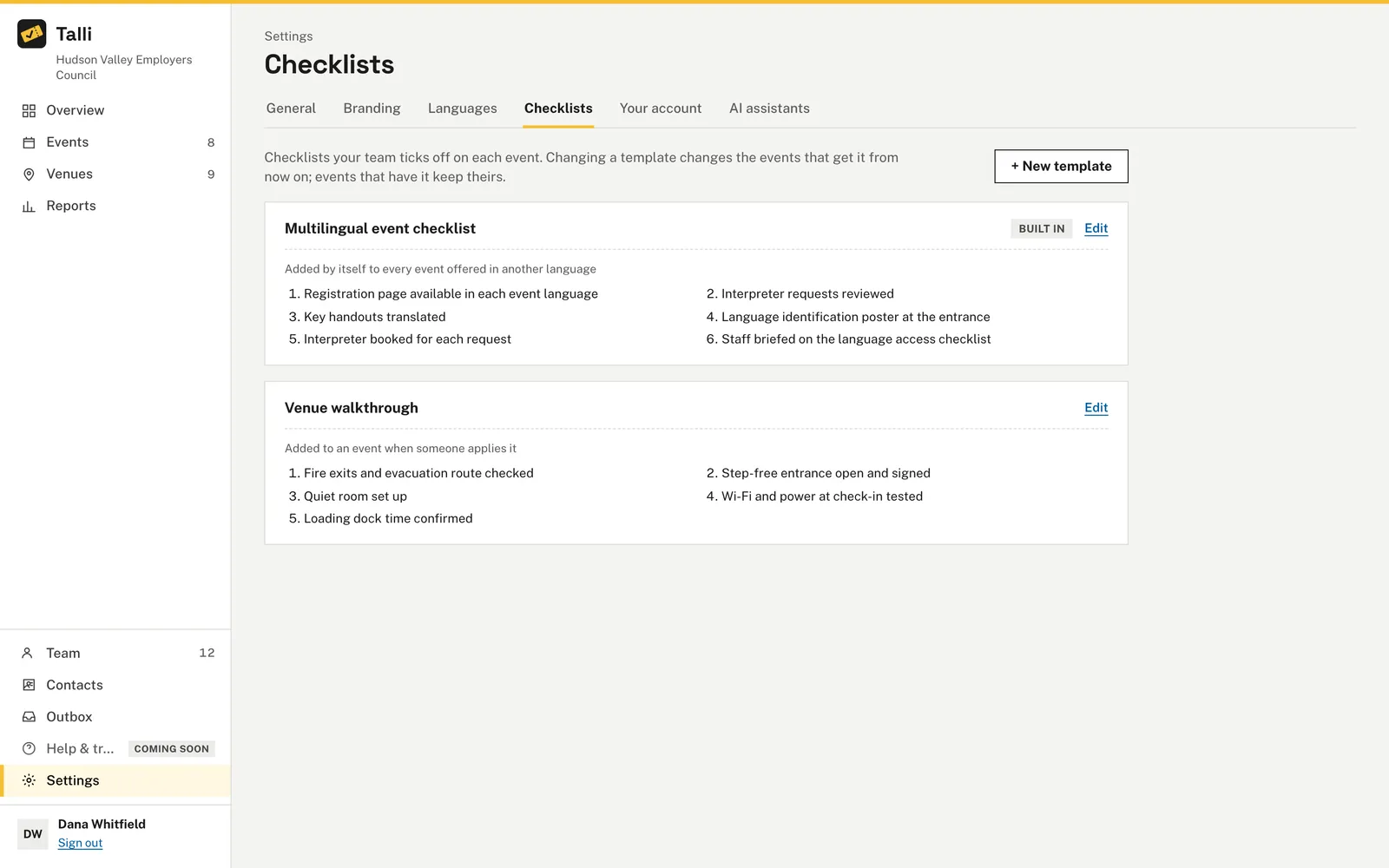
Every organization has the built-in Multilingual event checklist, with these checks:
- Registration page available in each event language
- Interpreter requests reviewed
- Key handouts translated
- Language identification poster at the entrance
- Interpreter booked for each request
- Staff briefed on the language access checklist
Talli adds it by itself to an event that offers at least one language besides its own: when the event is created with one, or the first time one is added to it. An event gets it once; removing and adding languages again does not add a second copy. Owners and admins can edit its items, or untick Add it by itself to every event offered in another language to stop adding it. It can still be applied by hand to any event.
Who can use it
Everyone on the team, including staff, can see the board, add, change and move tasks, and tick checks. Owners and admins can also delete tasks, apply checklist templates to an event, and add or change templates. When someone is removed from the team, their tasks become unassigned.
Limits and edge cases
- Task titles are up to 200 characters, notes up to 4,000 and categories up to 60.
- A template has up to 50 checks, each up to 200 characters. Blank lines are dropped.
- Due times are in the event's time zone, also when you work from another one.
- Deleting a task cannot be undone, and Talli asks first.
- Dragging cards needs a mouse or a pen. On a phone or tablet, open the card and change its Status.
- Without scripts running in the browser, everything still works with plain forms in the page: + Task, Open and Apply checklist template show their form above the board, each card has a Status list and a Save button to move it, and checklists have a Save checklist button that saves every box at once.
- When someone else deleted a task or check while you were looking at it, moving or ticking it shows a message, and the board shows what is saved.
- When you clone an event, its tasks and checklists are copied. Tasks start again in To do, due times move with the event's date, and checks are unticked.
Coming soon
- Reminders when a task is due.
- Tasks that repeat on every event in a series.
From an AI assistant
find_taskswith{ eventId }and any ofassignee,statusoroverdue: the event's tasks column by column in board order, each with title, notes, category, assignee, due time and whether it is overdue, plusmembers(the team, for assigning) andprogress(doneandtotalover the tasks and every check).assigneeis a user id frommembers,"me"or"none";statusistodo,in_progress,waitingordone.create_taskwith{ eventId, title }and any ofnotes,status,category,assigneeUserIdordue.dueis"YYYY-MM-DDTHH:mm"in the event's time zone, for example2027-06-10T17:00, or null for none.update_taskwith{ taskId }and any of the fields above.move_taskwith{ taskId, status }and optionallybeforeTaskId, a task in that column to put it before; left out, the task goes to the end of the column.delete_taskwith{ taskId }(owners and admins): asks the person to confirm before deleting.list_checklistswith{ eventId }: the event's checklists with each check, whether it is done, and who ticked it and when.check_itemwith{ itemId, done }: ticks a check withdone: trueor unticks it withdone: false.list_checklist_templateswith{}: your organization's templates with their items andautoApply; the built-in one hasbuiltIn: "multilingual".apply_checklist_templatewith{ eventId, templateId }(owners and admins): adds the template to the event as a new checklist; applying it to the same event twice is refused.upsert_checklist_templatewith{ name, items, autoApply }adds a template; addtemplateIdto change one (owners and admins).itemsis a list of up to 50 checks, in order.
Find eventId with find_events. Every change is recorded in the activity log.