 Talli
Docs / Getting started
Organization settings and branding
Branding is how your organization looks to attendees: the name, logo and color on registration pages, tickets and emails.
Where to find it
Open Settings in the left sidebar. The Organization page shows:
- Organization name
- Web address name
- The languages new events start in
- Your role and email
Change the languages new events start in on Settings, then Languages (see Languages and translation).
Owners and admins also see Edit name and branding, which opens the Branding page. Staff can open the Branding page but see it view only.
Change the name, logo and color
- Go to Settings, then Edit name and branding.
- Change what you need.
- Choose Save changes. A "Branding saved" message appears.
Nothing is saved unless every field is valid, so a problem with one field never leaves a half-saved result. The page shows a live preview of a registration page and a confirmation email as you type, so you can see the result before you save.
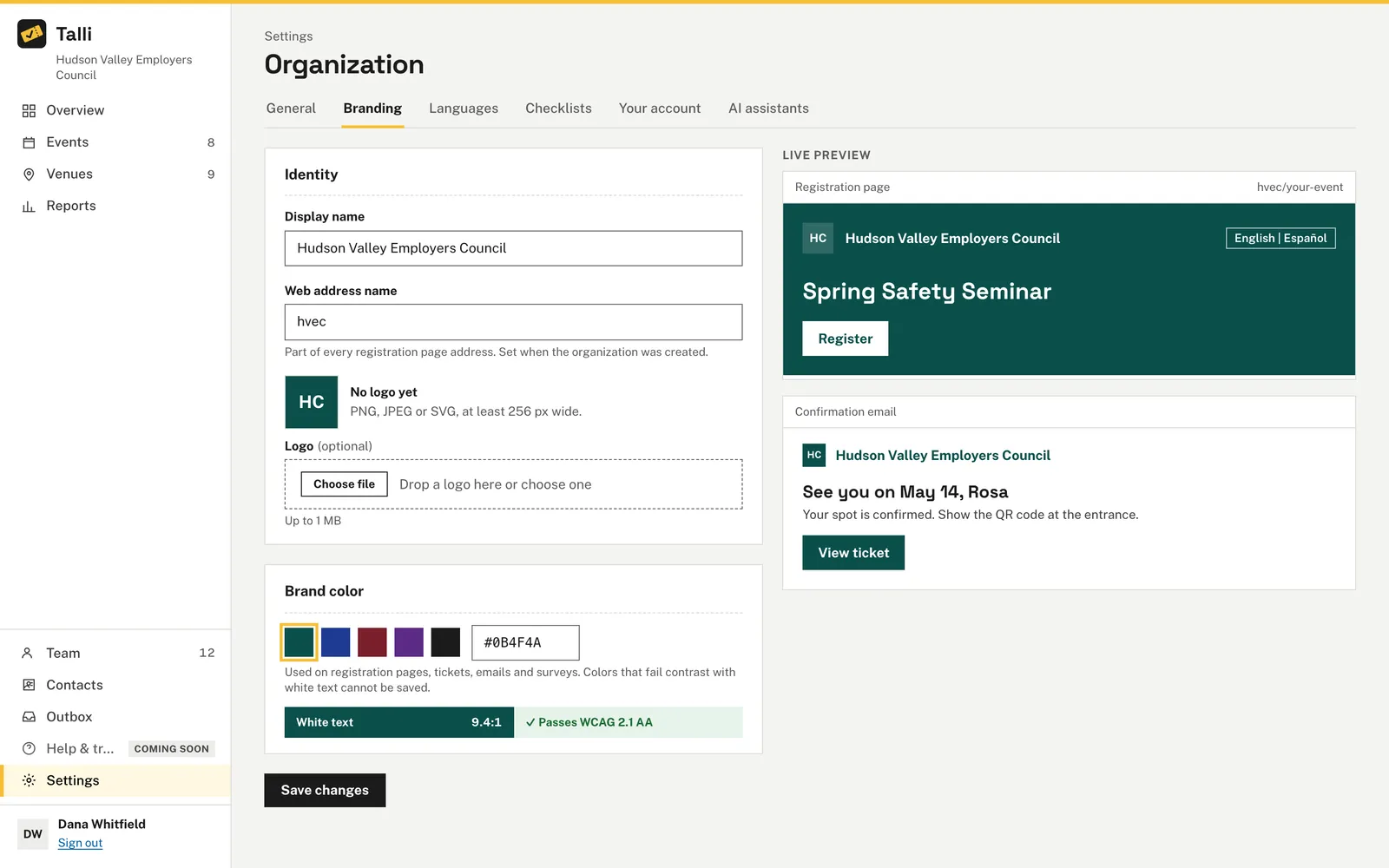
Display name
The name attendees see. Up to 120 characters.
Web address name
Shown for reference and cannot be edited. It is part of every registration page address and was set when your organization was created.
Logo
- PNG, JPEG or SVG.
- Up to 1 MB.
- At least 256 px wide is recommended for a sharp result.
- SVG files that contain scripts or event handlers are refused. Export the SVG again without them.
- Talli checks the file itself, not only its name, so a renamed file of another type is refused.
Drop a file on the upload area or choose one, and the preview updates right away. To remove the logo, choose Remove logo and save. Without a logo, Talli shows your organization's initials in your brand color. Replacing or removing a logo deletes the old file.
Brand color
Pick one of the swatches (Teal, Blue, Maroon, Purple or Ink) or enter your own color as # and six hex digits, for example #0B4F4A. The color is used on registration pages, tickets and emails.
Show me our organization's display name and brand color in Talli, then change the brand color to #0B4F4A if white text stays readable on it.Select the prompt and copy it into Claude or ChatGPT connected to Talli. Uses get_organization, update_branding. Connect an assistant
The contrast rule
White text appears on your brand color (buttons and banners), so the color must be dark enough to read. Talli measures the contrast of white text on your color and requires at least 4.5 to 1, the WCAG 2.1 AA standard for normal text.
- The page shows the measured ratio, and "Passes WCAG 2.1 AA" or "Pick a darker color so text stays readable".
- A color that fails cannot be saved.
- If you have not chosen a color yet, Talli uses a near-black ink.
Who can change branding
Owners and admins. Staff can look at the page but cannot save changes.
From an AI assistant
get_organizationwith{}: the organization's name, brand color and logo.update_brandingwith any of{ name, brandColor, logoKey }(owners and admins).brandColoris#and six hex digits, for example#0B4F4A, and must keep white text readable (see the contrast rule).logoKeyis the key of a logo already uploaded in Talli, ornullto remove the logo; an assistant cannot upload one. Send only what changes.