 Talli
Docs / Exhibitors
Exhibitors
Keep the companies that exhibit at and sponsor your events in one brand library, add them to an event with a level and a booth, and invite them to their own portal. Choose what exhibitors learn about the attendees who visit their booth, and review the booth pages they send before attendees see them.
Keep a brand library
The brand library holds every company that exhibits at your events, so you add each one once and reuse it.
- Choose Exhibitors in an event's left sidebar, then Brand library at the top of the page.
- Choose + Add brand.
- Enter the Name, and optionally a Tagline, Website, Contact name, Contact email and Logo (PNG, JPEG or SVG, up to 1 MB).
- Choose Add brand.
Choose a brand in the list to change it; tick Remove the current logo to take its logo away. The contact is who gets the invite to the brand portal. The list shows how many events each brand exhibits at and how many of its people use the portal.
Add an exhibitor to an event
- Open the event and choose Exhibitors in the left sidebar.
- Choose + Add exhibitor.
- Choose the Brand from your library.
- Choose the Level: Gold, Silver or Exhibitor.
- Optionally add Notes for the event team, for example what their booth needs.
- Choose Add exhibitor.
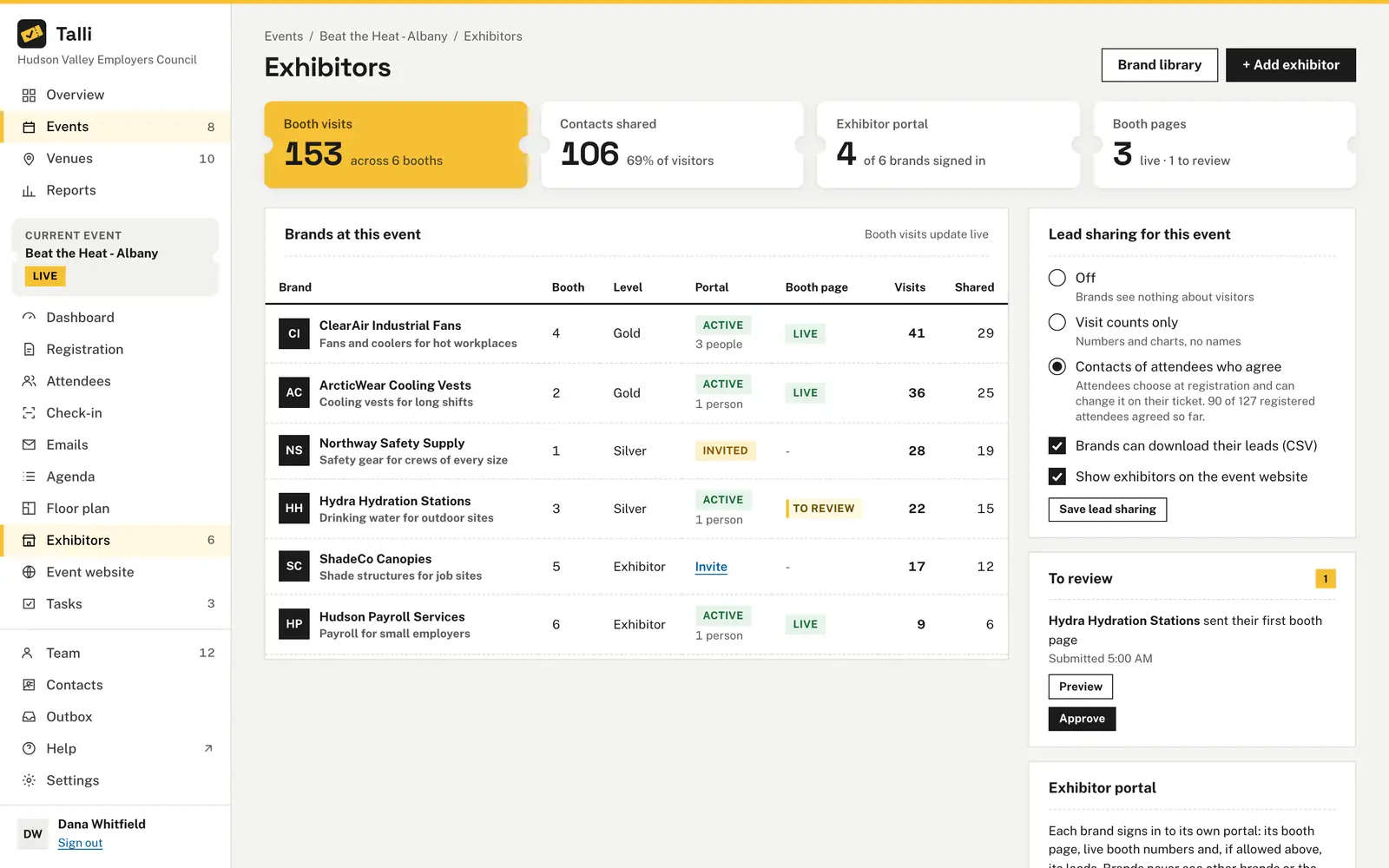
The Brands at this event table lists sponsors first, then the most visited booths. Each row shows the brand's booth, level, portal, booth page, booth visits and how many visitors share their contact. Choose a row to change its level, notes or booth.
The four figures at the top show booth visits, contacts shared, how many brands have signed in to their portal, and booth pages live and waiting for review.
Give an exhibitor a booth
An exhibitor has one booth per event, on a layout the event uses (see Floor plans and layouts).
- From the Exhibitors page: choose the exhibitor, choose the Booth and choose Save changes. The list shows which booths are taken and by whom.
- From the floor plan: open a layout from the event's Floor plan page and select a booth. In the Selected item panel, choose the Exhibitor and choose Assign. Choose Open (no exhibitor) to take the booth away.
Giving an exhibitor another booth moves them; their old booth becomes open. A booth that another exhibitor has cannot be given away until you move that exhibitor first. On the plan, a booth with an exhibitor is filled dark with the brand's initials, and Not placed yet lists the exhibitors without a booth.
Invite a brand to its portal
In a brand's row, choose Invite, then Send invite. Talli emails the brand's contact a link to sign in to the brand portal for this event. In the portal they see their booth, their booth page and, when lead sharing allows it, their leads; they never see other brands or the attendee list. The Portal column shows Invited until someone of the brand signs in, then Active with the number of people. Choose the exhibitor to send the invite again. The brand's account is made when its contact first signs in, not when you send the invite. The link works once and for 7 days; see Brand portal and booth scanner for what the brand does there.
Choose what exhibitors learn about visitors
Under Lead sharing for this event, choose one:
- Off: brands see nothing about visitors.
- Visit counts only: numbers and charts, no names. This is the default.
- Contacts of attendees who agree: the name, organization and email of visitors who said yes.
Then choose Save lead sharing.
With Contacts of attendees who agree, the registration form asks "Share my name and email with exhibitors I visit", unticked. Attendees who agree can stop sharing on their ticket page at any time, and start again there. Talli checks this every time a brand looks at or downloads its leads, so a change applies straight away. The card shows how many of the event's registered attendees agreed so far. Cancelled registrations are left out: they are not leads, and their contact is never shown.
Two more settings sit in the same card:
- Brands can download their leads (CSV): off by default; a download holds only what lead sharing lets the brand see.
- Show exhibitors on the event website: on by default.
Review booth pages
A brand writes its booth page (a heading, a few paragraphs and an offer) in the portal and sends it to you for review. Pages waiting for you appear under To review.
- Choose Preview to read the page.
- Choose Approve, then Approve and publish: the page goes live for attendees and is translated into the event's languages.
- Or write what to change in Note for the brand and choose Send back: the brand sees your note in the portal, and the live page stays as it was.
Who can use it
Owners and admins manage the brand library, add exhibitors, give booths, send portal invites, set lead sharing and review booth pages. Staff see the exhibitors, the brand library and the figures, but cannot change them. Choosing an exhibitor shows staff its level, booth and notes without a way to save or invite.
Limits and edge cases
- Brand names are unique in your library, ignoring capitals.
- A brand exhibits once per event, and an exhibitor has at most one booth there.
- A booth with an exhibitor cannot be removed from its layout, and the event cannot stop using that layout, until the exhibitor is moved or the booth is opened. The same applies when a series layout would replace or move that booth.
- A portal invite needs the brand's contact email.
- Returning a booth page needs a note saying what to change.
- When you clone an event, its exhibitors are copied with their level and notes, as not invited yet and without booths, and live booth pages are copied with their translations.
- Logos are stored and checked the same way as your organization's logo.
Coming soon
- Nothing else is planned for exhibitors yet. The brand portal and the booth scanner are described in Brand portal and booth scanner.
From an AI assistant
list_brands: the brand library with each brand's contact, events and portal people.upsert_brandwith{ name }and optionallybrandId(to change one),tagline,website,contactName,contactEmailandlogoKey(owners and admins). Logos are uploaded in the web app.list_exhibitorswith{ eventId }: the event's exhibitors with booth, level, portal, booth page, visits and shared contacts, the lead sharing settings, every booth of the event's layouts with who has it, and the booth pages waiting for review.add_exhibitorwith{ eventId, brandId }and optionallylevel(gold,silverorexhibitor) andnotes(owners and admins).update_exhibitorwith{ exhibitorId }andlevelornotes(owners and admins).invite_exhibitorwith{ exhibitorId }(owners and admins): emails the brand portal invite, after the person confirms.assign_boothwith{ eventId, exhibitorId, layoutId, itemId }(owners and admins); leave outlayoutIdanditemIdto take the booth away. A booth another exhibitor has is refused with conflict.set_lead_sharingwith{ eventId }andleadSharing(off,countsorcontacts),brandsCanExportorshowExhibitorsOnWebsite(owners and admins).review_booth_pagewith{ exhibitorId, decision }(owners and admins):approvepublishes the page after the person confirms;returnneeds anote.
Find eventId with find_events and the booths' layoutId and itemId in list_exhibitors. Every change is recorded in the activity log.