 Talli
Docs / Registration and attendees
Session sign-up and CE credits
Attendees sign up for the sessions they plan to attend, such as workshops with limited seats. When attendees are scanned in at a session, Talli gives them the session's continuing education (CE) credits. The CE credits report lists who earned credits, with their license number, and exports them as a spreadsheet.
Set up a session for sign-up and credits
Owners and admins, on the event's agenda:
- Choose a session, or + Add session.
- Set Session sign-up to Optional sign-up or Sign-up required.
- Leave Seats empty to use the room's size for the session's kind, or enter a number.
- Enter CE credits, for example 1 or 1.5, if attending earns credits.
- Choose Save session.
Each session that takes sign-ups or awards credits gets its own entry point for check-in, named after the session. Talli keeps it in step with the agenda: renaming the session renames it, and turning off sign-up and credits removes it.
Make Claims 101 at the Spring Safety Seminar a session people must sign up for, with 40 seats and 1.5 CE credits.Select the prompt and copy it into Claude or ChatGPT connected to Talli. Uses get_agenda, update_session. Connect an assistant
Turn off sign-up
Setting Session sign-up to No sign-up on a session people are signed up for cancels their spots, so Talli asks first. The side panel names how many people lose their spot, for example "2 people with a seat and 1 person waiting lose their spots". Choose Turn off sign-up and save to go ahead. The session keeps its CE credits.
Ask for the license number
On the event's registration form, add a short text question such as "NY producer license #" and tick This is the license number. The CE credits report lists each person's answer to it. One question per event can be the license number, and marking a second one unmarks the first.
What attendees see
On the registration page, the sessions that take sign-ups are listed under Sessions, below your own questions. Sessions that have already ended are not listed. Attendees tick the ones they plan to attend. Picks are saved with the registration when it gets a seat. Someone who lands on the event's waitlist picks sessions later, once they have a seat.
If a pick cannot be saved, for example because sign-up for that session closed while the page was open, the registration still goes through and the confirmation email is sent. The ticket page then names the sessions that were not saved, and the attendee can pick them again under Pick your sessions.
On their ticket page, attendees choose Pick your sessions to see each session's time, place, CE credits and seats left. They choose Sign up for a session with seats, or Join the waitlist for a full one. Cancel my spot gives a seat or a waitlist place back. Once a session has ended, its spot can no longer be cancelled. The page is shown in the attendee's language and works without JavaScript.
Seats and the waitlist
A session holds as many people as its Seats, or as its room holds for the session's kind when Seats is empty. A session without a room or seats has no limit.
- When every seat is taken, the next person joins the session's waitlist.
- When someone cancels their spot, their registration is cancelled, or the session gets more seats, the first people waiting get the seats in the order they joined.
- Two people taking the last seat at the same moment never both get it.
- Nobody can hold two sessions at the same time. Talli names the session that clashes, so the attendee can cancel one of them first.
Sign-ups on the agenda
Each session card on the agenda shows its sign-ups, for example "52 / 60 signed up", or "Full, 3 waiting" once every seat is taken. The session's side panel shows the same count.
When sign-ups fill 90% of a session's seats, the agenda warns, for example "Room A is 90% full. Move to Room B?". The warning names the room when the room's size is the limit, and the session when its own Seats number is. Talli suggests the smallest room that is larger and free at that time, when there is one.
When a session is moved so that people now hold two sessions at the same time, the agenda warns on both, for example 2 people signed up for this session are also signed up for "Workshop B" at the same time.
Award credits at the session
Staff scan tickets on the check-in page with the session's entry point chosen, for example Session: Workshop A: Online quoting tools.
- The first scan at the session gives the person its CE credits and shows them on the Welcome card, for example "1 CE credit awarded".
- A person not yet checked in at the door is checked in to the event by the same scan.
- A second scan at the same session shows Already checked in and awards nothing.
- Credits go to the person scanned, whether or not they signed up for the session: they were there. At a session that requires sign-up, someone without a seat in it is flagged with Not signed up for this session in amber, and still checked in and credited.
Maria Chen attended Claims 101 at the Spring Safety Seminar but her scan was missed. Give her the session's credits.Select the prompt and copy it into Claude or ChatGPT connected to Talli. Uses find_registrations, award_credits. Connect an assistant
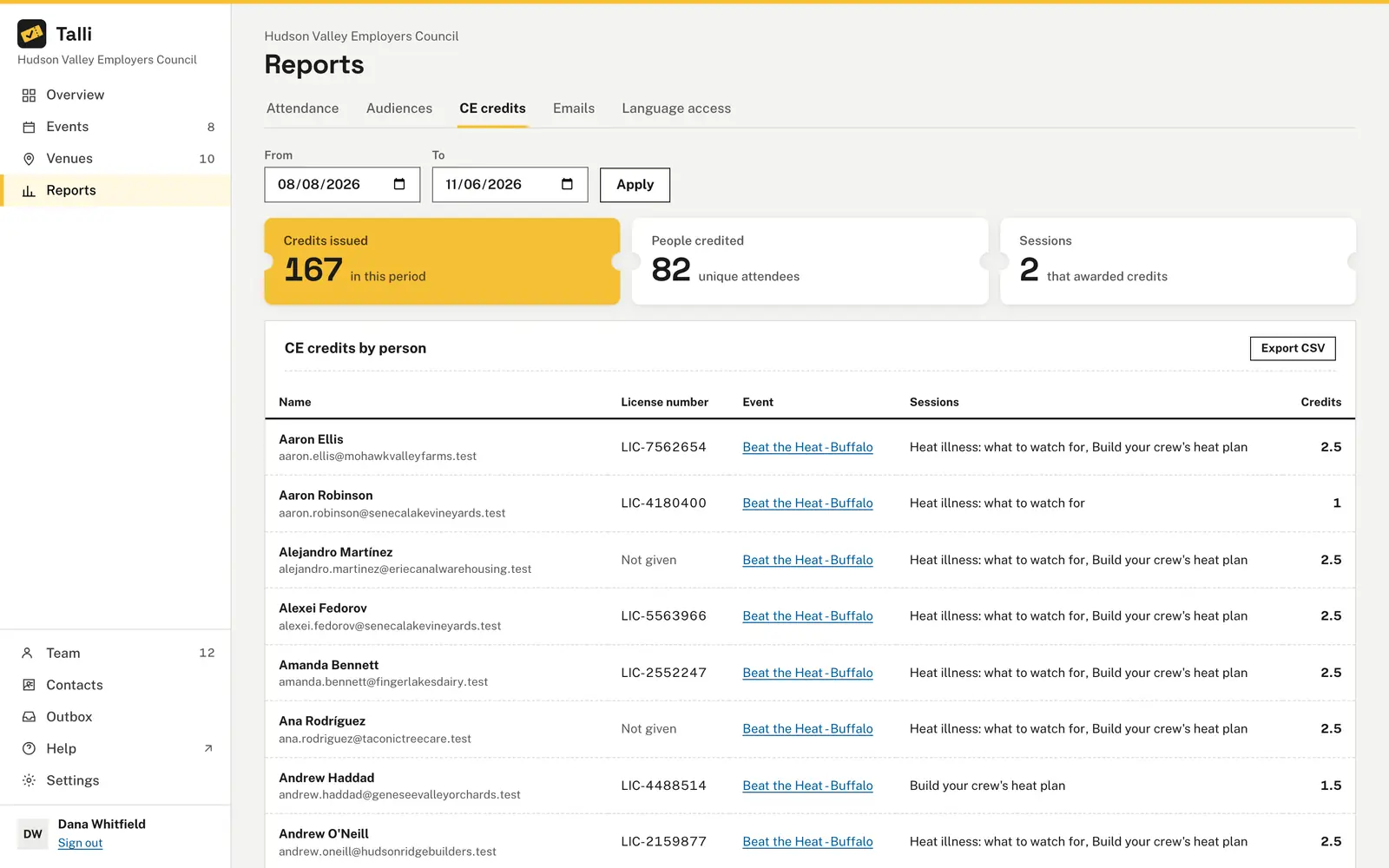
The CE credits report
- Choose Reports in the menu, then the CE credits tab.
- Set From and To and choose Apply.
- Read the cards: Credits issued, People credited and Sessions that awarded credits.
- The table lists each person with their email, license number, event, sessions and total credits.
The report counts sessions that start between the two dates (last day included), on the calendar of each event's time zone, so an evening session counts on the day it happens. A person who earned credits at two events has one row per event.
To download the report, owners and admins choose Export CSV, read what will be exported and choose Download CE credits. The file is named after the dates, for example ce-credits-2027-01-01-to-2027-12-31.csv.
Show the CE credits report for January through March 2027 with license numbers, and prepare the spreadsheet.Select the prompt and copy it into Claude or ChatGPT connected to Talli. Uses get_credit_report, export_credit_report. Connect an assistant
Who can use it
- Owners and admins set up sessions, mark the license number question, award and revoke credits, and export the report.
- Everyone in the organization (owners, admins and staff) can scan at session entry points, see sign-up counts and see the report.
Limits and edge cases
- Credits are awarded once per person and session. Credits taken back with
revoke_creditsare not given again by a later scan. - A session that people earned credits in cannot be deleted until those credits are revoked.
- Undo check-in is not offered after a scan at a session.
- Waitlisted and cancelled registrations cannot sign up for sessions, and credits cannot be awarded to them by hand.
- Attendees are not emailed when a waitlist place turns into a seat; the ticket page shows it.
- When the license number question is marked private, assistants see the report and exports without license numbers, unless an owner allows them; see AI assistants.
- Every manual award, revoke, export and turning off of sign-up is recorded in the activity log. Awarding credits someone already has changes nothing and is not logged.
From an AI assistant
list_session_signupswith{ eventId, sessionId? }: each session that takes sign-ups withseats(null for no limit),confirmedandwaitlisted; withsessionId, also itspeoplewith name, email, status, waitlist position and when they signed up.check_in_attendeewith{ eventId, entryPointId }andcodeorregistrationId, whereentryPointIdis a session's entry point fromlist_entry_points: the result'ssessiongives thetitle,creditsAwarded(null when nothing was awarded) andsignedUp(false for someone without a seat in a session that requires sign-up, null when sign-up is optional or off).award_creditswith{ registrationId, sessionId, credits? }(owners and admins): gives a person with a confirmed registration a session's credits by hand, for example when their scan was missed;creditsdefaults to the session's own number, and someone already credited getsawarded: false.revoke_creditswith{ registrationId, sessionId }(owners and admins).end_session_signupwith{ sessionId }(owners and admins, needs the person's confirmation): turns off a session's sign-up and cancels everyone's spot;update_sessionrefusessignUp: "none"while people are signed up.get_credit_reportwith{ from, to, eventId? }: dates asYYYY-MM-DDin each event's time zone; one row per person and event withlicenseNumber,creditsandsessions, plus totals.export_credit_reportwith{ from, to, eventId? }(owners and admins, needs the person's confirmation): returnsfilename,url,linkandrows. The person openslinkwhile signed in to Talli; it works once, for 10 minutes.set_form_fieldswith a field'spurpose: "license"marks the license number question;get_registration_formreturns each question'spurpose.create_sessionandupdate_sessionwithsignUp,capacityandceCreditsset a session up;get_agendareturns each session'ssignupsand thenear_capacityandsignup_overlapwarnings.
Find eventId with find_events, sessionId with get_agenda and registrationId with find_registrations or search_attendees.