 Talli
Docs / Team
Roles and activity log
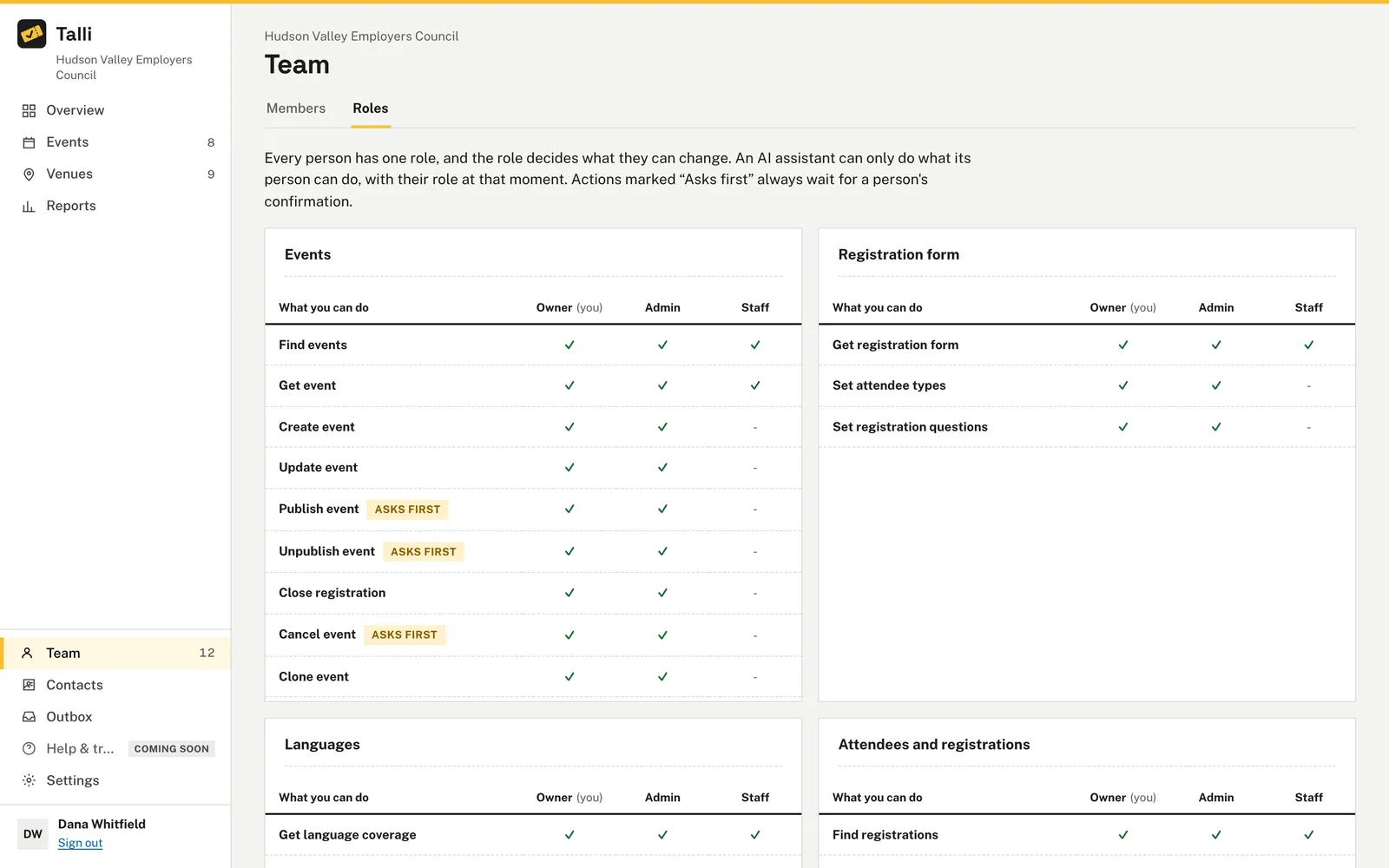
Every person in an organization has one role. The role decides what they can change.
Roles
| Role | Can do |
|---|---|
| Owner | Everything an admin can do, plus the team and AI assistant settings. The person who created the organization is its owner. |
| Admin | Change anything: branding, venues, events, registration forms, attendees and registrations. |
| Staff | Look, but not change. See the Overview, events list, venues, registration forms, attendees and the outbox. |
Your role is shown on Settings, next to your email.
What is enforced today
- Branding, venues, events, registration forms, attendee types and attendee changes: owners and admins only.
- Looking at things: everyone in the organization.
- Controls that you cannot use are hidden or disabled instead of failing later. A staff member sees no "Add venue" or "New event" buttons, and the branding and registration form pages are marked view only.
- If a staff member opens a page that exists only for making changes (for example an event's edit page), Talli shows an access error.
Owners and admins can do almost the same things. Only owners change the AI assistant settings, disconnect other people's assistants and manage the team. Owners also manage the team: adding people, changing roles and removing people (see Team and roles). Billing is Coming soon.
People never see other organizations
Everything in Talli belongs to one organization. You can only see and change your own organization's data.
Adding teammates
Owners and admins add people on the Team page, and owners change roles and remove people; see Team and roles. Inviting people by email is Coming soon.
Activity log
Talli records every change made to your organization's data, along with who made it and when. Examples of what is recorded:
- "Updated branding: brand color, new logo"
- "Added venue "Oncenter""
- "Added Sam Patel as Staff"
- "Removed Sam Patel from the team and disconnected their assistant"
- "Updated venue "Oncenter": address"
- "Created event "Spring Safety Seminar""
- "Updated "Spring Safety Seminar": start time, capacity"
- "Published "Spring Safety Seminar""
- "Closed registration for "Spring Safety Seminar""
- "Cancelled "Spring Safety Seminar""
- "Set attendee types: Employer, Broker"
- "Updated the registration form: 2 custom questions"
- "Cloned Beat the Heat - Albany to Rochester, Jul 20"
Each entry stores the person who acted, whether it came from the web app or an AI assistant (and which one), the item it affected and the time. A change and its log entry are saved together, so a change never goes unrecorded. Looking at things, such as opening the events list, is not logged.
Changes made by AI assistants are listed in Settings > AI assistants, for example "Dana via Claude cloned Beat the Heat - Albany to Rochester, Jul 20". A page for browsing the whole activity log is Coming soon. The log is already being kept, so entries from today will be there when the page arrives.
Show me everything that was changed through an AI assistant this week, newest first, and who asked for each change.Select the prompt and copy it into Claude or ChatGPT connected to Talli. Uses find_activity. Connect an assistant
Who created the Spring Safety Seminar, and was it done through an assistant?Select the prompt and copy it into Claude or ChatGPT connected to Talli. Uses find_events, get_provenance. Connect an assistant
From an AI assistant
An assistant always acts as the person who connected it, with that person's current role, and only in the organization they chose; see AI assistants.
find_activitywith{ via?, connectionId?, targetType?, targetId?, limit? }: the activity log, newest first.viaisweborassistant;targetTypeandtargetIdnarrow it to one item, for example{ "targetType": "event", "targetId": "..." }.get_provenancewith{ targetType, targetIds }: who created each item, and through which assistant.