 Talli
Docs / Events
Registration form
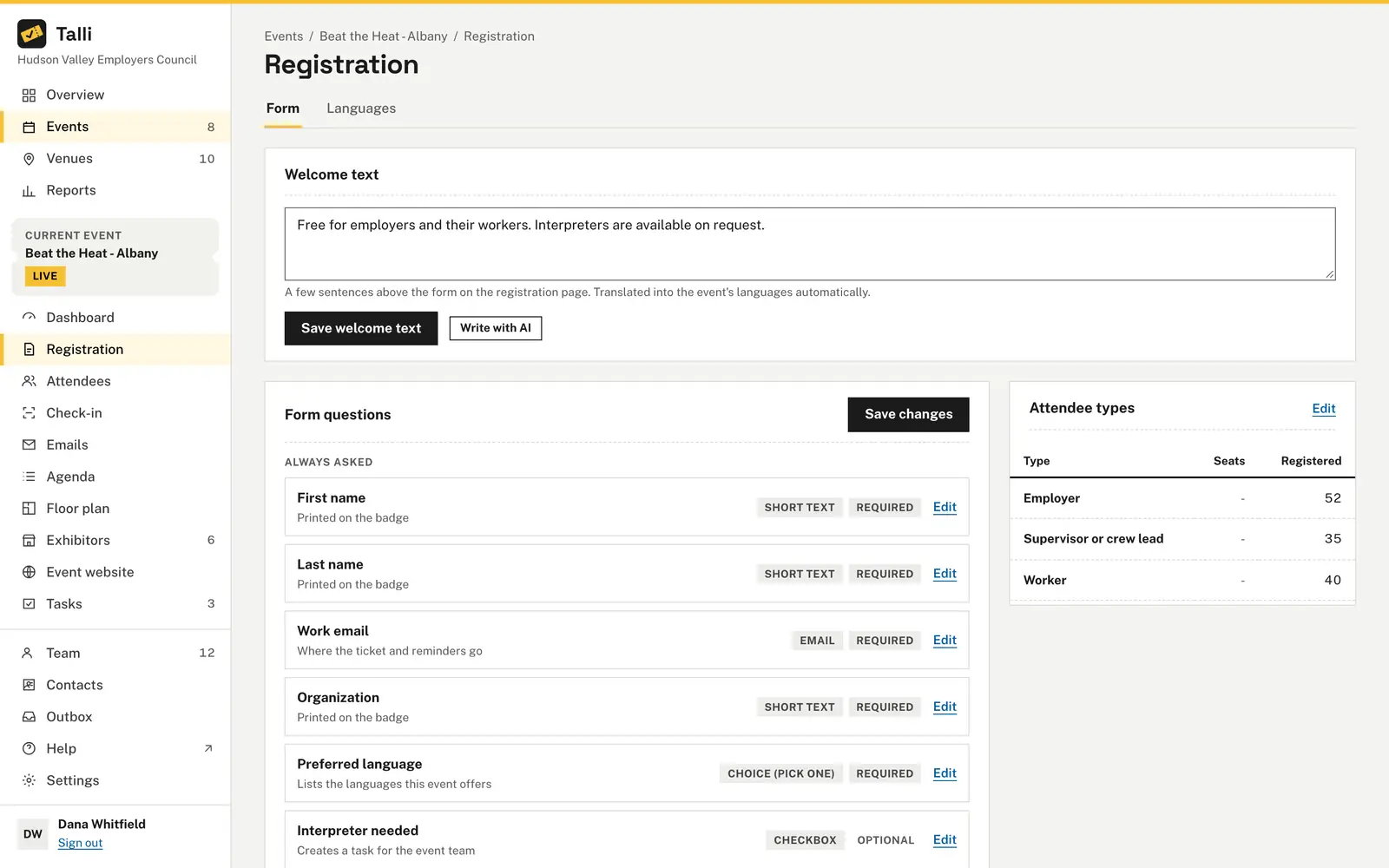
Each event has its own registration form. You choose who can register (attendee types) and what they are asked (questions). Open an event, then choose Registration in the sidebar. The Form tab has a Welcome text card at the top, then Form questions and Attendee types.
Welcome text
The welcome text is a few sentences shown above the form on the registration page, for example who should register and what to bring. It is optional: without it the page shows only Talli's short line about how registration works.
Owners and admins:
- In the Welcome text card, write the text, up to 1,000 characters.
- Choose Save welcome text.
To draft it, choose Write with AI in the same card; keeping the draft saves it right away (see Write with AI). The welcome text is translated into the event's languages automatically, like the description. Cloning an event copies it. Staff see the text but cannot change it.
Attendee types
An attendee type is a group of people who register differently, for example Employer and Broker. Attendees pick one when they register. Each type can have its own number of seats and its own questions.
Every new event starts with one type, "General admission". An event always needs at least one type.
Edit attendee types
Owners and admins:
- In the Attendee types card, choose Edit.
- Rename types, change seats, reorder them with the up and down arrows, Add attendee type or Remove one.
- Choose Save attendee types.
- Name: required, up to 100 characters, and different from your other types.
- Seats: optional. Leave it empty and only the event's capacity applies. A number must be a whole number of at least 1.
- The table shows how many people have registered for each type (confirmed and waitlisted).
- A type that has registrations cannot be removed. Rename it instead.
- If you remove a type, questions that were only for it are shown to everyone again.
Add an attendee type called Student with 20 seats to the Spring Safety Seminar, and keep the existing types as they are.Select the prompt and copy it into Claude or ChatGPT connected to Talli. Uses get_registration_form, set_ticket_types. Connect an assistant
Questions
The Form questions card lists every question in the order attendees see it.
Always asked
These questions are on every form and cannot be removed. You can reword them (for example, change "Organization" to "Employer"), but you cannot make a required one optional.
| Question | Answer | Required |
|---|---|---|
| First name | Short text | Yes |
| Last name | Short text | Yes |
| Work email | Yes | |
| Organization | Short text | Yes |
| Preferred language | Choice, lists the languages the event offers | Yes |
| Interpreter needed | Checkbox | No |
| Accessibility needs | Long text, private | No |
| Share my name and email with exhibitors I visit | Consent | No |
The question about sharing with exhibitors is asked only when the event shares contacts with exhibitors (see Exhibitors), and is never ticked in advance.
Custom for this event
Add your own questions below the built-in ones, for example a license number, a meal choice or a session preference.
- Choose Add question.
- Fill in the side panel.
- Choose Save question.
- Choose Save changes at the top of the card.
Changes stay on the page until you choose Save changes. An "Unsaved changes" label reminds you, and a "Registration form saved" message confirms the save.
In the side panel:
- Question: what attendees read. Up to 200 characters. Write it in the event's language.
- Answer type: see below.
- Choices: for the two choice types.
- Show to: everyone, or one attendee type.
- Required: attendees must answer.
- Private answers: for sensitive details such as health, dietary or accessibility information. Private answers stay hidden from AI assistants by default (see AI assistants).
- This is the license number: for a short text question. The answer is listed next to each person on the CE credits report (see Session sign-up and CE credits). One question per event can be the license number.
Use Edit and Remove on a row to change or delete a custom question. Use the up and down arrows to reorder.
Add a required question to the registration form of the Spring Safety Seminar: "Which topic interests you most?" with the choices Heat safety, Claims and Return to work.Select the prompt and copy it into Claude or ChatGPT connected to Talli. Uses get_registration_form, set_form_fields. Connect an assistant
Answer types
| Type | What attendees see |
|---|---|
| Short text | A single line. |
| A single line that must look like an email address. | |
| Long text | A multi-line box. |
| Choice (pick one) | A list where one choice is picked. |
| Choice (pick several) | A list where several choices can be picked. |
| Checkbox | A single box to tick. |
| Consent | A box to agree to something. |
Choices
Choice questions need at least one choice, and Talli tells you if you have none. Add choices with Add choice, reorder them with the arrows and remove ones you do not need. Each choice keeps its identity even if you reword it later, so answers already collected stay correct. Empty choices are ignored.
Questions for one attendee type
Set Show to to an attendee type, and only people registering as that type are asked. For example, a required "NY producer license #" question shown only to Brokers is never asked of Employers. Questions for a type that is not picked are not required. The row in the editor reads "Only for: Broker".
What attendees see
The public registration page asks the built-in questions, then your custom questions in order. It shows the attendee type picker, and questions appear or disappear to match the type picked. See registration for the whole attendee experience.
Limits
- Question keys are made for you from the wording (for example "NY producer license #" becomes
nyProducerLicense) and are unique within the event. - Questions and choices are translated into the event's other languages automatically; review them on the Languages tab (see Languages and translation).
- Showing a question based on another answer is Coming soon. Today a question can only depend on the attendee type.
Who can use it
Owners and admins edit attendee types and questions. Staff see the form with a "View only" label.
From an AI assistant
update_eventwith{ eventId, registrationIntro }sets the welcome text (owners and admins);get_eventreturns it asregistrationIntro.get_registration_formwith{ eventId }: the attendee types, built-in questions and custom questions with their ids and keys.set_ticket_typeswith{ eventId, types }(owners and admins): every type the event should have, in order, each{ id?, name, capacity }. Keep a type by passing itsid; leaveidout for a new one;capacityis a number ornull.set_form_fieldswith{ eventId, fields, builtInLabels? }(owners and admins): every custom question, in order, each{ key, label, type, options?, required?, sensitive?, ticketTypeId?, purpose? }.purpose: "license"marks atextquestion as the license number for the CE credits report; one per event.typeistext,email,select,multiselect,checkbox,textareaorconsent.builtInLabelsrewords built-in questions by key, for example{ "organization": "Employer" }.
Answers to questions marked sensitive are hidden from assistants unless an owner allows them; see AI assistants.