 Talli
Docs / Registration and attendees
Public registration, tickets and confirmation emails
Every published event has its own registration page at a stable link: /e/<your organization>/<event>. Anyone with the link can register; attendees do not need a Talli account.
Who can do what
- Owners and admins publish events, add attendees on someone's behalf, cancel registrations and give waitlisted people a seat.
- Staff can see registrations and the outbox, but cannot change them.
Open registration
- Create the event and set up its attendee types and questions on the Registration tab.
- On the event page, choose Publish and confirm.
- Choose View public page to open the registration page, and share its link.
Drafts are never public: their link shows "page not found" until you publish. If you unpublish an event, its page and its tickets stop working until you publish it again.
What attendees see
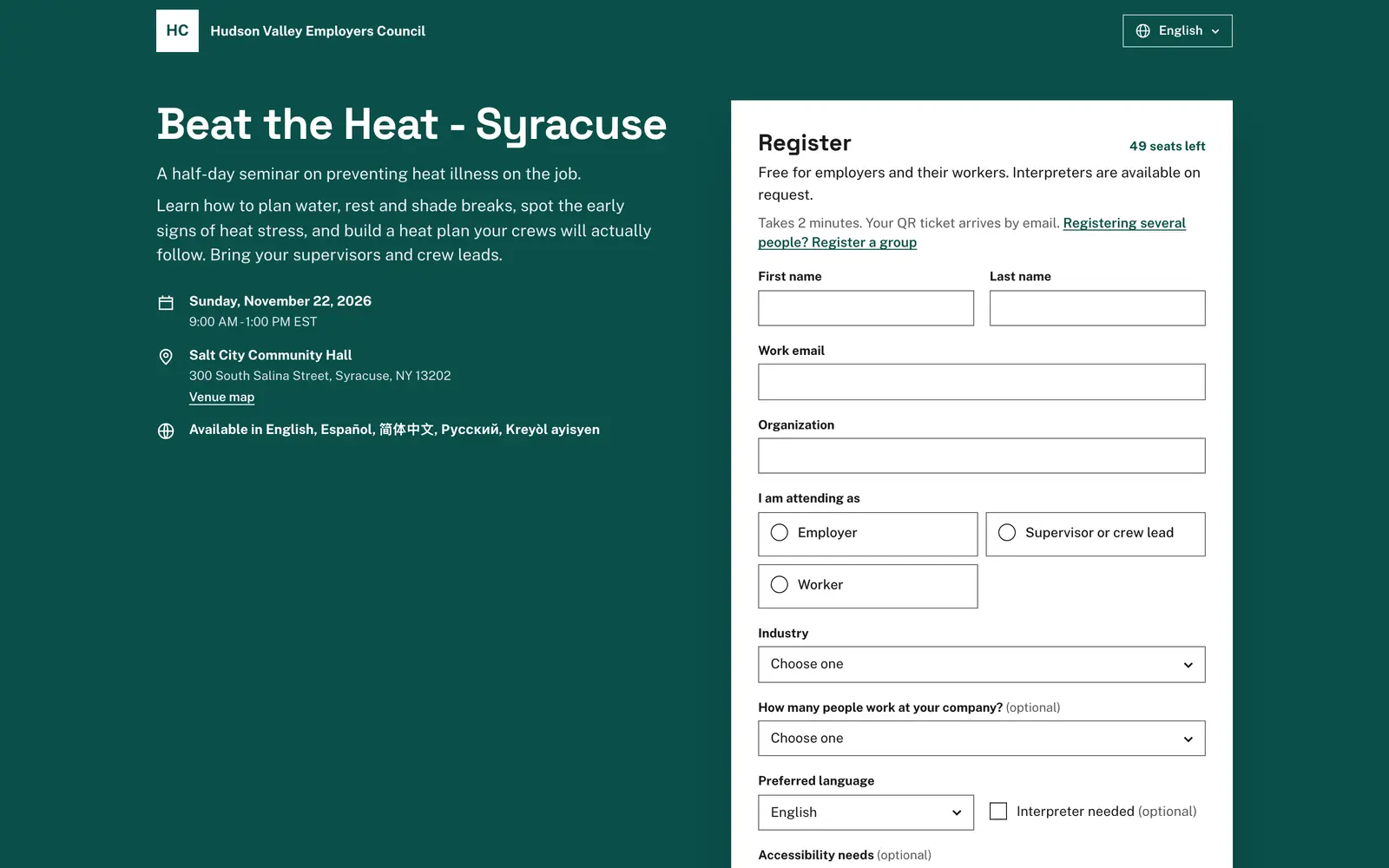
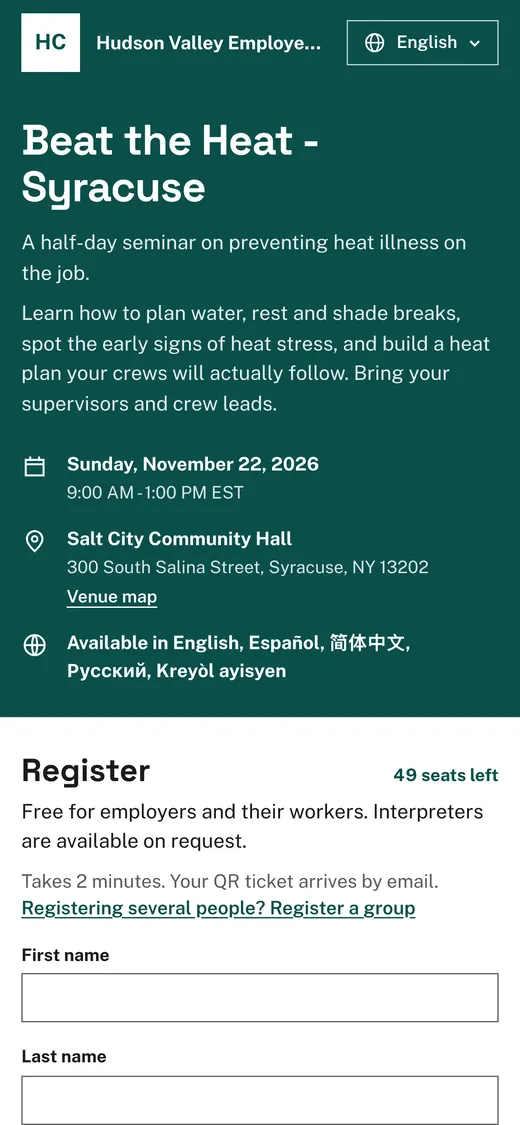
The page uses your organization's brand color and logo, with a small "Registration powered by Talli" at the bottom. It shows the event's title, description, date and time (in the event's time zone), venue and the languages it is offered in. Above the form it shows the event's welcome text, when the organizer wrote one (see Registration form). The form asks the built-in questions (name, work email, organization, preferred language, interpreter, accessibility needs) and your own questions. When the event shares contacts with exhibitors, it also asks, unticked, whether the attendee shares their name and email with the exhibitors they visit. Questions you set for one attendee type appear only when that type is picked. The page shows how many seats are left. Below the event's details, the page shows the event's agenda day by day: each session's time, title, place, CE credits and speakers, with the description and speaker bios under Session details. When sessions take sign-ups, the form lists them under Sessions so attendees can tick the ones they plan to attend; two sessions at the same time cannot both be picked (see Session sign-up and CE credits).
If something is missing or wrong, the form says what to fix next to each answer and moves to the first one. The page works on phones and with keyboards and screen readers, and also works before (or without) JavaScript.
Languages
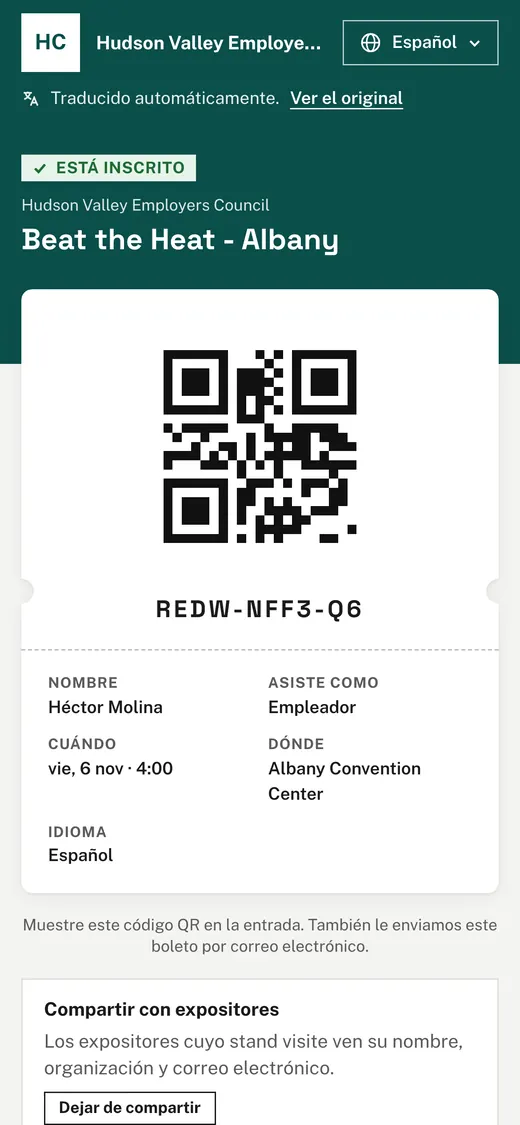
Attendees pick a language from the menu at the top of the page, or from the links at the bottom. A choice made in the menu is remembered for their next visit. The language they register in is saved on their registration, so their emails use it. The page, the ticket and the emails are shown in that language: the event's text (including the welcome text), attendee types, questions and choices are translated automatically, and your team can review and edit them (see Languages and translation). When some of that text is an automatic translation nobody has reviewed yet, the page shows a "Translated automatically" note with a link to the original. A link with ?lang= and a language code opens the page in that language; a language the event does not offer opens it in the event's original language. Languages written right to left, such as Arabic, are laid out right to left.
The ticket
After registering, the attendee lands on their ticket page. It shows a QR code, the ticket code (for example 7KQ4-MX29-RD), their name, attendee type, date, venue, language and whether they asked for an interpreter. Below it, a short agenda lists each session's time, title and place, unless the registration was cancelled. When the event has sessions that take sign-ups and the registration has a seat, Pick your sessions opens a page where the attendee signs up for sessions, joins a full session's waitlist or cancels their spot. When the event shares contacts with exhibitors, Sharing with exhibitors says whether the attendee shares theirs, and Stop sharing or Share my details changes it at any time. The QR code contains only the ticket code, nothing personal. The ticket link is private to the attendee: anyone with it can see the ticket, so attendees should not share it. Add to calendar and Add to Wallet are Coming soon.
The confirmation email
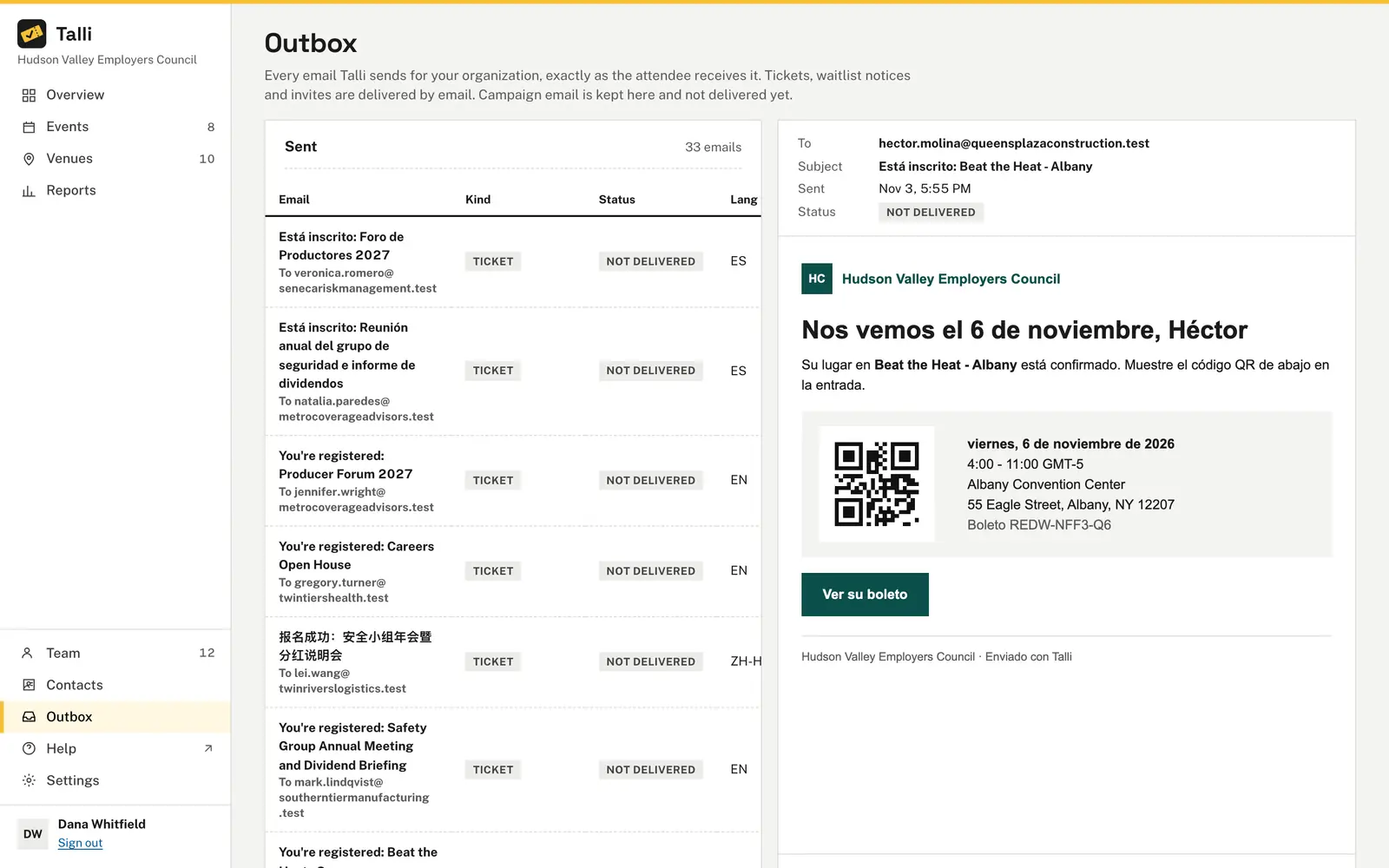
When someone registers, Talli sends one email, written in the attendee's language:
- A confirmed seat gets "You're registered" with the QR code, date, venue and a link to the ticket page.
- A waitlist place gets "You're on the waitlist" with a link to check their place.
- A waitlisted person given a seat later gets "You're registered" with their ticket.
These are the event's built-in emails, shown as On sign-up and On waitlist on the event's Emails page. Owners and admins can reword them there; until they do, the emails use Talli's wording in every language. Reminders, follow-ups and invitations are written on the same page (see Emails and contact lists).
Talli does not deliver email outside Talli yet. Every email lands in the Outbox (in the sidebar), exactly as the attendee would receive it.
Show me the last five confirmation emails Talli sent.Select the prompt and copy it into Claude or ChatGPT connected to Talli. Uses list_outbox. Connect an assistant
Capacity and the waitlist
Seats are counted at the moment someone submits, so two people can never take the last seat. An attendee type with its own capacity fills up on its own, even if the event still has seats. When the event (or the attendee type) is full:
- With Waitlist when full turned on, the page says the event is full and offers Join the waitlist; people who join get a waitlist place, numbered in the order they joined.
- With the waitlist off, the page says the event is full and takes no more registrations.
When someone cancels, their seat is free, but nobody moves up on their own. Open the Attendees page, select the waitlisted person and choose Give a seat to confirm them and email their ticket.
How many people are on the waitlist for the Spring Safety Seminar? Give the next person in line a seat.Select the prompt and copy it into Claude or ChatGPT connected to Talli. Uses find_registrations, promote_from_waitlist. Connect an assistant
Registering twice
One email address registers once per event, whatever its capitals or spaces. If someone registers again with the same email, the page tells them they are already registered and that their ticket was sent to their inbox again. Talli emails the existing ticket (or waitlist place) to that address, in the language they registered in; the page itself never shows the ticket. To keep inboxes quiet, the ticket is resent at most once every 10 minutes per registration; later attempts show the same message without another email. No second registration is created and the seat count does not change. Someone whose registration was cancelled can register again with the same email; they get a new ticket, and the old ticket link stays cancelled.
Closed and cancelled events
When you close registration, or once the event has ended, the page says registration has closed. When you cancel an event, its page and its tickets say the event was cancelled.
From an AI assistant
find_registrationswith{ eventId, q?, status?, ticketTypeId?, language?, limit?, offset? }:statusisconfirmed,waitlistedorcancelled;limitis 1 to 200 (default 50).get_registrationwith{ registrationId }.add_registrationwith{ eventId, firstName, lastName, email, ticketTypeId?, language?, answers?, sendEmail? }(owners and admins);sendEmaildefaults to true.update_registrationwith{ registrationId }and any offirstName,lastName,email,ticketTypeId,languageoranswers(owners and admins).cancel_registrationwith{ registrationId }(owners and admins).promote_from_waitlistwith{ eventId, registrationId? }(owners and admins); withoutregistrationIdthe first in line gets the seat.list_outboxwith{ kind?, limit? }: emails Talli sent, newest first.
Adding someone with an email, cancelling a registration and giving a seat always wait for the person's OK first.