 Talli
Docs / At the door
Talli for iPhone
Your door staff can check people in with the Talli app on an iPhone. It scans tickets with the camera, keeps working without signal, and sends every check-in to Talli as soon as the phone is back online. Each ticket still counts once, whichever phone or browser scans it first.
Sign in and choose your door
- Open Talli and tap I'm working the door.
- Sign in with the email and password of your Talli account.
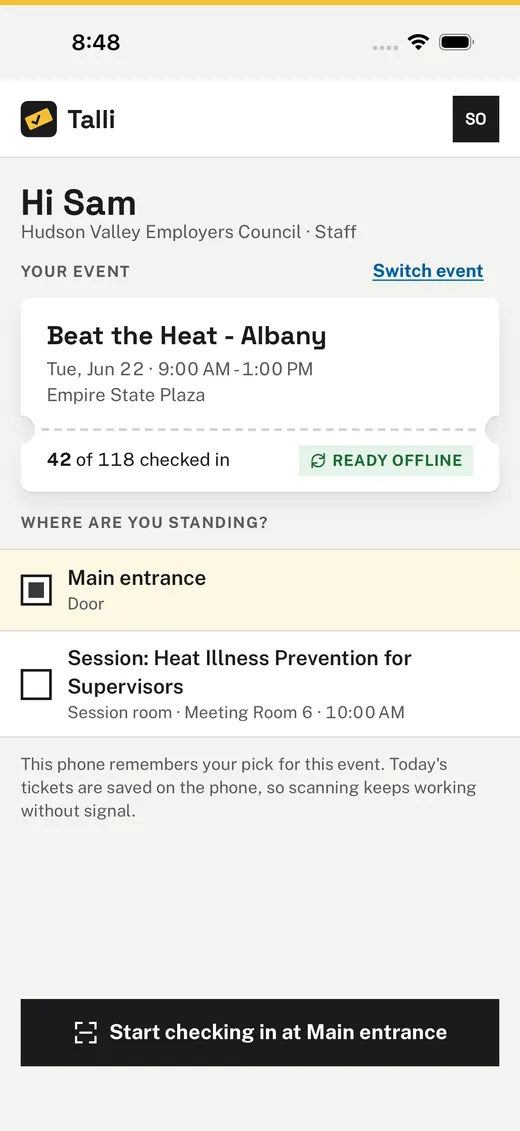
- Choose the event, then where you are standing, for example Main entrance.
- Tap Start checking in at your entry point.
When the event is chosen, the phone saves its attendee list, and the home screen says Ready offline. From then on the phone can check people in even with no signal.
Scan a ticket
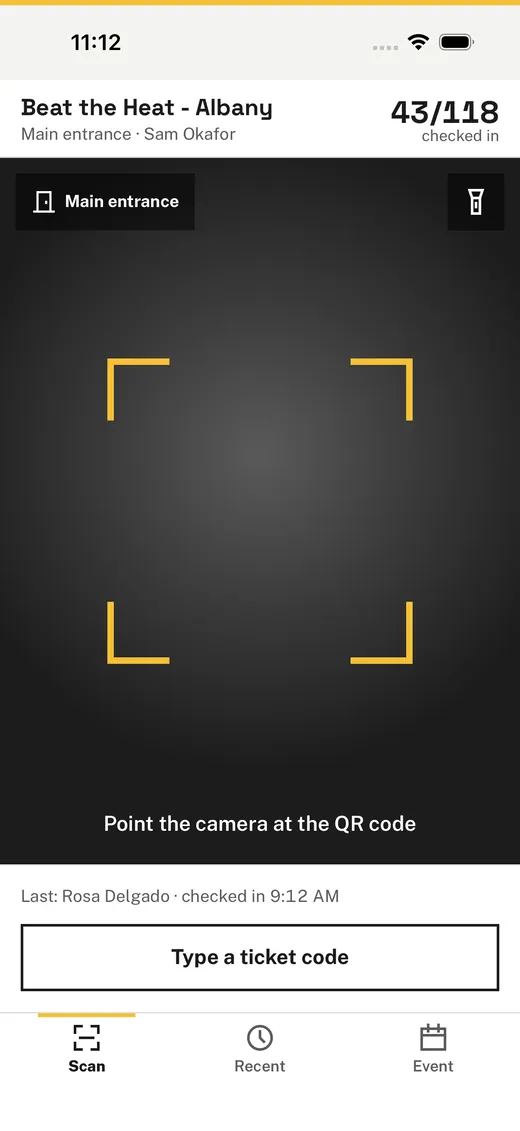
- Point the camera at the QR code on the attendee's ticket, on their phone or printed. The first time, the app asks to use the camera.
- Read the result card:
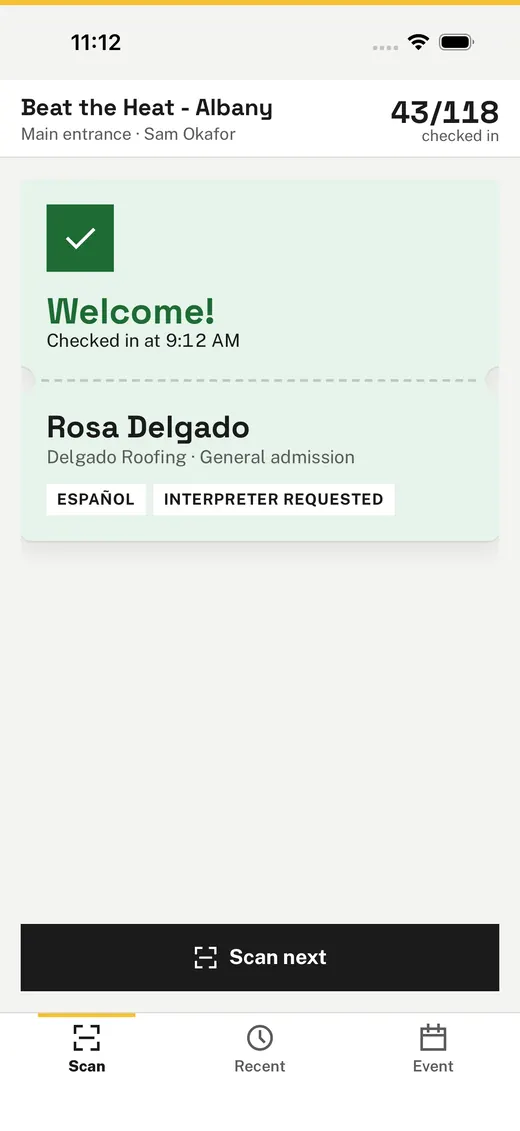
- Welcome! (green): they are checked in now. The card shows their name, attendee type, language, and whether they asked for an interpreter or have accessibility needs.
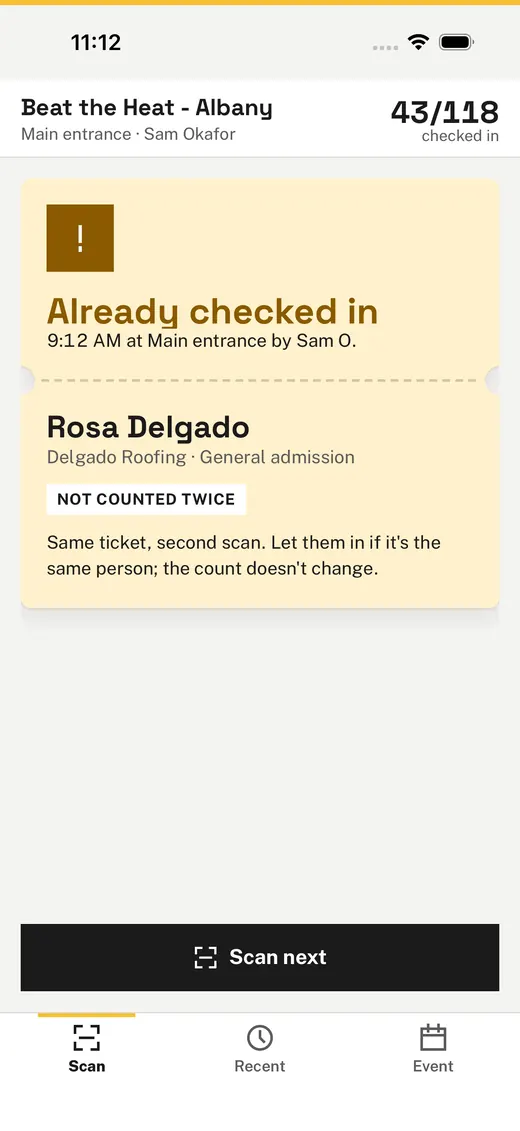
- Already checked in (amber): the ticket was checked in before. The card says when, at which entry point and by whom, and the second scan is not counted.
- Ticket not found (red): the code matches no ticket for this event.
- Wrong event (red): the ticket is for another of your organization's events, named on the card. Nobody is checked in.
- Waitlisted or Cancelled (red): they have no seat, so they are not checked in.
- Tap Scan next for the next person.
The phone gives a short vibration for each result, different for welcome, warnings and problems. With VoiceOver on, the app reads each result aloud, for example "Welcome! Rosa Delgado, checked in at 9:12 AM". A ticket held in front of the camera is read once; to scan the same ticket again, take it out of view for 3 seconds.
The top of the screen shows the event, the entry point, who is signed in, and how many attendees are checked in.
Type a ticket code
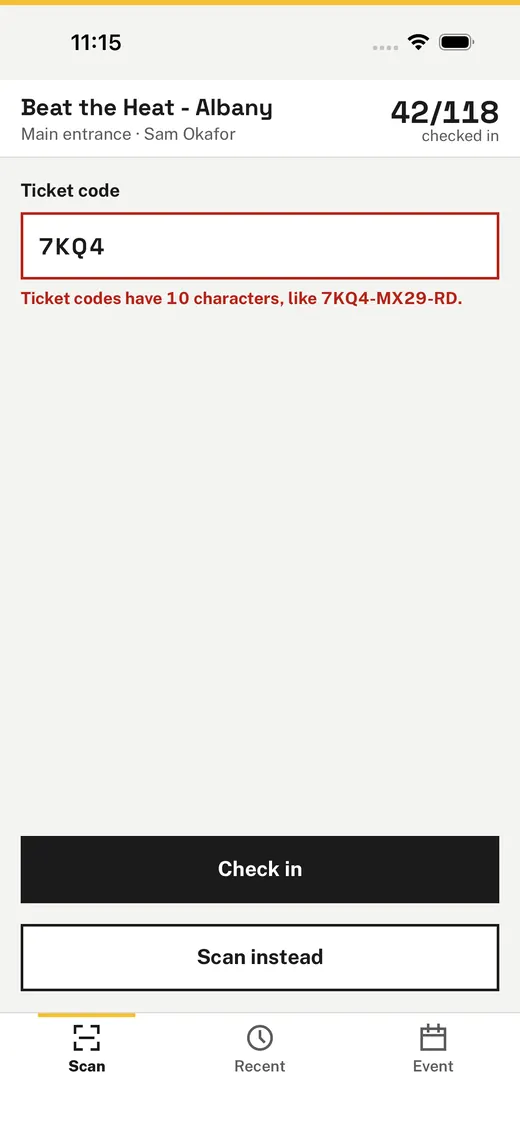
Tap Type a ticket code under the camera, type the code printed under the QR code (for example 7KQ4-MX29-RD), and tap Check in. Capitals and dashes do not matter. Typing works on every phone, also when the camera is not allowed or not available.
If the camera was turned off for Talli, the scan screen says so and offers Open Settings to turn it back on.
Find someone by name
For someone without their ticket, use the Search tab.
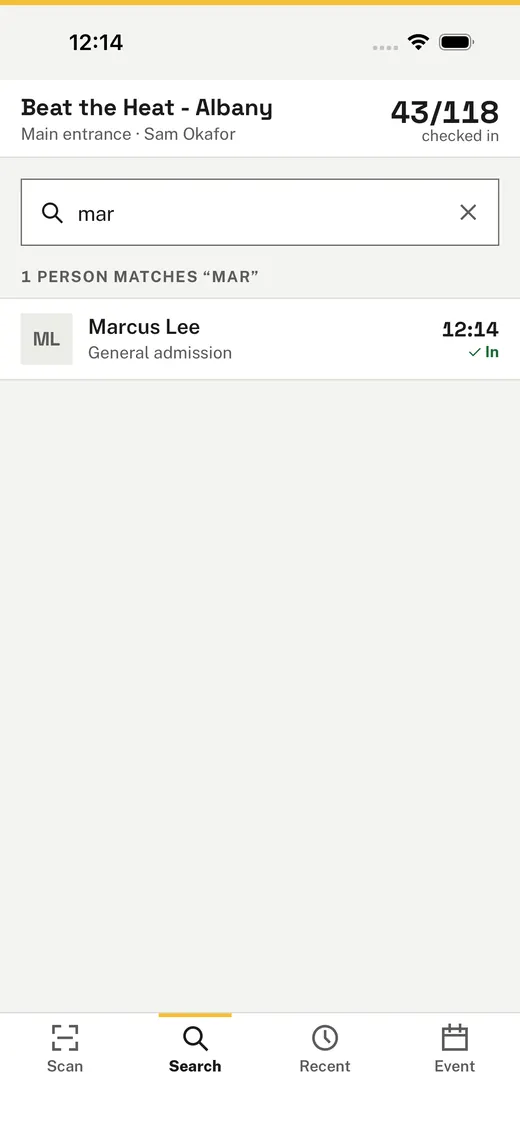
- Type part of their name, or the code on their ticket. Capitals and accents do not matter: "ramirez" finds Luis Ramírez.
- Find them in the list. Each row shows their company and attendee type, and either a Check in button or the time they were checked in. Waitlisted and cancelled registrations show as such and cannot be checked in from the list.
- Tap Check in on their row. The same result card as a scan appears, for example Welcome!, and the person is counted once, like a scan.
- Tap Back to search for the next person. Their row now shows the time they were checked in.
Online, Talli searches the event's registrations as you type, so people who registered a minute ago are found too. Without signal, the phone searches the attendee list it saved, and a banner says Offline - Searching this phone's list. Check-ins made from the list then wait on the phone and sync like offline scans, each person counted once. If Talli does not answer for a moment, the phone also searches its own list and says so.
Check in to a session
At an event with sessions, the Event tab lists them under Sessions, by start time, with their room and time. Sessions that ask people to sign up first are marked Sign-up required. Sessions that already ended are not listed.
- On the Event tab, tap the session you are working at.
- The app opens the Scan tab there; the top of the screen names the session and its room.
- Scan tickets, type codes or search by name as at a door. Each check-in also checks the person in to the session, and records any credit the session gives.
At a session, the Search list is about that session. People already checked in at the event, for example at the main entrance, still show Check in. Someone another phone already checked in to the session is also offered, and the result card then says Already checked in, so nobody is counted twice.
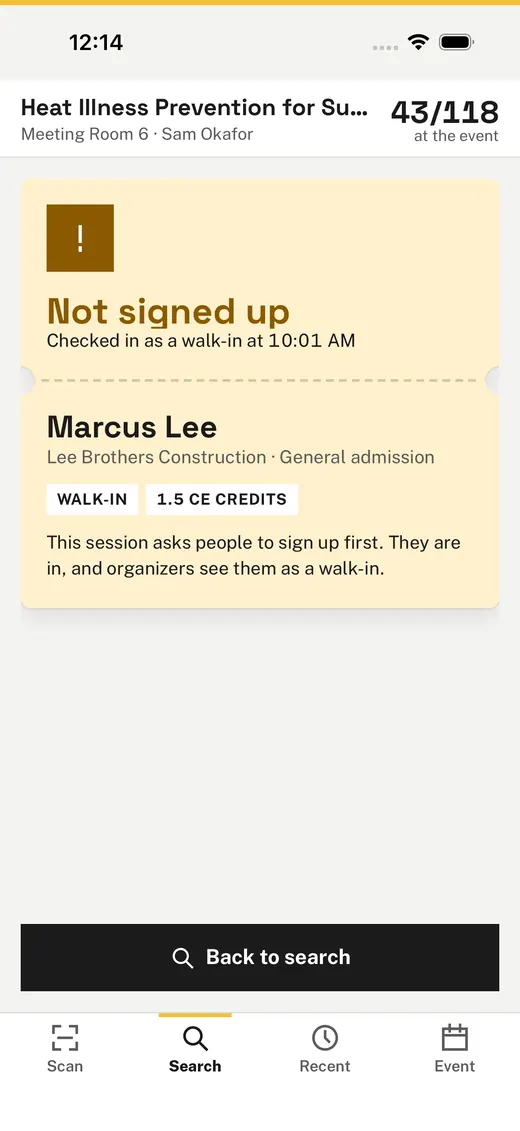
Someone who did not sign up for a session that asks for sign-up is still let in. The result card says Not signed up, in amber, and shows them as a walk-in, so organizers can see who came without a seat. A scan at a door never checks anyone in to a session.
To go back to a door, tap it under Where are you standing? on the Event tab. Changing where you stand within the same event keeps every scan on the phone as it is.
Without signal
When the phone has no signal, scanning keeps working. The phone decides from the attendee list it saved, and the result card shows Will sync. A banner says how many check-ins are waiting, for example "Offline - 4 check-ins will sync".
Every scan is saved on the phone the moment it happens, before anything is sent. Closing the app, or the phone restarting, does not lose a scan.
When the phone is back online, the waiting scans are sent in the order they were made, and the banner says All synced with the time. If another phone or a browser checked the same person in first, the first scan counts and the later one shows as Already in.
Recent scans
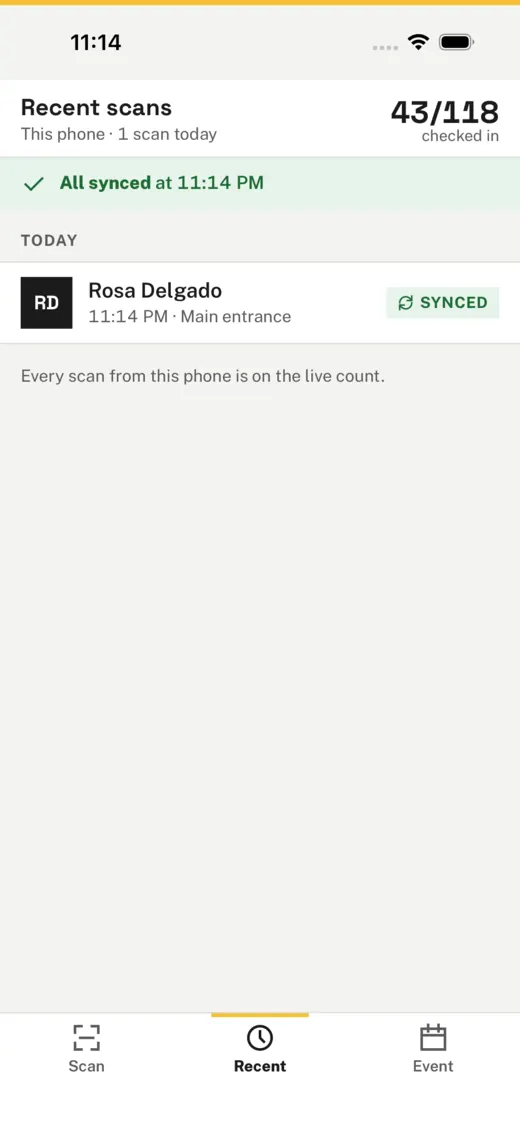
The Recent tab lists this phone's scans at the event, newest first, with where each one stands:
- Checked in or Synced: the person is on the live count.
- Already in: someone scanned this ticket earlier; the row says when and who.
- Offline: saved on the phone, waiting to be sent.
- Couldn't sync: Talli did not check the person in, for example because their ticket was cancelled or moved to another event while the phone was offline.
When some scans could not sync, the banner says how many, and Review shows only those. From the review, Try sending again sends them once more, for example after an event that was closed for a moment is open again. Pull down on the list to send waiting scans right away.
Your account
Tap your initials at the top right of the Event tab to open your account. It shows:
- Your name, your organization and your role in it, for example Hudson Valley Employers Council · Staff.
- Switch organization, when your Talli account works with more than one organization. Pick another one and tap Switch; the app then lists that organization's events.
- Open Talli on the web, which opens Talli in Safari, where organizers set up events, see who came and change their password.
- About Talli, with the app's version, its environment (for example Production) and the Talli address it talks to.
- Sign out, which asks before signing you out.
When you sign out, the phone forgets the attendee list it saved. Your choice of event and entry point stays, so signing in again opens the same door.
Signing out and switching events
The app does not let anyone sign out, or switch to another event or organization, while scans on the phone have not reached Talli. It first tries to send them; if that does not work, it says how many have not synced and offers Try again. Nothing waiting on the phone is ever deleted by signing out or switching.
If the sign-in expires while scans are waiting, the banner asks to sign in again, and the scans are sent once the same person is signed in.
Accessibility
Talli works with VoiceOver, Voice Control and Full Keyboard Access. Every button and row is named, results are read aloud, and every button is at least 44 by 44 points. Text follows the phone's text size, up to the largest accessibility sizes. At large sizes rows stack their parts instead of cutting words off, and a ticket code breaks only between its groups. Colors meet WCAG contrast, and no result is told by color alone: each one has its own words and its own vibration. Every screen is checked with Apple's accessibility audit, at the standard text size and at an accessibility size, before each release.