 Talli
Docs / Registration and attendees
Orders and group registration
Every registration belongs to an order: one ticket from the registration page, several from the group form, one per row of a spreadsheet import. The Orders tab shows who bought what, whose details are still missing, and lets you resend links, add or transfer tickets and cancel whole orders.
Register a group
- On the event's public page, choose Registering several people? Register a group.
- Pick the number of tickets (up to 10 by default).
- Fill in your own name and email as the buyer, and your organization if you like. You get the order confirmation, and you do not need to attend yourself.
- Choose the attendee type for the group, when the event has more than one.
- For each ticket, enter the person's email, then either their first and last name and language, or tick Send them a link to fill in their own details.
- Choose Register the group.
The page answers with the order number, for example PF-1042. Each person with details gets their ticket by email. Each person you sent a link to gets an email asking them to fill in their details. The whole group gets seats together, or joins the waitlist together when there are not enough seats left for everyone; a group is never split. People already registered for the event keep the ticket they have, and the page lists their emails.
Fill in your details from a link
- Open the link in the email (Fill in my details).
- Enter your first and last name, and your organization and language if you like.
- Choose Get my ticket.
Your ticket page opens and the ticket arrives by email. The page shows only your own email and attendee type, never the other people in the order.
Find orders
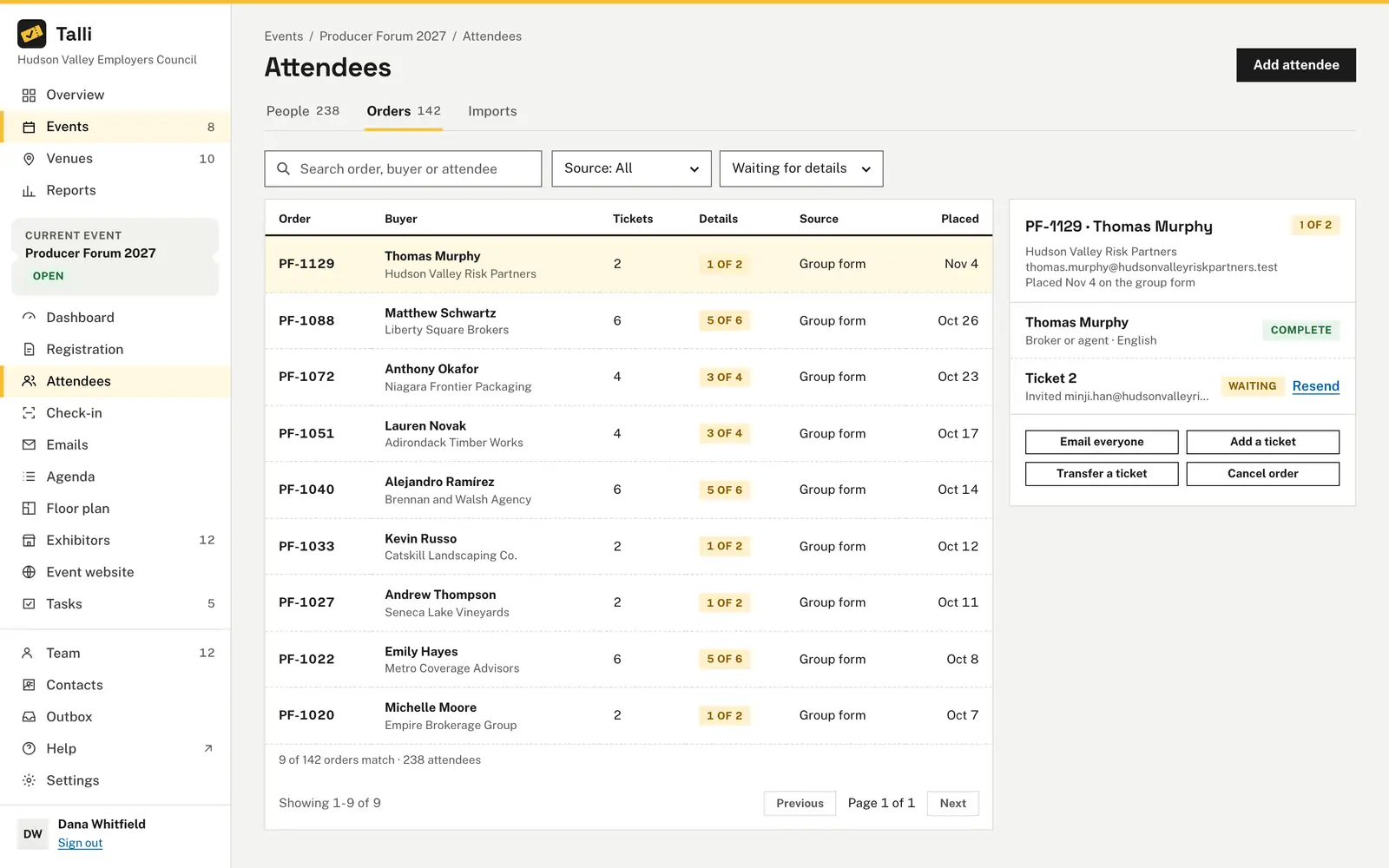
- Open the event's Attendees page and choose the Orders tab.
- Search by order number, the buyer's name, email or organization, or any ticket holder's name or email.
- Filter by Source (Registration page, Group form, Imported, Added by team) or by Details (Complete, Waiting for details, Cancelled).
Each row shows the order number, the buyer, the number of tickets, how many holders have filled in their details ("2 of 3", or Complete), where the order came from and when it was placed. Below the list you see how many orders and attendees the event has.
Work with one order
- Select an order to see it next to the list: the buyer, every ticket and its status.
- A ticket still waiting for details shows Waiting and who it was sent to. Choose Resend and confirm to email a new link; the old link stops working.
- Choose Email everyone and confirm to send the buyer an order summary and every holder their ticket again (or a new link, for those still waiting). The summary is in the buyer's language when the buyer holds a ticket in the order, and in the event's main language otherwise.
- Choose Add a ticket to add someone to the order, with their name or with a link to fill in their own details. Talli asks you to confirm before it emails them.
- Choose Transfer a ticket to give a ticket to someone else. They get a new ticket code by email, and the old code stops working at check-in. The previous holder's ticket stays in the order as Transferred, with their history: booth visits stay their leads, and their emails and credits stay theirs.
- Choose Cancel order and confirm to cancel every ticket in it. Nobody is emailed.
Import attendees from a spreadsheet
- Open the Imports tab on the event's Attendees page.
- Choose a CSV file, or paste the rows.
- Leave Email each new attendee their ticket off to import quietly, or tick it to email everyone their ticket (Talli asks you to confirm first).
- Choose Import.
The first row names the columns: first name, last name and email are required; ticket type and language are optional. Columns can be in any order, and their names are read regardless of case, spaces or underscores. A language can be written as a code (es), its English name (Spanish) or its own name (Español). Each row becomes its own order with source Imported, under the same capacity rules as registering. The result says how many attendees were imported, how many duplicates were skipped, how many ticket emails are queued, and which lines could not be imported and why. Ticket emails from an import are queued in the outbox and go out 200 every 5 minutes, so 1,000 emails take about 25 minutes; the result says how long, and the outbox shows them as Queued until then. Importing the same file again imports nobody twice, and emails anyone an earlier import created but did not email.
Who can use it
- Anyone can register a group on a published event's page, and anyone with a details link can fill in their own details.
- Everyone in your organization can see orders.
- Owners and admins can resend links, email an order, add and transfer tickets, cancel orders and import spreadsheets.
- Staff assigned to some events only see those events' orders.
Limits and edge cases
- One order holds at most 10 tickets unless the event allows a different number (1 to 50).
- The same email cannot appear twice in one order, and anyone already registered for the event is skipped.
- A seat waiting for its holder's details counts as taken, and shows as Details pending on the People tab.
- A ticket waiting for details cannot be checked in: the scan says the details were not filled in, and the person does not show in check-in search.
- A details link works once, stops working when a newer one is sent, and expires after 30 days or when the event ends, whichever comes first.
- The group form allows a limited number of orders per hour from one network; a form sent back with mistakes does not count.
- A cancelled ticket or one already checked in cannot be transferred.
- A transfer gives the new holder their own registration in the same order, with the same seat or the same place on the waitlist; the previous holder's session picks are cancelled.
- The registrations export leaves the ticket code empty for seats waiting for details and for transferred tickets, and names each ticket's order.
- Order numbers are unique within an event; two events whose names share initials can both have a PF-1001, so the activity log names the event too.
- An import takes up to 1,000 rows and 1 MB per file.
- Rows whose email is already registered, or that repeat an earlier row, are counted as duplicates and not imported.
Coming soon
- Importing orders directly from other ticketing services such as Eventbrite and Tixr. The Imports tab lists them as not available yet.
- Changing the largest group order from the event's settings page.
From an AI assistant
find_orderswith{ eventId, q?, source?, details?, limit?, offset? }: the event's orders, newest first, wheresourceisregistration_page,group_form,importorteamanddetailsiscomplete,incompleteorcancelled.get_orderwith{ orderId }: one order with the buyer and every ticket, its status and whether its holder's details are in.add_ticket_to_orderwith{ orderId, email, firstName?, lastName?, organization?, language?, ticketTypeId?, invite?, sendEmail? }:invite: truesends a link instead of taking names; asks for confirmation when it emails (owners and admins).transfer_ticketwith{ registrationId, firstName, lastName, email, organization?, language? }: a new registration for the new holder with a new code, emailed after confirmation; the previous holder's history stays with them (owners and admins).resend_details_invitewith{ registrationId }: emails a new details link after confirmation (owners and admins).email_orderwith{ orderId }: the order summary to the buyer and every holder's ticket or link again, after confirmation (owners and admins).cancel_orderwith{ orderId }: cancels every ticket of the order, after confirmation (owners and admins).import_registrationswith{ eventId, csv, sendConfirmations? }: imports CSV text; asks for confirmation only whensendConfirmationsis true (owners and admins).update_eventwith{ eventId, maxGroupSize }: the largest group order, 1 to 50.