 Talli
For event agencies
Run every client's events under their own name.
Talli gives each client its own organization, with the client's name, logo and brand color on registration pages, tickets and emails. Your planners work across those organizations with one account. Each client's events, attendees and reports stay apart from every other client's.
Talli runs in the web browser, so there is nothing to install. Door staff can also use Talli for iPhone.
What gets in the way when you run events for several clients?
Agencies juggle many brands, many teams and the same kinds of events over and over.
Every client wants their own look
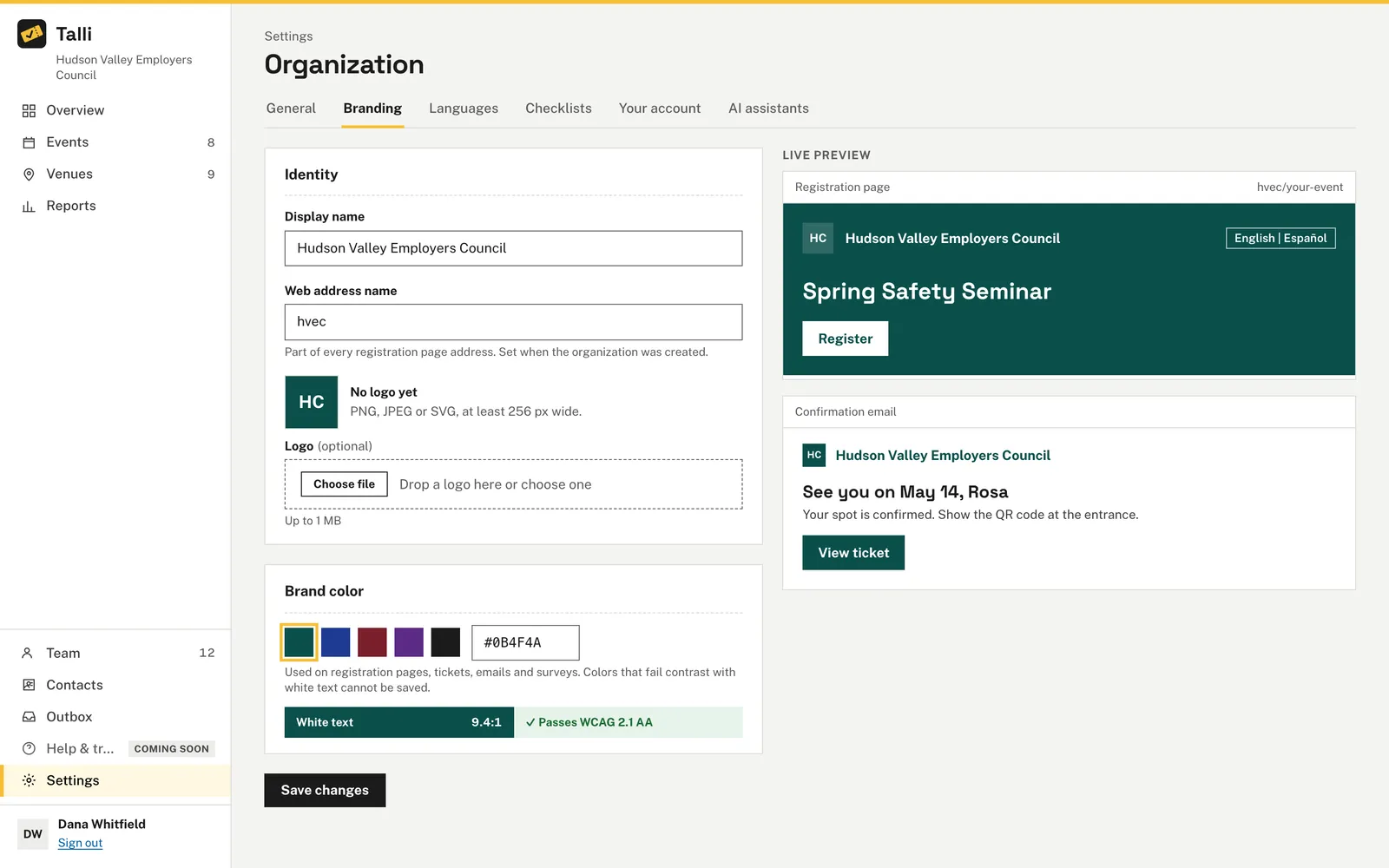
Each organization has its own display name, logo and brand color, used on its registration pages, tickets and emails. A live preview shows the result, and Talli checks that white text stays readable on the color. Branding
Client data must never mix
Everything in Talli belongs to one organization, and people only see the organizations they belong to. A ticket from another organization shows Ticket not found at the door, so nothing about other clients is revealed. Roles and activity
The same planners work for many clients
A Talli account can belong to more than one organization. When a client's owner adds you by your work email, you keep signing in with your own password, and Talli for iPhone has Switch organization. Team and roles
Clients repeat the same event in new places
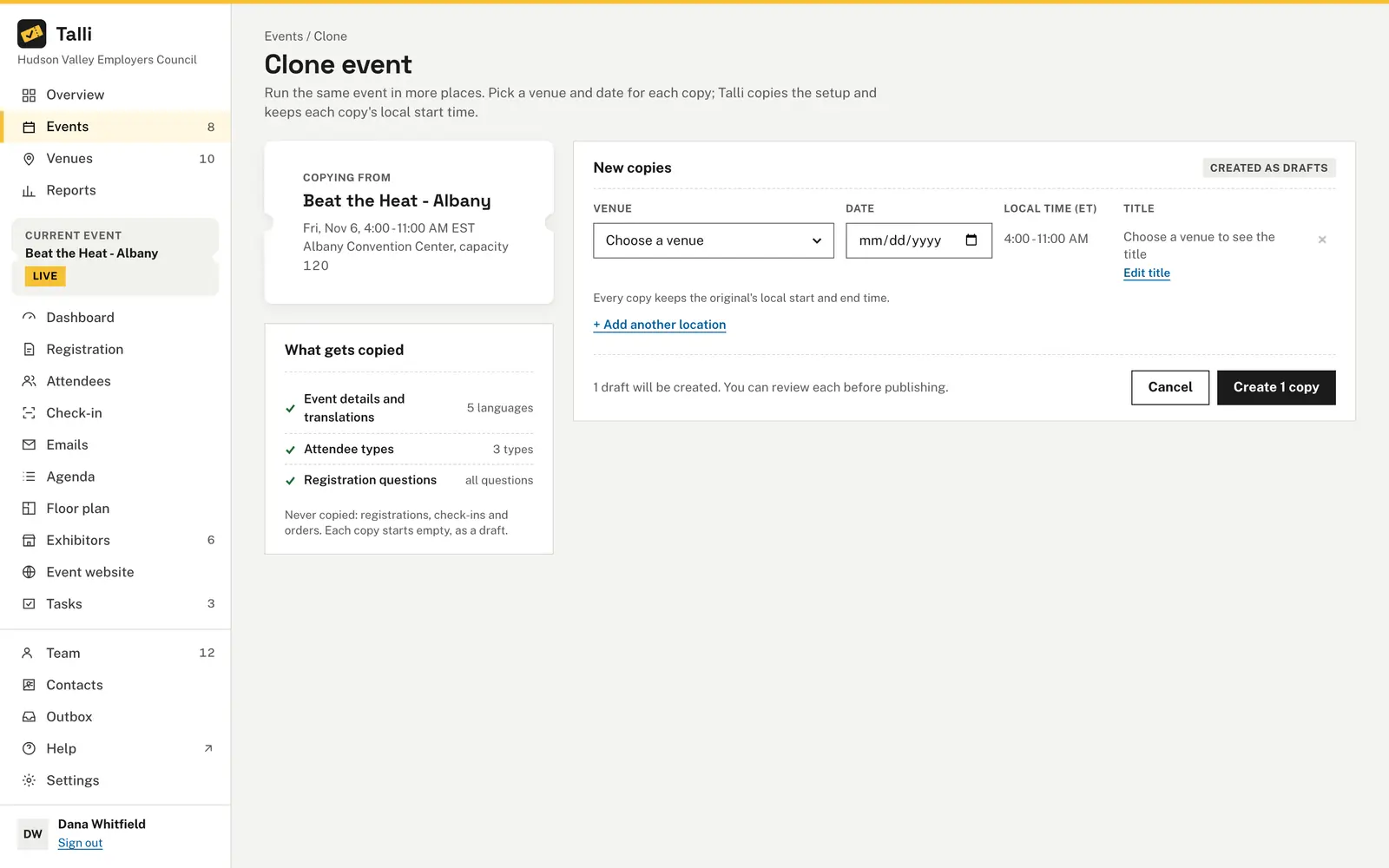
Clone an event to up to 10 venues at once. Each copy is a draft with the original's registration form, agenda, emails, tasks, surveys and event website. Cloning
Client staff need some access, not all
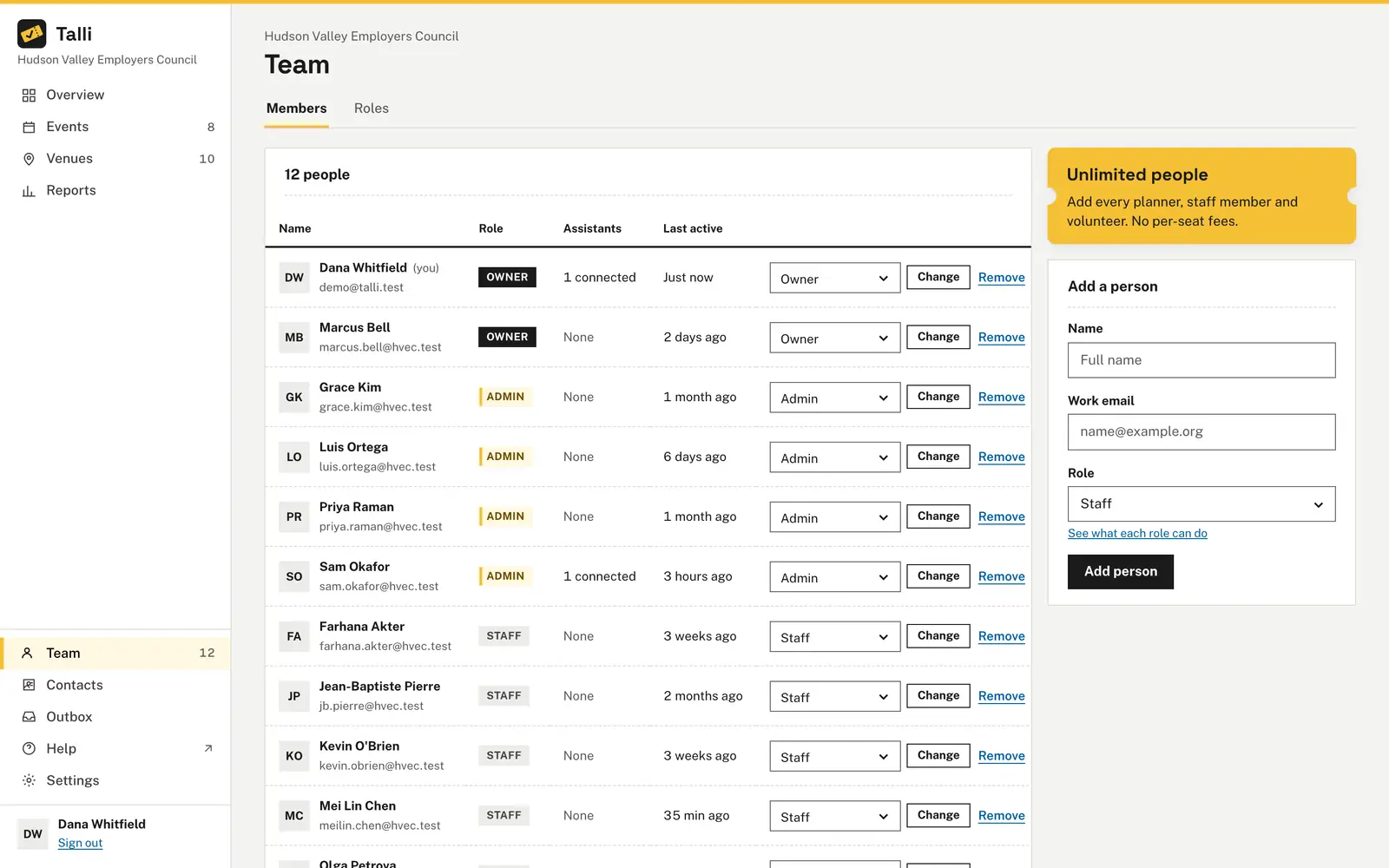
Give each person a role: Owner, Admin or Staff. Staff can look, check people in and use the attendee list, and can be assigned to one event or one entry point. Team and roles
How you would plan and run an event with Talli
An example: Brightwater Event Partners runs the Ridgeway Builders Guild Dealer Day for its client, first in one city and then in a second.
1. Plan
- Set up a Talli organization for the client. Whoever signs it up becomes its owner, and its web address name becomes part of every registration page address. Getting started
- On Settings, choose Edit name and branding and add the client's logo and brand color. Branding
- On Team, use Add a person for your planners as Admin and the client's helpers as Staff. Team and roles
- Add the venue, then choose + New event and draft the description with Write with AI. Events
2. Open registration
- On Registration, set attendee types such as Dealer and Guest and add the client's questions. Registration form
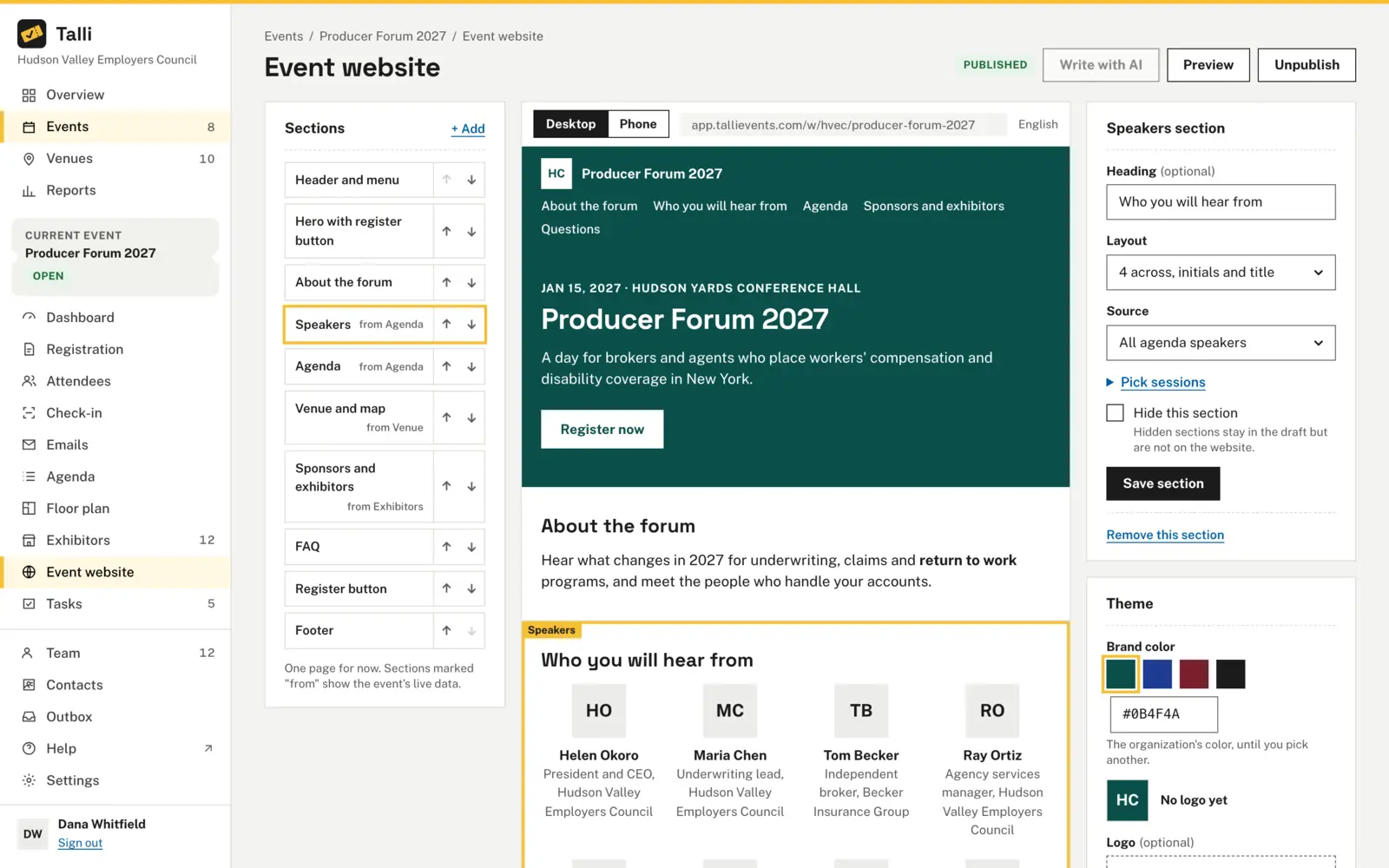
- Build the one-page Event website from sections and check it as a desktop or a phone. Event website
- Choose Publish, then View public page to share the link. Registration
- On Contacts, choose Import contacts, then plan the invitation on the event's Emails timeline and check it with its preview. Emails
3. Before the day
- Share the work on the event's Tasks board, with an assignee and due time on each task. Tasks
- Choose Clone to copy the event to the second city as a draft. Cloning
- Assign the client's staff to their entry points under Staff assignments. Devices and offline
4. On the day
- Staff check people in from a phone browser or Talli for iPhone, by scan, ticket code or name. Check-in
- A planner who also works for other clients picks this client under Switch organization in the app before scanning. Talli for iPhone
- Watch the event's Dashboard for check-ins as they happen. Dashboard
What Talli gives event agencies
The parts of Talli that matter most when you run events on behalf of others.
Branding per organization
Display name, logo and brand color for registration pages, tickets and emails, with a contrast check. Branding
One account, several organizations
Someone who already has a Talli account is added to a new organization by email and keeps their own password. Team and roles
Team and roles
Owner, Admin and Staff, with a Roles tab that shows exactly what each role can do. Team and roles
Separate data per client
Each organization sees and changes only its own data, and every change is recorded with who made it. Roles and activity
Cloning
Copy an event to up to 10 venues at once, each as a draft with its own date and title. Cloning
Event website
A one-page website for each event, built from sections, edited as a draft and published when ready. Event website
Emails and contact lists
Plan invitations, reminders and follow-ups on a timeline for contact lists imported from spreadsheets, with merge tags and previews. Emails
Frequently asked questions
Can each client have its own branding?
Yes. Each organization has its own display name, logo and brand color, used on its registration pages, tickets and emails. Without a logo, Talli shows the organization's initials in its brand color.
Can one person work for several clients?
Yes. A Talli account can belong to more than one organization: when an owner or admin adds someone who already has an account, they are added and keep signing in with their own password. In Talli for iPhone, they pick a client under Switch organization.
Can one client see another client's events or attendees?
No. Everything in Talli belongs to one organization, and you can only see and change your own organization's data. Adding someone to a team never shows you which other organizations their account belongs to.
Can client staff help at the door without changing anything?
Yes. The Staff role can look, check people in and use the attendee list, but cannot change events, venues, forms or branding. Staff can also be assigned to one event or one entry point.
Can we reuse an event for the client's next city?
Yes. Clone copies an event to up to 10 venues at a time, each as a draft. Registrations, check-ins and orders are not copied, so each copy starts empty.
Bring your next client event to Talli
Ask us for a demo for your agency, or sign in to set up a client's event.