 Talli
Docs / Exhibitors
Brand portal and booth scanner
Brands that exhibit at your events get their own portal. They see their booth, write their booth page, scan visitors at the booth and follow up on their leads. They never see other brands, the attendee list or anything else of your organization.
Signing in
There are no passwords in the portal. A brand's contact gets a sign-in link when you invite the brand to an event (see Exhibitors). Anyone of the brand can also ask for a new link at /portal/sign-in with their work email. A link works once, on the device it is opened on, and expires after 30 minutes (7 days for an invite). Opening the link shows a Sign in button, so an email scanner that opens links does not use it up. A session lasts until a day after the brand's last event ends, however often it is used. Opening a link is the only way into a brand's portal, and it signs in only the device it is opened on. That sign-in has the brand's access; the person's account does not. Signing in with a password, or signing up, never reaches the portal, even with the contact's email address or for someone who also has a link. Opening a link changes nothing else about an existing Talli account: its password, its other sign-ins and its organizations stay as they are. The sign-in page gives the same answer whatever address is typed, so it never tells who has a brand.
Your events
Overview lists every event the brand exhibits at, with the booth, booth visitors so far and the state of the booth page. Running and upcoming events come first.
Booth dashboard
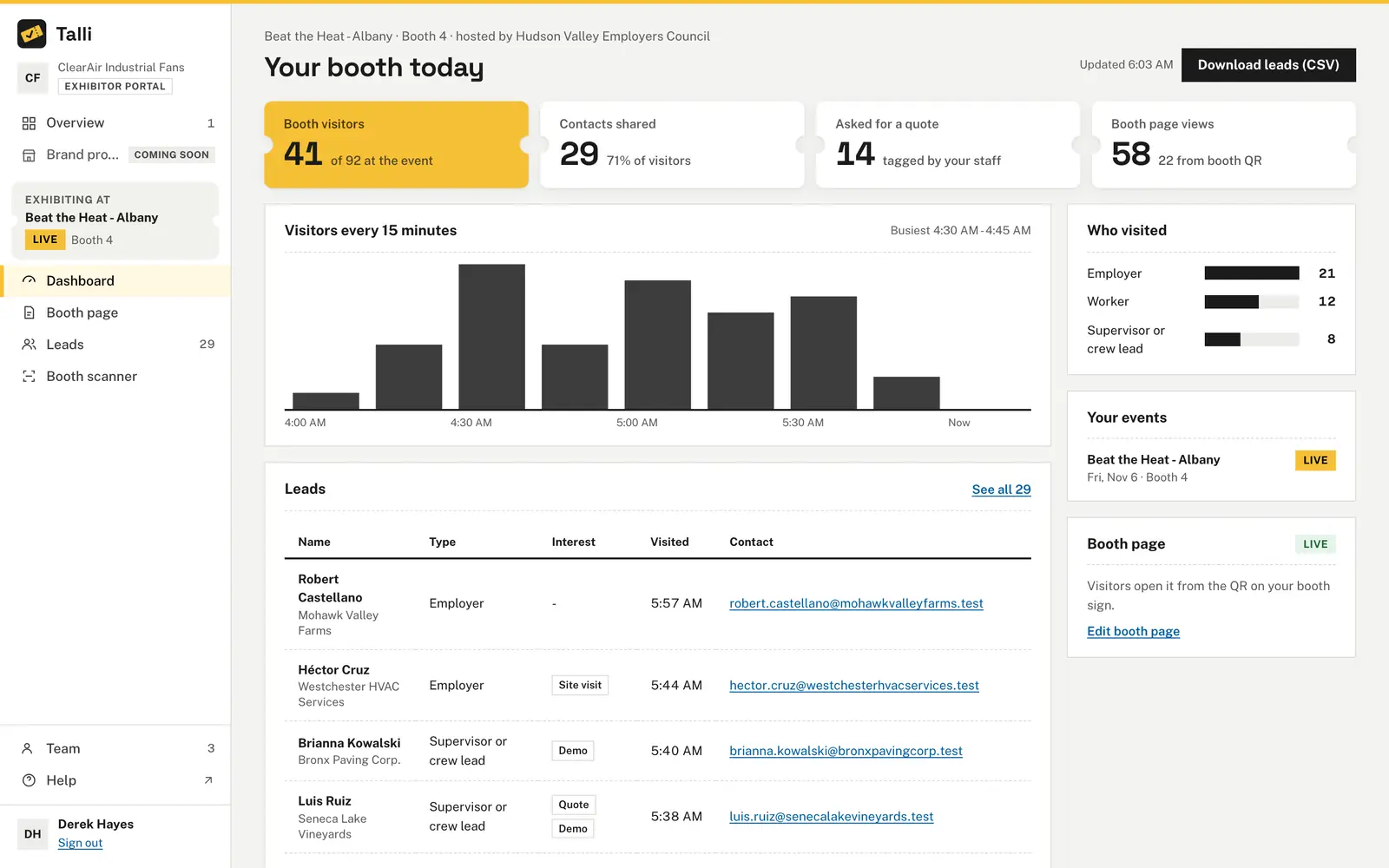
Each event has a dashboard of the brand's booth:
- Booth visitors: attendees who visited, and how many attendees are at the event.
- Contacts shared: visitors whose name and email the brand sees, as a share of all visitors.
- Asked for a quote: visits the brand's staff tagged Quote.
- Booth page views: how often the booth page was opened, and how many of those came from the QR on the booth's sign.
Below are new visitors every 15 minutes, who visited by attendee type, the latest leads, the brand's other events and its booth page. The leads list only visitors who share their contact; the others are counted in the numbers, not listed. Download leads (CSV) appears when the host lets brands download their leads.
Leads and consent
What a brand learns about a visitor follows the host's lead sharing setting for the event and each attendee's own choice:
- Off: the brand sees nothing about visitors, not even how many.
- Visit counts only: numbers and charts, no names.
- Contacts of attendees who agree: name, organization and email of visitors who agreed to share them; everyone else is counted, not listed.
Consent is checked every time the brand looks, not when the visit was scanned. An attendee who stops sharing on their ticket page disappears from the brand's leads and from the next download at once. Cancelled registrations never count.
Booth page
The brand writes a headline, a few paragraphs (bold, links and lists work) and an offer, with a phone preview next to the editor. Save draft keeps it for later; Send for review sends it to the host. Attendees keep seeing the version the host approved until the host approves the next one. If the host sends it back, their note shows above the editor. The live page is on the event website, opened from the QR on the booth sign, in the visitor's language when a translation exists.
Booth scanner
Booth staff open Booth scanner on their phone and point the camera at a visitor's ticket QR, or type the ticket code.
- Visit logged: a new visitor who shares their contact; their name and organization show.
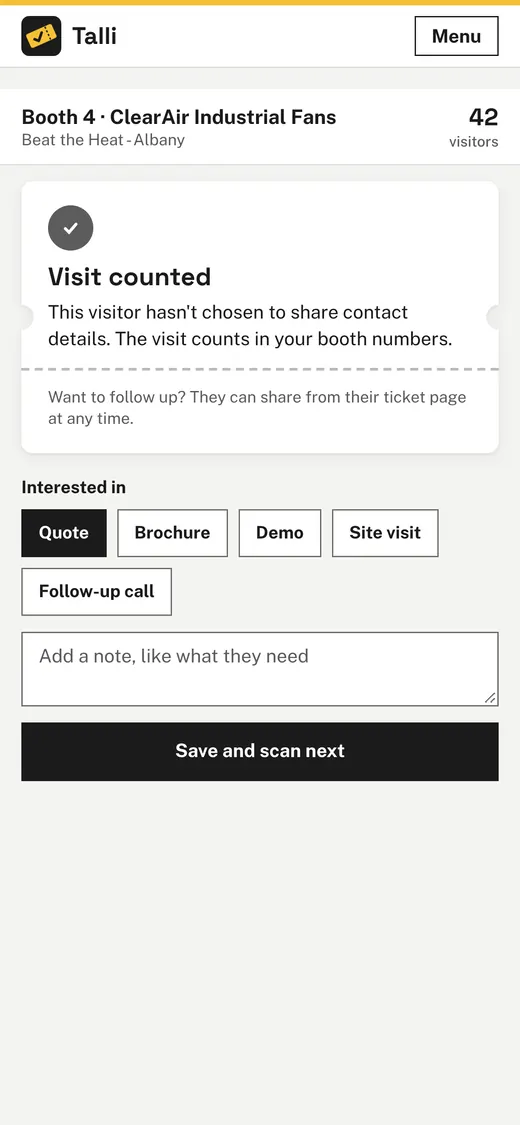
- Visit counted: a new visitor who does not share their contact; the visit counts in the booth's numbers.
- Already visited: a second scan of the same visitor counts once.
The visitor's first visit is their earliest scan, even when a phone that was offline sends an earlier scan later.
After a scan, staff tap what the visitor asked about (Quote, Brochure, Demo, Site visit, Follow-up call), add a note and tap Save and scan next. The scanner works without JavaScript too: type the code and tap Log visit.
Without a signal
Scanning keeps working with no connection. Each scan is kept on the phone and the scanner shows Offline - N visits saved. The phone sends saved scans as soon as the signal returns, and tries again every 15 seconds; the scanner then shows how many synced. A scan sent twice is recorded once, and a saved scan keeps the time it was made. A saved scan the server refuses (a code no ticket of the event has, a cancelled ticket) is listed on the scanner, never dropped silently. An offline scan shows no name: contact details appear only after the server checks the attendee's consent. Keep the scanner open and stay signed in until every saved visit has synced.
What stays on the phone
Two things are kept on the phone for the scanner, and nothing else:
- The scanner page, as last loaded, so it opens without a signal; it shows the booth's visitor count and the name of the latest visitor who shares their contact. It is deleted whenever the portal's sign-in page opens on the phone (signing out, a session that ended, someone else signing in).
- Saved scans that have not synced yet: the ticket code, the scan time and what staff tapped or typed. A saved scan is deleted as soon as the server records or refuses it.
Saved scans belong to the booth they were made at, not to the person signed in. They stay on the phone when the sign-in ends and when a colleague signs in on the same phone, and they sync from the booth scanner after the next sign-in for that booth. The sign-in page says how many are waiting. Scans of another brand's booth on a shared phone wait for that brand, and nobody else sees them. The only way saved scans are deleted before they sync is Sign out: when scans have not synced, it says how many and asks to confirm; Stay signed in keeps them.
Team
The brand's owner (the contact who signed in first) adds booth staff by name and email on Team; each gets a sign-in link, and only that link lets them in. No Talli account is made for the address until they open it, so they can still sign up to Talli normally. Owners can remove people; the brand always keeps at least one owner. Staff see the team but cannot change it.
AI assistants
The portal is not available to AI assistants. Your own team's assistant can log a booth visit for an exhibitor with the log_booth_visit tool, counted exactly as the portal counts it.