 Talli
Event website
Give every event a website of its own.
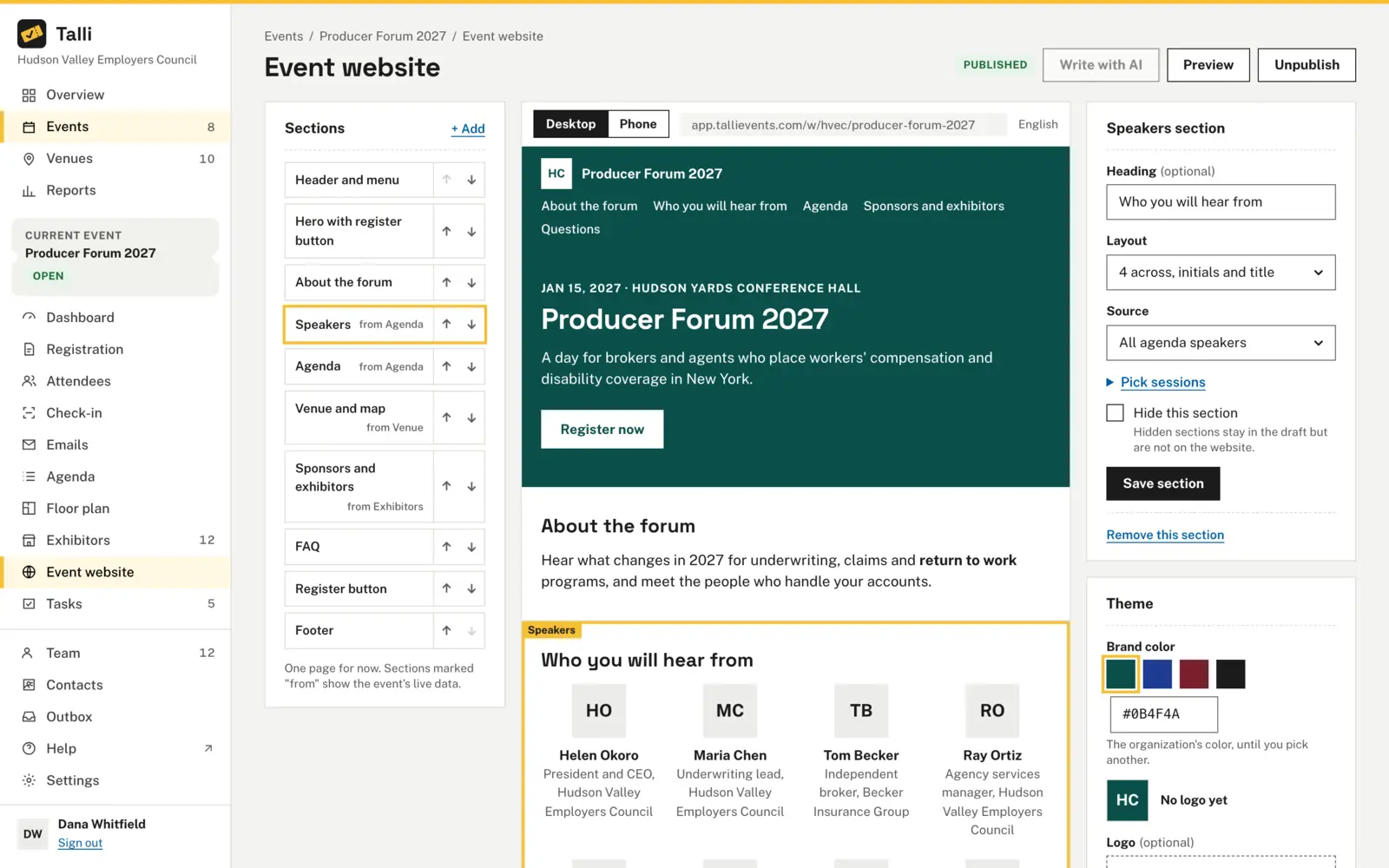
Every event can have a one-page website built from sections you put in order: a hero with a register button, your own text, the agenda, speakers, the venue map, exhibitors, and questions and answers. You edit a draft and publish it when it is ready, and attendees read it in their own language.
What makes an event website hard to keep up?
Common problems with event websites, and what Talli does about each one.
Visitors cannot get from the site to the form
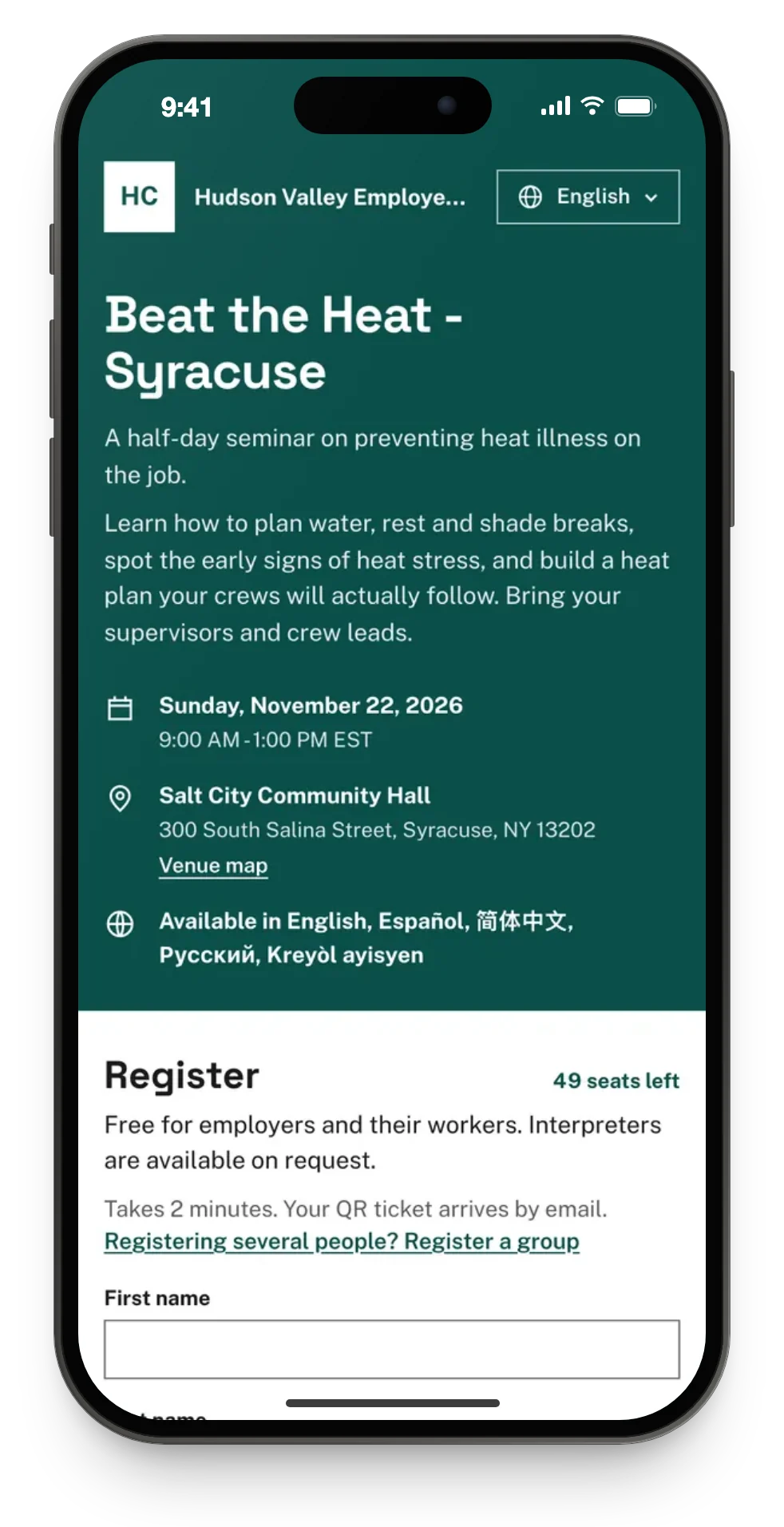
Register now buttons open the event's registration page in the same language. The layout fits phones with no sideways scrolling and works with a keyboard and a screen reader.
Building a site from scratch
A new event starts with ready-made sections filled from the event: the title, the description, the agenda, speakers, venue and map, sponsors and exhibitors, a register button and a footer. Add, move, hide or remove sections from the Sections list.
The site and the event drift apart
Sections such as the agenda, speakers and exhibitors show the event's live data. A session added to the agenda, or a new exhibitor, shows on the website at once, with no need to publish again.
Half-finished changes go live
You edit a draft and look at it as a desktop or a phone before anyone else sees it. Publishing asks first, and if the draft changed after you opened the confirmation, nothing is published until you review it again.
Every language needs its own site
Publishing translates the website's text into the event's languages. Visitors switch language from the header or the footer links, and your team can review each translation.
How it works
From ready-made sections to a published site.
Open the editor
Open the event and choose Event website in the left sidebar. The preview shows the draft with the chosen section outlined.
Edit the sections
Choose a section, change its fields and choose Save section. Choose Write with AI on the hero, a text section or the register button to draft its text.
Set the theme
Under Theme, pick a Brand color and a logo, and choose Save theme. Talli refuses a color that keeps white text from meeting WCAG 2.1 AA contrast.
Preview
Choose Desktop or Phone above the preview, or Preview for the full page.
Publish
Choose Publish and confirm. Copy the web address under Theme and share it.
Frequently asked questions
Do visitors need an account to read the website?
No. Anyone with the link can read a published website. It never shows attendees, registrations or anything about who is coming.
When is the website public?
Only while the event is published or closed. You can publish a draft event's website, and it goes live when the event is published.
Do I need to republish when the agenda changes?
No. Sections that show the event's live data, such as the agenda and exhibitors, update on the website at once.
What happens when I unpublish the website?
Its address answers Page not found, the draft is kept, and the event's registration page is not affected.
Is the website copied when I clone an event?
Yes. The copy gets the website's draft and theme, unpublished, and a site name or headline that was the event's title becomes the copy's title.
Launch your next event's website in Talli
See how the website editor builds a page from your event.