 Talli
Emails
Every event email on one timeline.
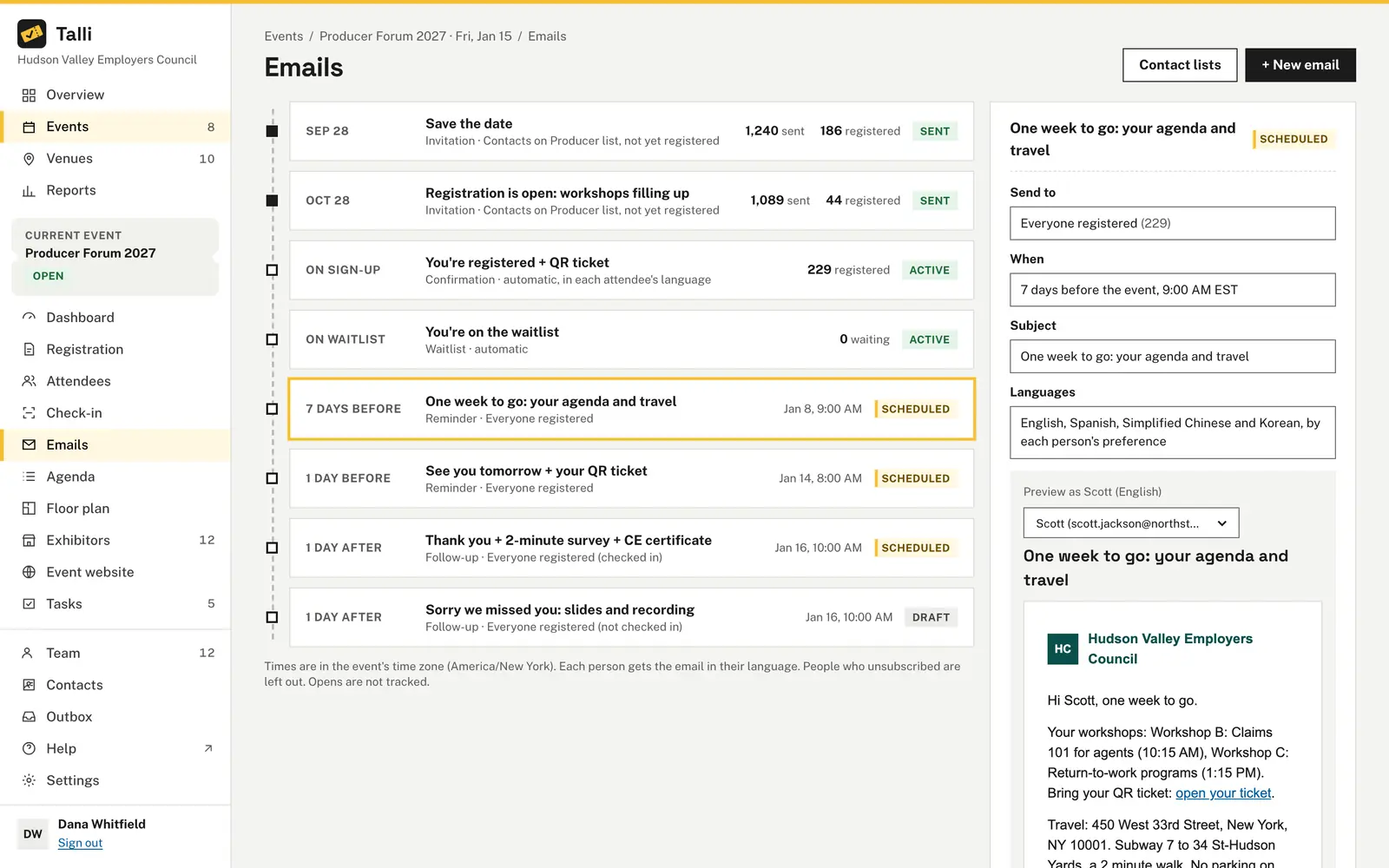
Each event has a timeline of emails: invitations to your contact lists, reminders before the event, follow-ups after it and announcements. Each person gets their own name, ticket link and session picks, in their own language. Confirmation and waitlist emails sit on the same timeline and go out when someone signs up.
What gets in the way of event emails?
Common problems with emailing attendees, and what Talli does about each one.
One email, many languages
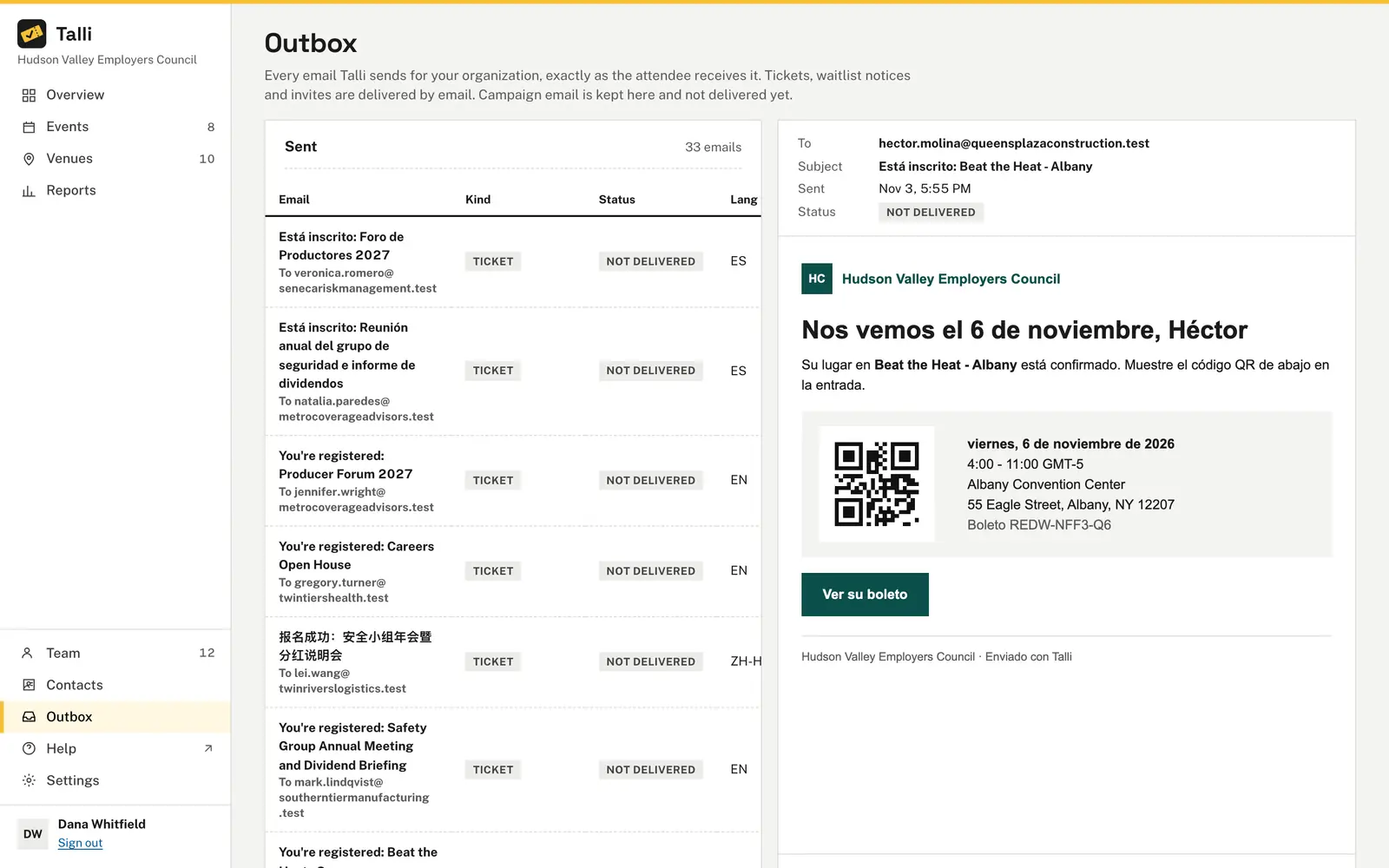
The subject and the email are translated into the event's languages when you save them, and your team can review them on the Languages tab. Each person gets it in the language they registered in. Merge tags such as {{eventDate}} are written in the person's language too.
Contact lists live in spreadsheets
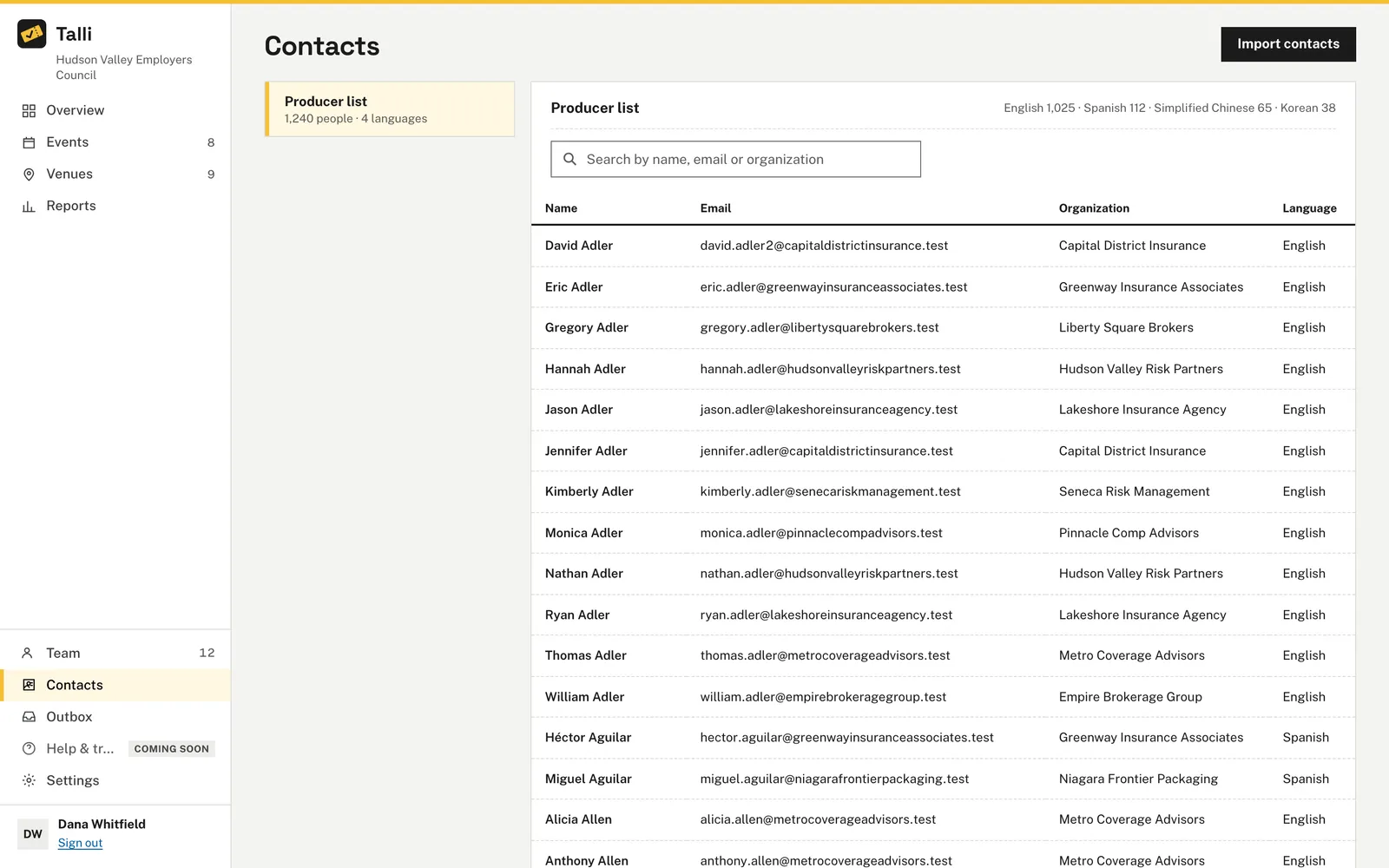
Choose Contacts in the sidebar, then Import contacts to add people from a CSV file. Someone already on the list is updated, never added twice. Each list shows its size and its people's languages.
Reminders drift when the date changes
Time an email from the event, for example 7 days before at 9:00 AM, in the event's time zone. When the event's date or time changes, those emails move with it. If the new time puts one in the past, Talli asks before saving and moves it back to draft.
Invitations reach people who already registered
Send to people registered, narrowed by attendee type, language or check-in, or to one or more contact lists. Leave out people already registered is on by default, and someone on several lists gets the email once. The audience is counted again when the email goes out.
Mistakes reach the whole audience
The panel previews the email as one real person would get it, and Preview as switches to another. Send a test to me sends it to your own address only. Schedule asks first, naming how many people, when and in which languages.
How it works
From a blank draft to a scheduled email.
Open the timeline
Open an event and choose Emails in the sidebar. Choose any email to see its audience, time, subject and a preview.
Write the email
Choose + New email, pick the Kind, write the subject and the email, or choose Write with AI to draft them. Choose Save draft.
Preview and test
Use Preview as to check one person's copy, then choose Send a test to me.
Schedule or send
Choose Schedule and confirm, or Send now. Cancel sending stops a scheduled email, and you can edit and schedule it again.
Frequently asked questions
Does Talli track opens and clicks?
No. Talli adds no tracking to emails. Registered after counts the people emailed who later registered for the event with the same address.
Can people unsubscribe?
Yes. Every email from the timeline ends with a link to unsubscribe from your organization's event emails, and email apps can unsubscribe in one click. Tickets and confirmations for events they register for still reach them.
What happens to scheduled emails if I cancel the event?
Cancelling the event cancels its scheduled invitations, reminders and follow-ups, and stops one that is going out. Announcements still go, so you can tell people.
Can I change the confirmation email?
Yes. Owners and admins reword the On sign-up and On waitlist emails with Edit email. Until then they use Talli's wording, which is translated into every language already.
What if I type a merge tag Talli does not know?
Talli refuses to save the email and names the tag, for example {{event_date}}, so nobody gets a broken email.
Plan your event's emails in Talli
Ask us for a demo, or sign in to write your first invitation.