 Talli
Tasks and checklists
Every task for your event, on one board.
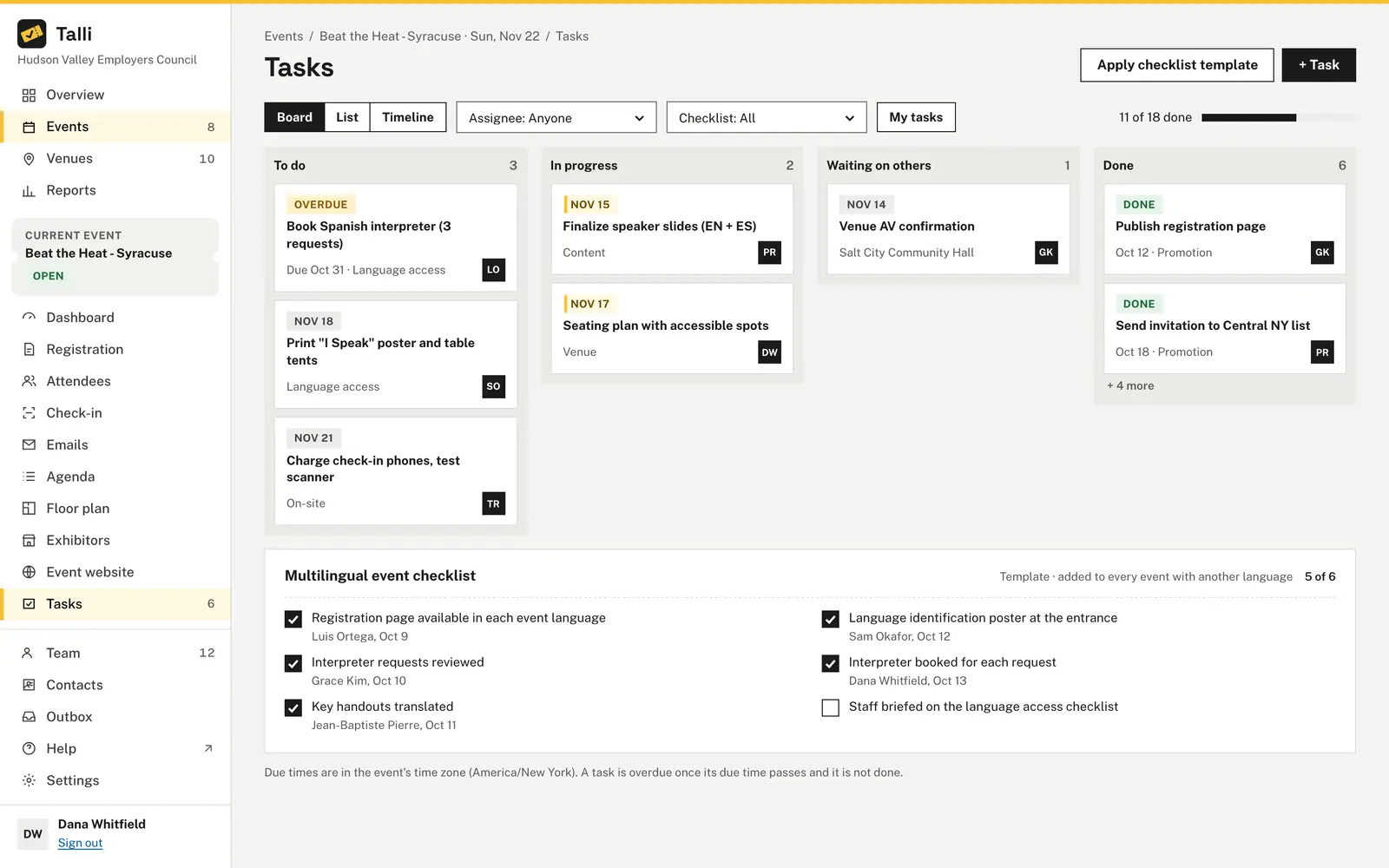
Each event has a task board your team moves from To do to Done, and checklists made from your organization's templates. The header shows progress at a glance, for example 11 of 18 done.
How do you keep event prep on track?
Common problems with planning an event, and what Talli does about each one.
Every event starts from a blank page
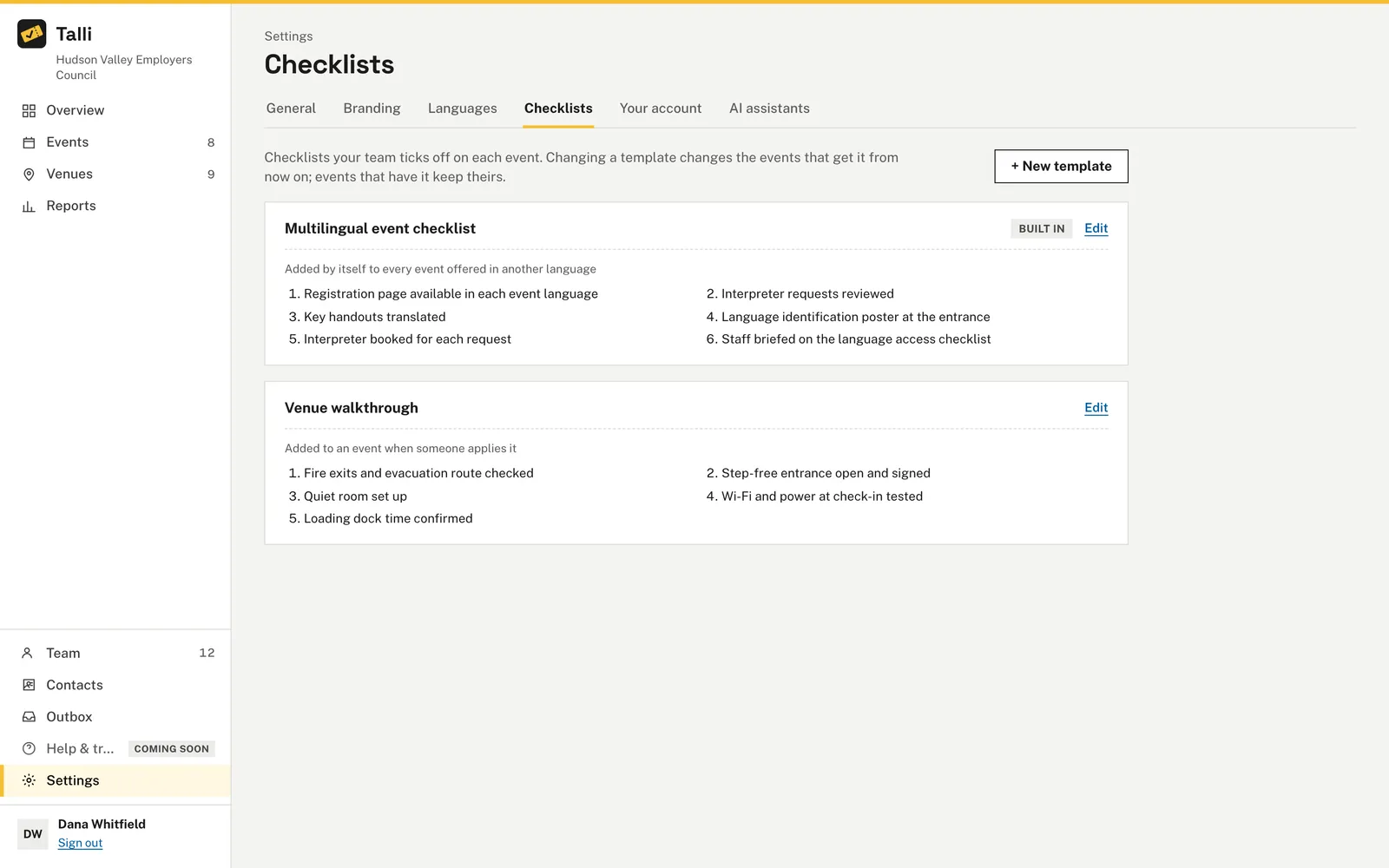
Keep checklist templates in Settings, under Checklists, with up to 50 checks each. Apply one to an event in a click, or tick Add it by itself to every new event.
Nobody sees what is left to do
The board has To do, In progress, Waiting on others and Done columns. Each card shows its title, category, due time and who does it, and a task past its due time is marked Overdue. Choose List or Timeline for other views.
People lose track of their own work
Choose My tasks to see only the tasks assigned to you, or pick someone in Assignee, or Nobody yet for the tasks no one has taken.
Language access gets forgotten
An event offered in more than one language gets the built-in Multilingual event checklist by itself, with checks such as Interpreter requests reviewed and Key handouts translated. Talli records who ticked each check and when.
Drag and drop leaves some people out
Cards move with a mouse, or with the keyboard: Space to pick a card up, the arrow keys to move it and Space to drop it. Each step is read out by screen readers.
How it works
Plan the work for an event from its Tasks page.
Open Tasks
Open an event and choose Tasks in the left sidebar. The number next to it is how many tasks are not done yet.
Add tasks
Choose + Task, enter a title and, if you like, a status, assignee, due time, category and notes, then choose Add task.
Move them along
Drag a card to another column, or change its Status. Moving a task to Done records when it was completed.
Apply a checklist
Choose Apply checklist template and Apply next to a template. Its checks are added to the event, all unticked.
Frequently asked questions
Who can use the task board?
Everyone on the team, including staff, can see the board, add, change and move tasks, and tick checks. Owners and admins can also delete tasks, apply checklist templates and manage templates.
Are tasks copied when I clone an event?
Yes. Tasks and checklists are copied. Tasks start again in To do, due times move with the event's date, and checks are unticked.
Can I move tasks on a phone or tablet?
Yes. Open the card and change its Status. Dragging cards needs a mouse or a pen.
What happens to tasks when someone leaves the team?
When someone is removed from the team, their tasks become unassigned, so nothing is lost.
Can the multilingual checklist be added twice?
No. An event gets it once, and removing and adding languages again does not add a second copy. Owners and admins can edit its items or stop adding it automatically.
Start every event prepared
See the task board and checklists on one of your own events.