 Talli
Team and roles
The right access for everyone on your team.
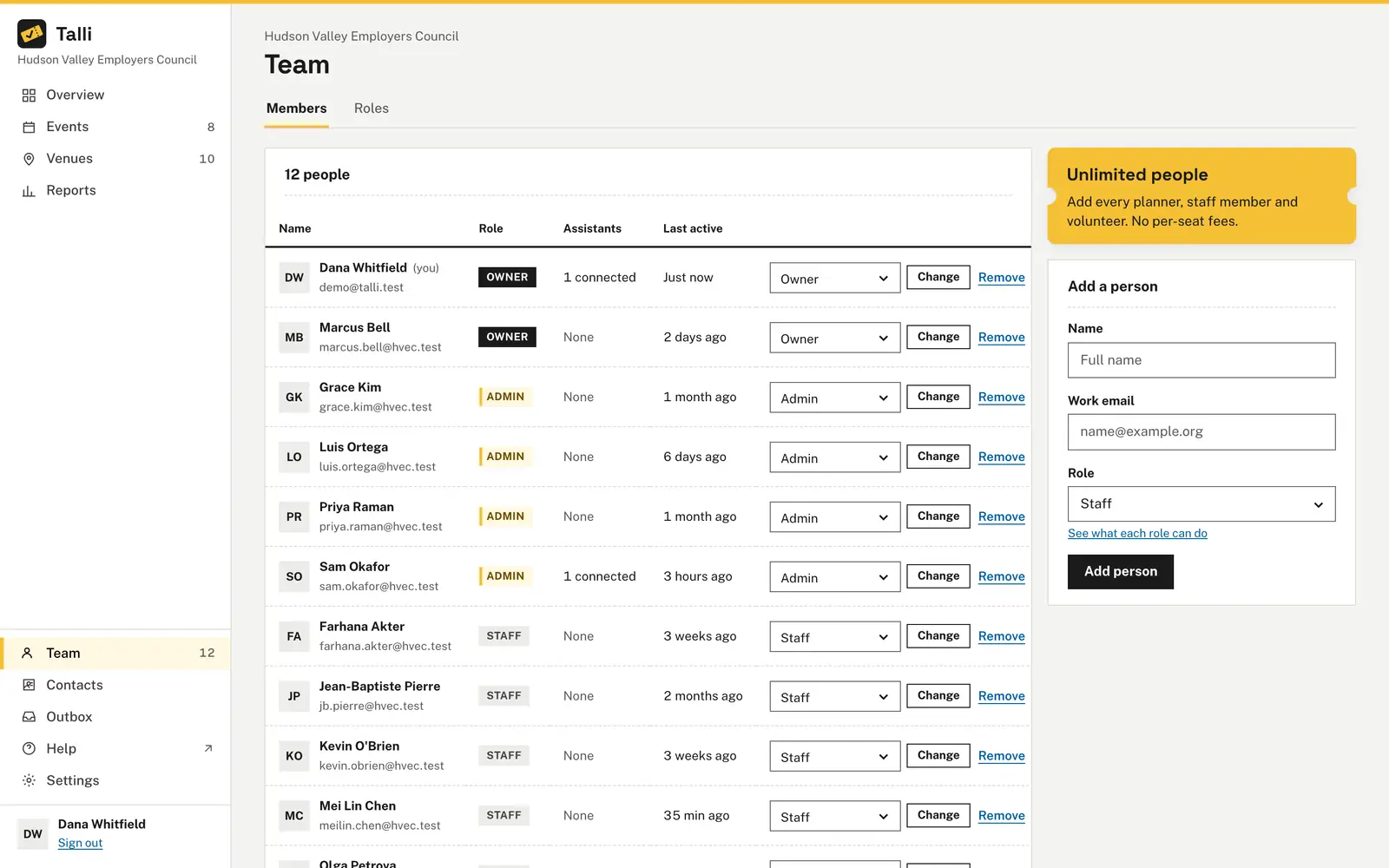
Add people to your Talli team and give each one a role: Owner, Admin or Staff. The role decides what they can change, and Talli records every change with who made it and when.
How do you keep a team's access under control?
Common problems with shared event accounts, and what Talli does about each one.
Nobody is sure what a role allows
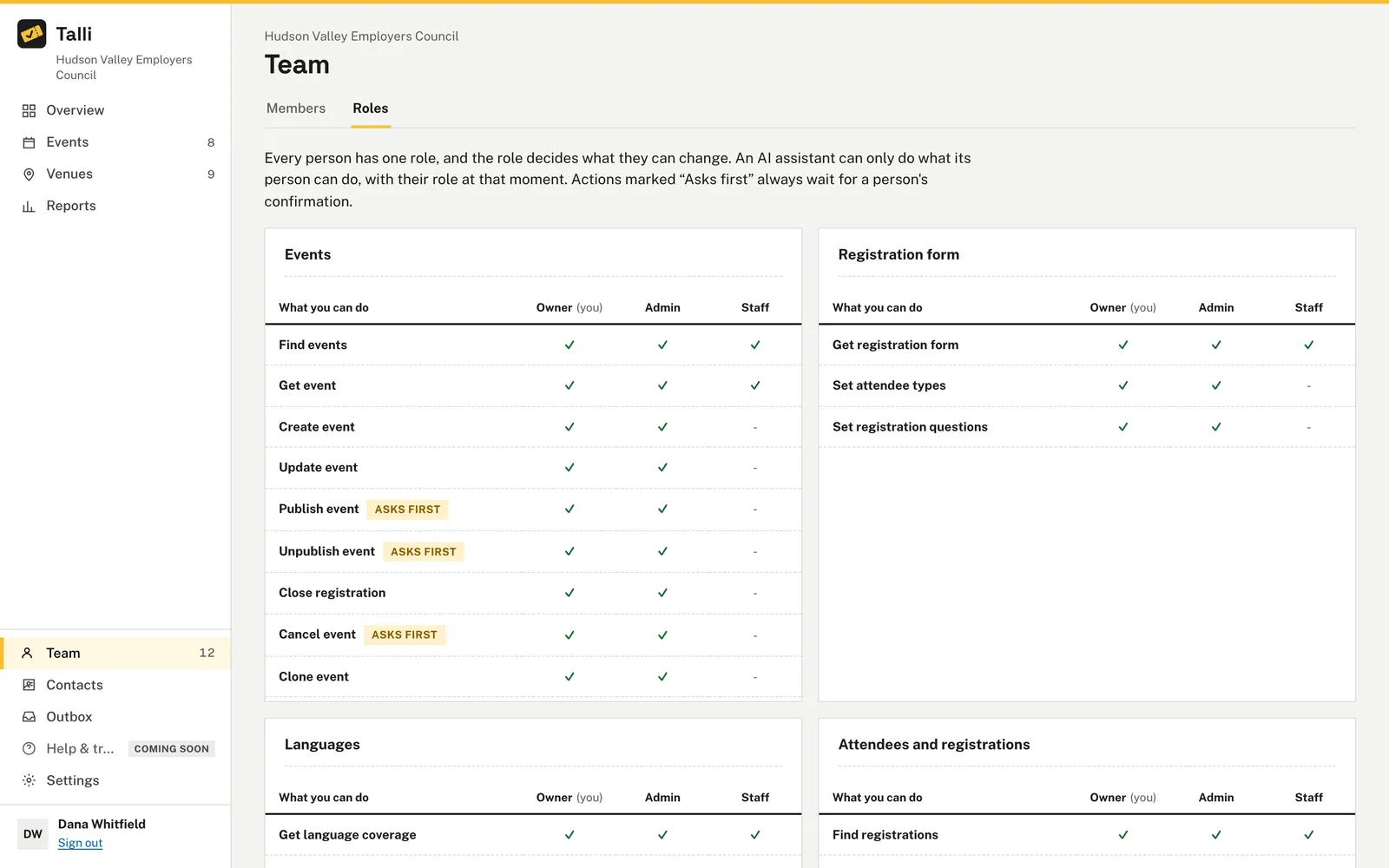
The Roles tab shows every action, grouped by area, with a check mark for each role that can do it. It is built from the same list Talli uses to enforce permissions, so it always matches what is allowed.
Nobody knows who changed what
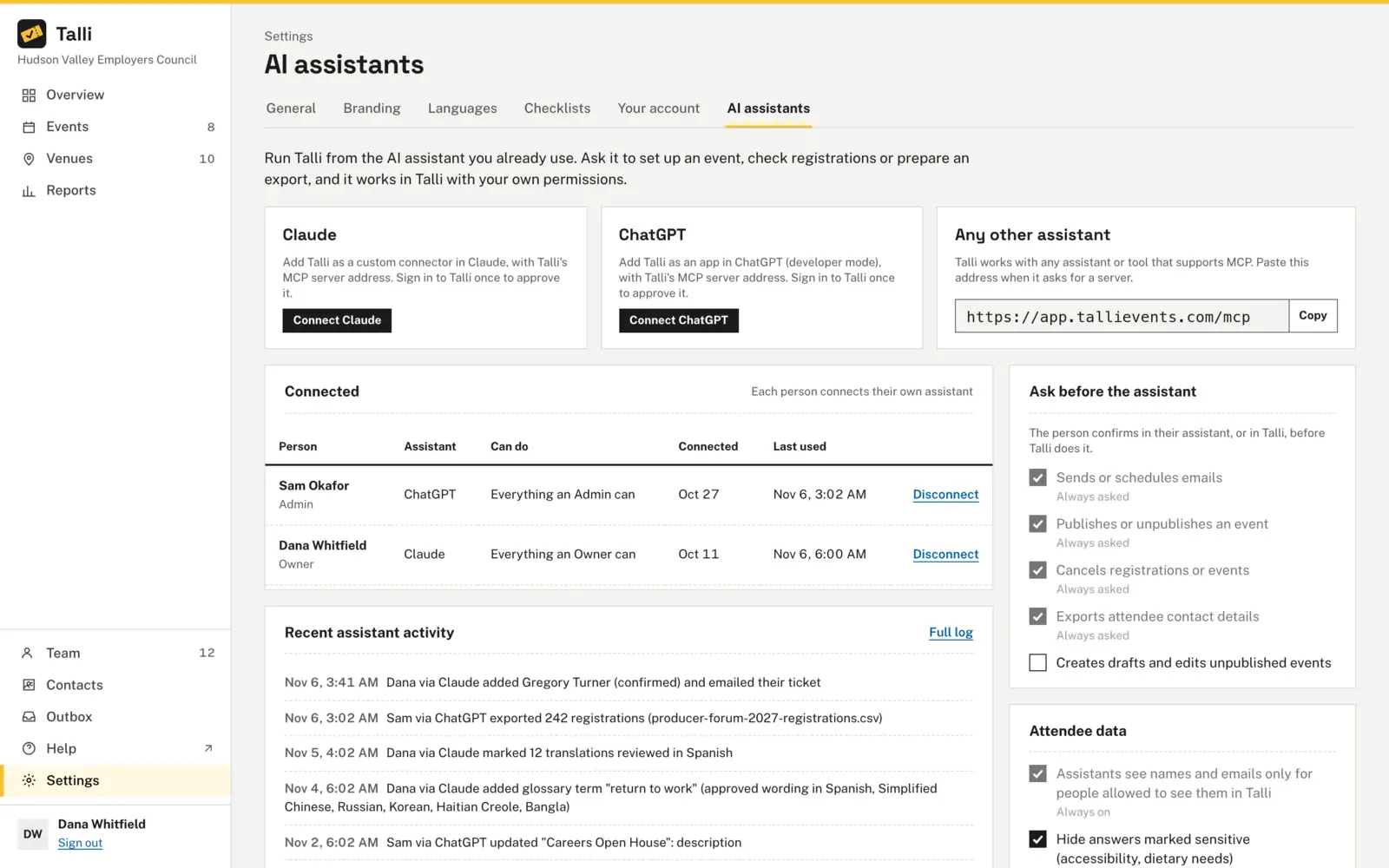
Talli records every change to your organization's data, with who made it, when, and whether it came from the web app or an AI assistant. A change and its log entry are saved together, so a change never goes unrecorded.
Staff click buttons they cannot use
Controls a person cannot use are hidden or disabled instead of failing later. A staff member sees no New event button, and the branding and registration form pages are marked view only.
Shared passwords stay in circulation
A new person gets a temporary password once, and Talli asks them to choose their own before they can do anything else. Or choose Resend invite to email them a set-password link that works once and expires after 7 days.
Someone leaves and keeps access
Removing a person takes away their access right away and disconnects every AI assistant they connected. Their past activity stays in the activity log, and the last owner can never be removed.
How it works
Bring your team into Talli from the Team page.
Open the Team page
Open Team in the sidebar. Everyone on the team can see it and the Roles tab.
Add a person
In Add a person, enter their full name and work email, choose a role and select Add person.
Let them sign in
Give a new person the temporary password Talli shows once, or choose Resend invite to email them a link to choose their own password.
Adjust roles over time
Owners choose a new role in a person's row and select Change. It applies right away, also to their open sessions and connected assistants.
Frequently asked questions
What roles are there?
Owner, Admin and Staff. Admins change events, venues, registration forms, attendees and branding. Owners can do everything an admin can, plus manage the team and the AI assistant settings. Staff look, check people in and use the attendee list.
Does Talli email the temporary password?
No. Talli shows it once on the Team page, and you give it to the person yourself. To email them instead, choose Resend invite: they get a set-password link that works once and expires after 7 days.
Is there a limit on the number of people?
No. You can add as many people to your team as you need.
What does the activity log record?
Every change to your organization's data, such as a venue added, an event published or a person added as Staff, with who made it and when. Looking at things, such as opening the events list, is not logged.
Can an AI assistant do more than its person?
No. An assistant always acts with its person's current role. If their role changes, their assistants change with it at the same moment.
Give your whole team the right access
See how roles, invites and the activity log work for your organization.