 Talli
Registration form
Ask the right questions, of the right people.
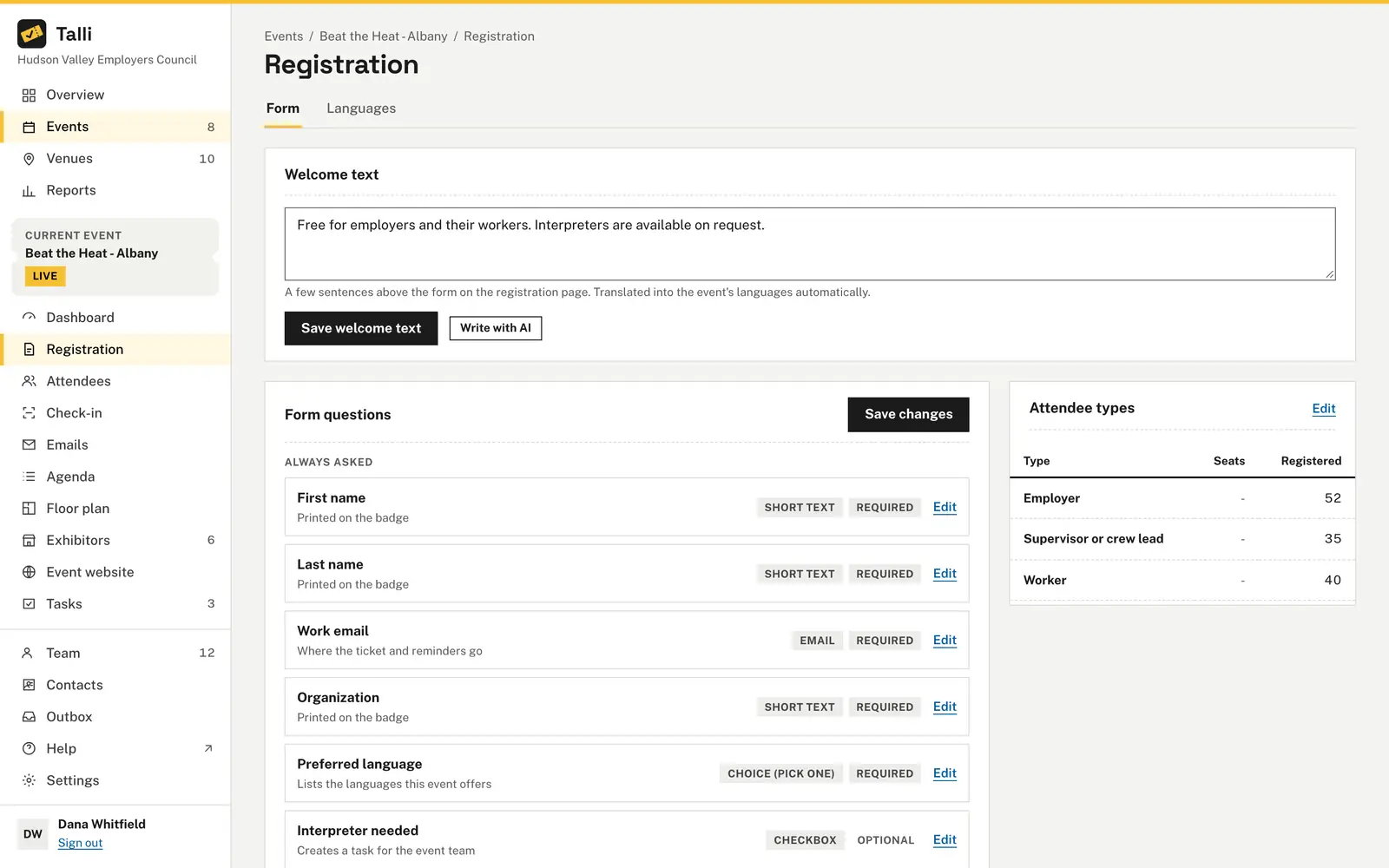
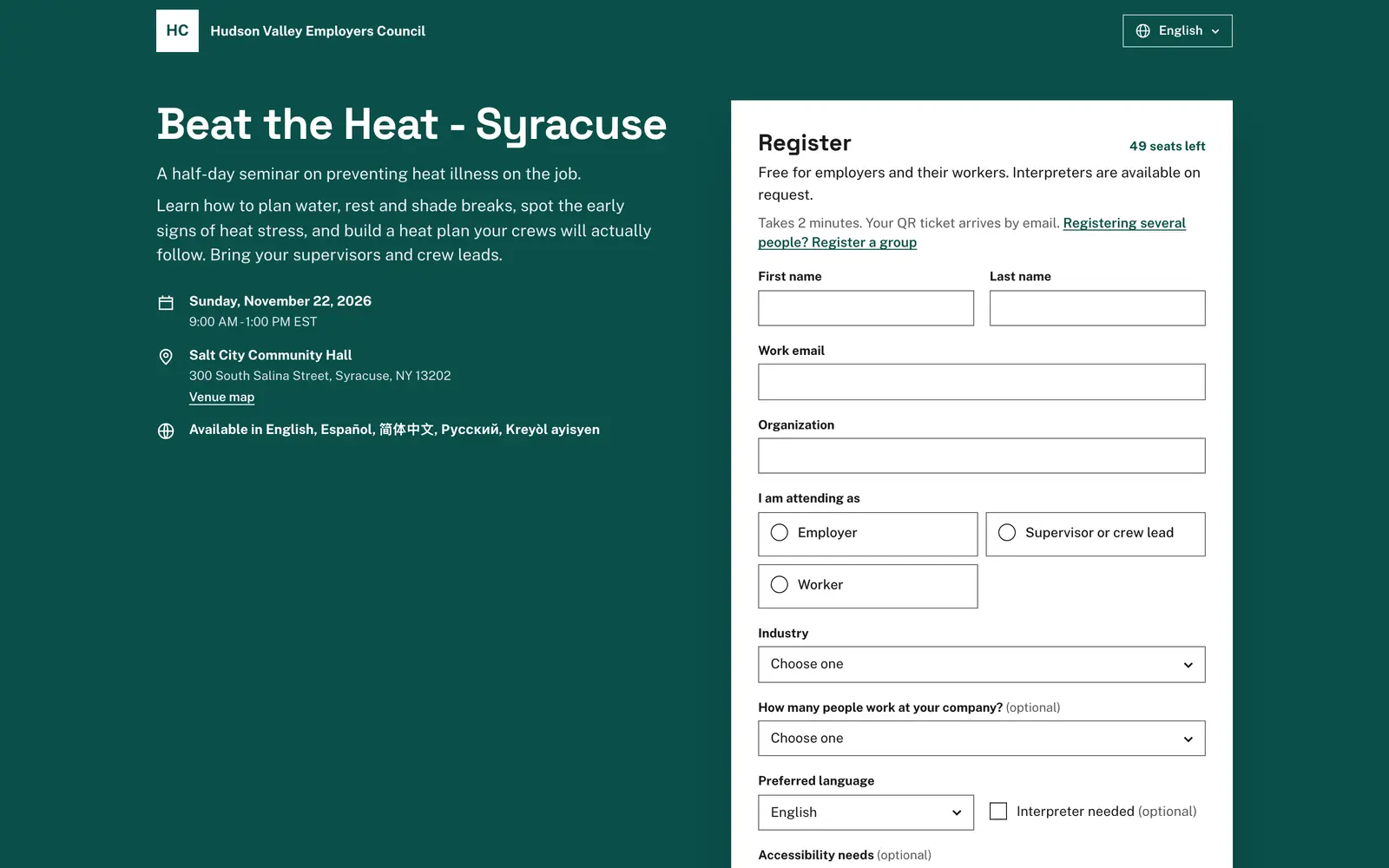
Each event has its own registration form. Choose who can register with attendee types, add your own questions below the built-in ones, and write a short welcome text that sits above the form.
What makes a registration form work for everyone?
Common problems with registration forms, and what Talli does about each one.
Everyone gets every question
Attendee types such as Employer and Broker each have their own seats and questions. Set Show to on a question and only that type is asked, so a license number question for Brokers is never asked of Employers. Questions appear or disappear as the type is picked.
Writing the welcome text takes time
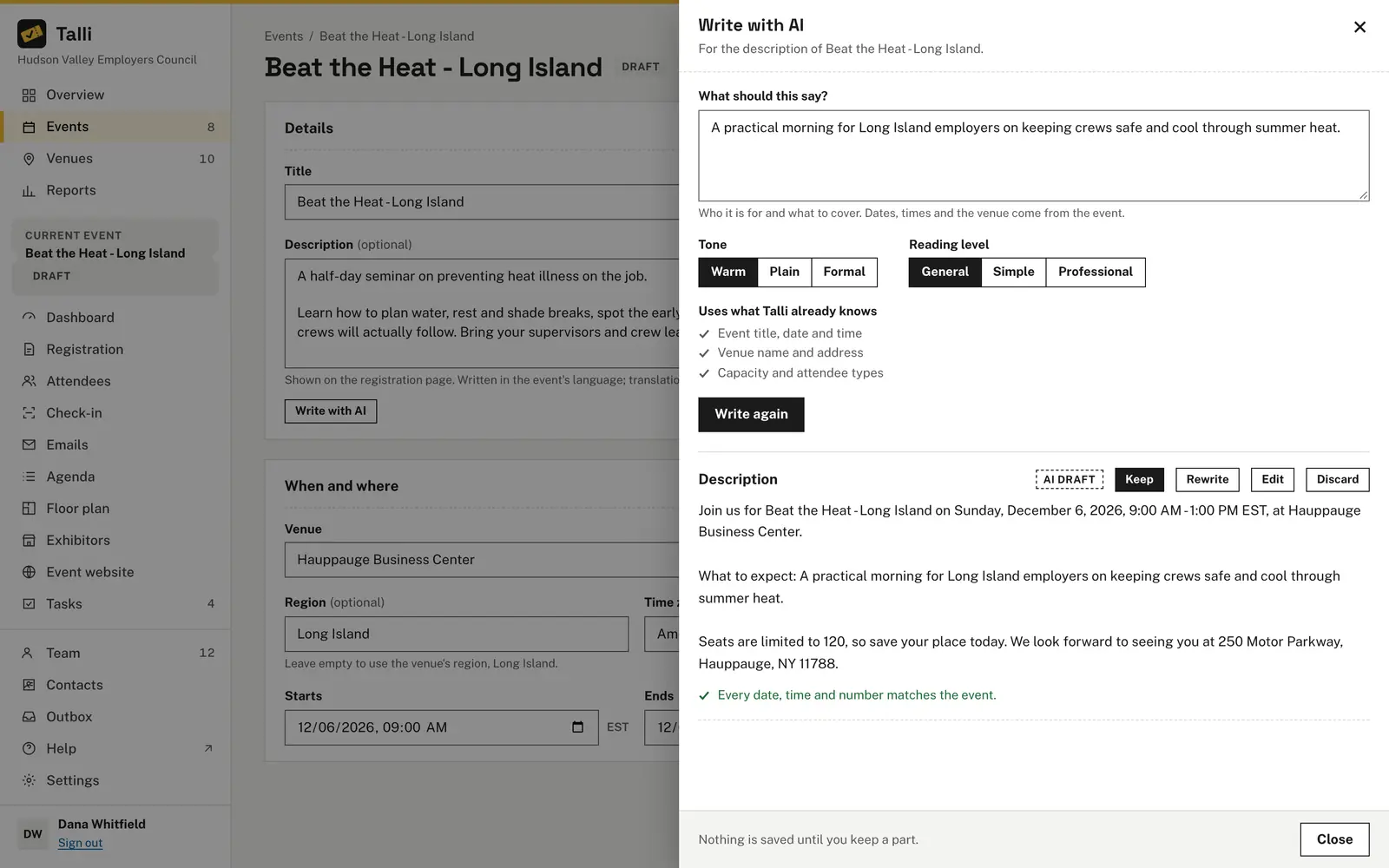
Add a welcome text of up to 1,000 characters above the form, for example who should register and what to bring. Choose Write with AI to draft it, and it is translated into the event's languages automatically.
License numbers are collected separately
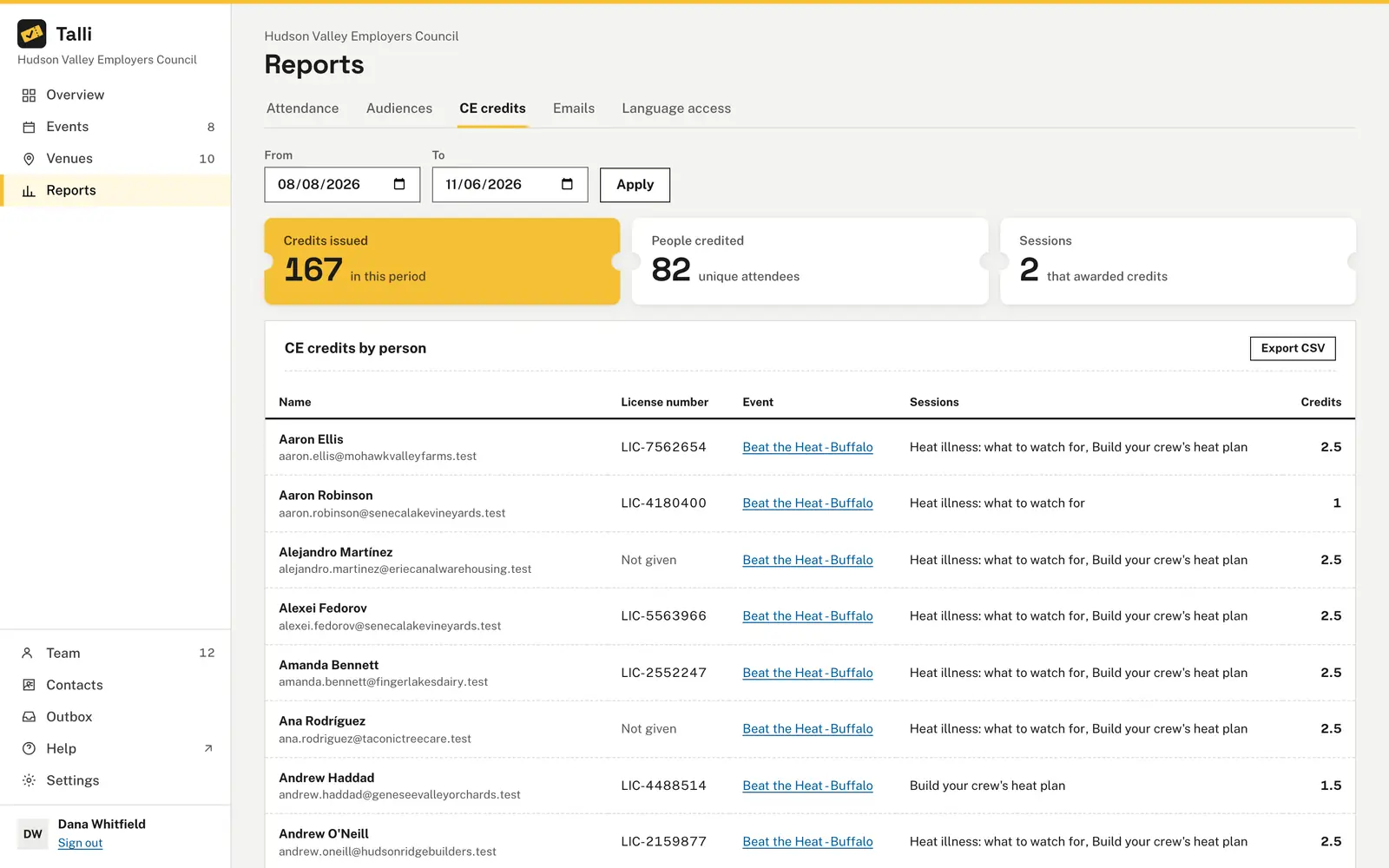
Mark one short text question per event as the license number, and the answer is listed next to each person on the CE credits report.
The basics get left off
Every form asks for first name, last name, work email, organization and preferred language, and offers Interpreter needed and Accessibility needs. You can reword them, for example Organization to Employer, but a required one stays required.
Sensitive answers are too easy to see
Mark a question Private answers for health, dietary or accessibility details. Private answers stay hidden from AI assistants by default.
How it works
Set up the form from the event's Registration page.
Open the Form tab
Open the event and choose Registration in the sidebar. The Form tab has the Welcome text, Form questions and Attendee types cards.
Set your attendee types
In Attendee types, choose Edit, rename or add types and set their seats, then choose Save attendee types.
Add your questions
Choose Add question, fill in the side panel and choose Save question, then Save changes at the top of the card.
Write the welcome text
Write a few sentences, or choose Write with AI, then choose Save welcome text.
Frequently asked questions
Can I remove the built-in questions?
No. The built-in questions are on every form, but you can reword them, for example change Organization to Employer. A required question cannot be made optional.
What kinds of questions can I add?
Short text, email, long text, choice (pick one), choice (pick several), checkbox and consent. Choice questions need at least one choice.
Can I remove an attendee type that has registrations?
No. A type that has registrations cannot be removed, so rename it instead. An event always needs at least one type.
Are my questions translated?
Yes. Questions and choices are translated into the event's other languages automatically, and your team can review them on the Languages tab.
Who can change the form?
Owners and admins edit attendee types and questions. Staff see the form with a View only label.
Collect exactly what you need
See a registration form built for your attendee types.