 Talli
Branding
Your brand on every page and ticket.
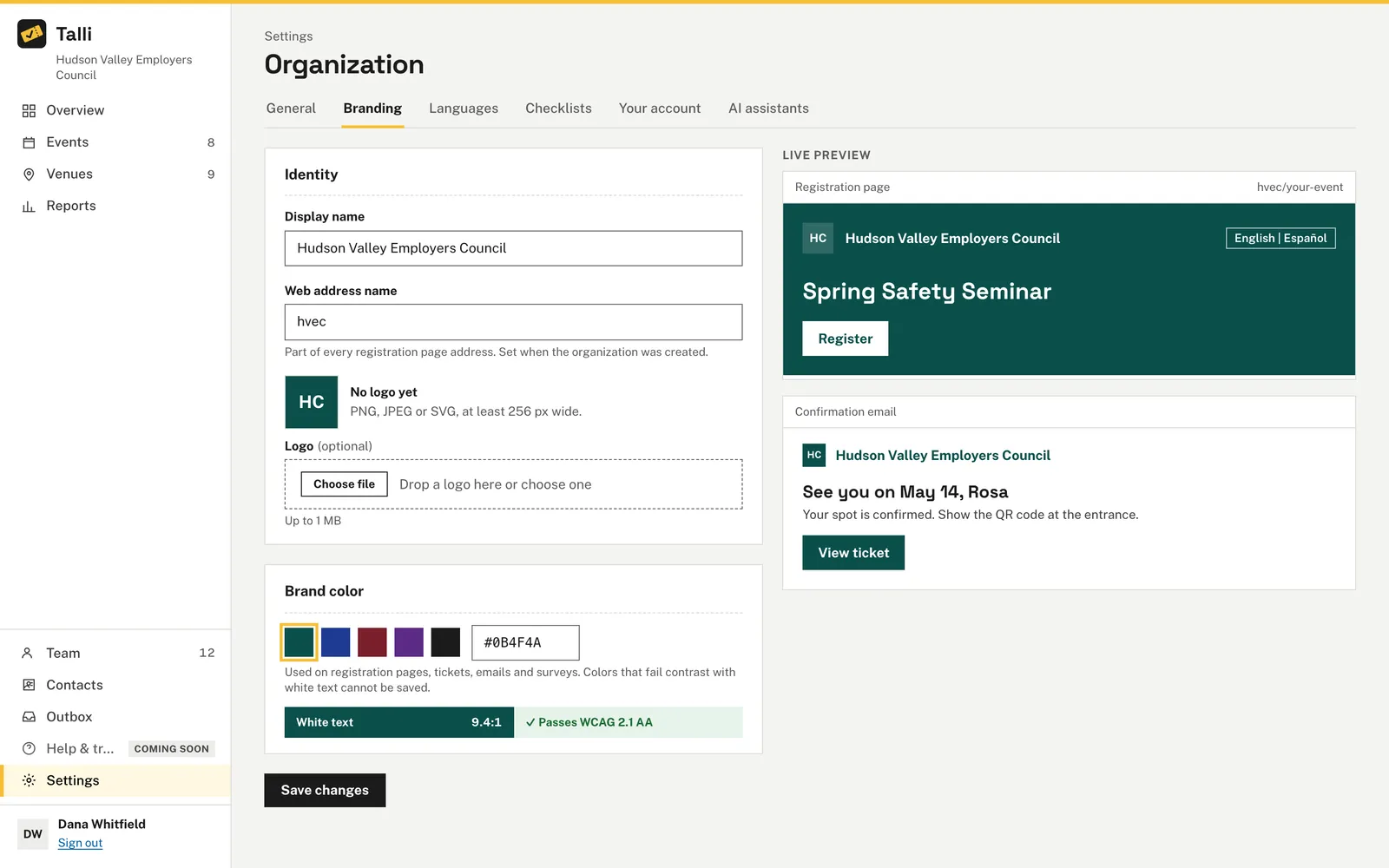
Set your organization's display name, logo and brand color once. Talli uses them on registration pages, tickets and emails, and a live preview shows the result before you save.
What does good event branding take?
Common problems with branding event pages, and what Talli does about each one.
Every event has to be branded by hand
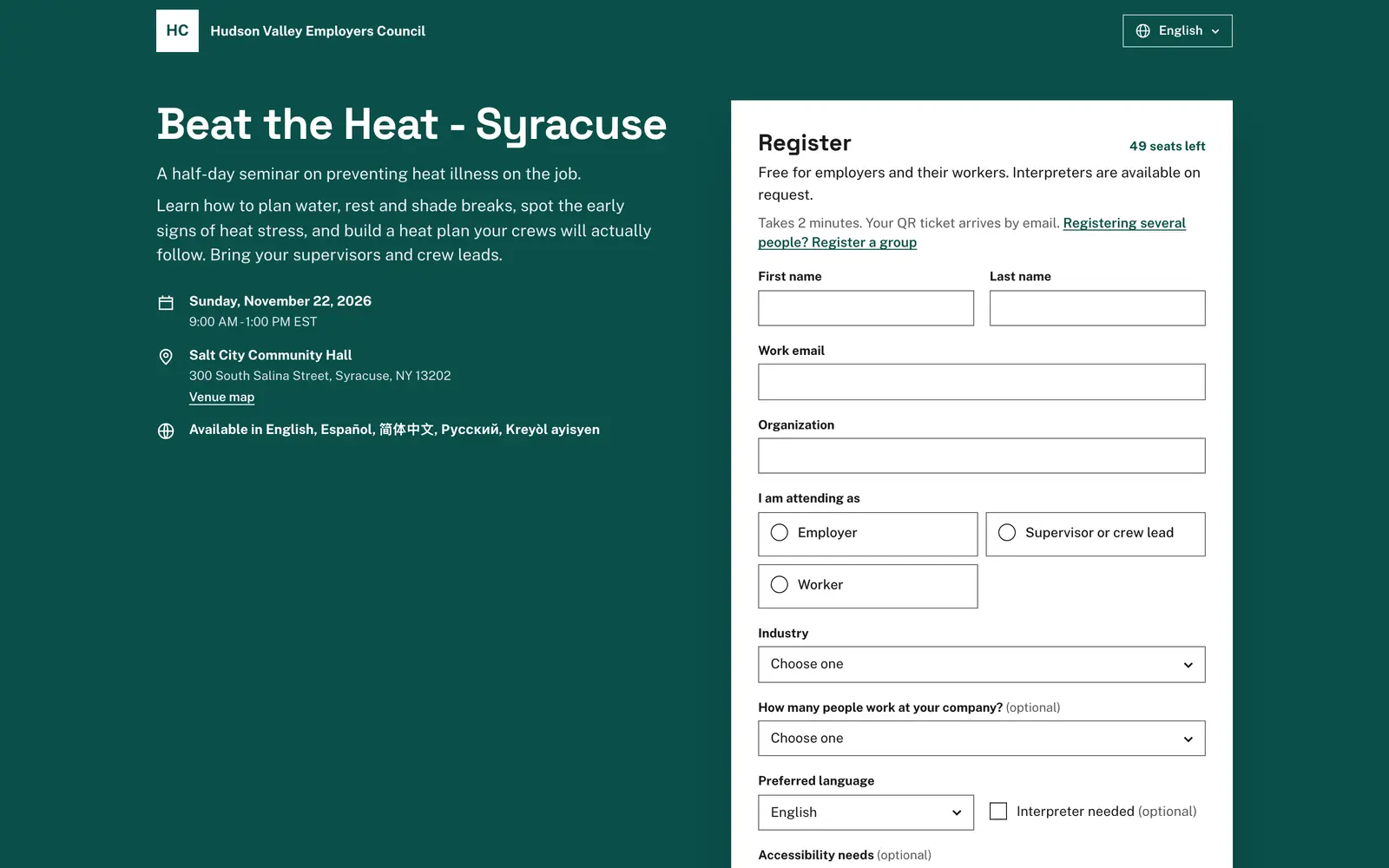
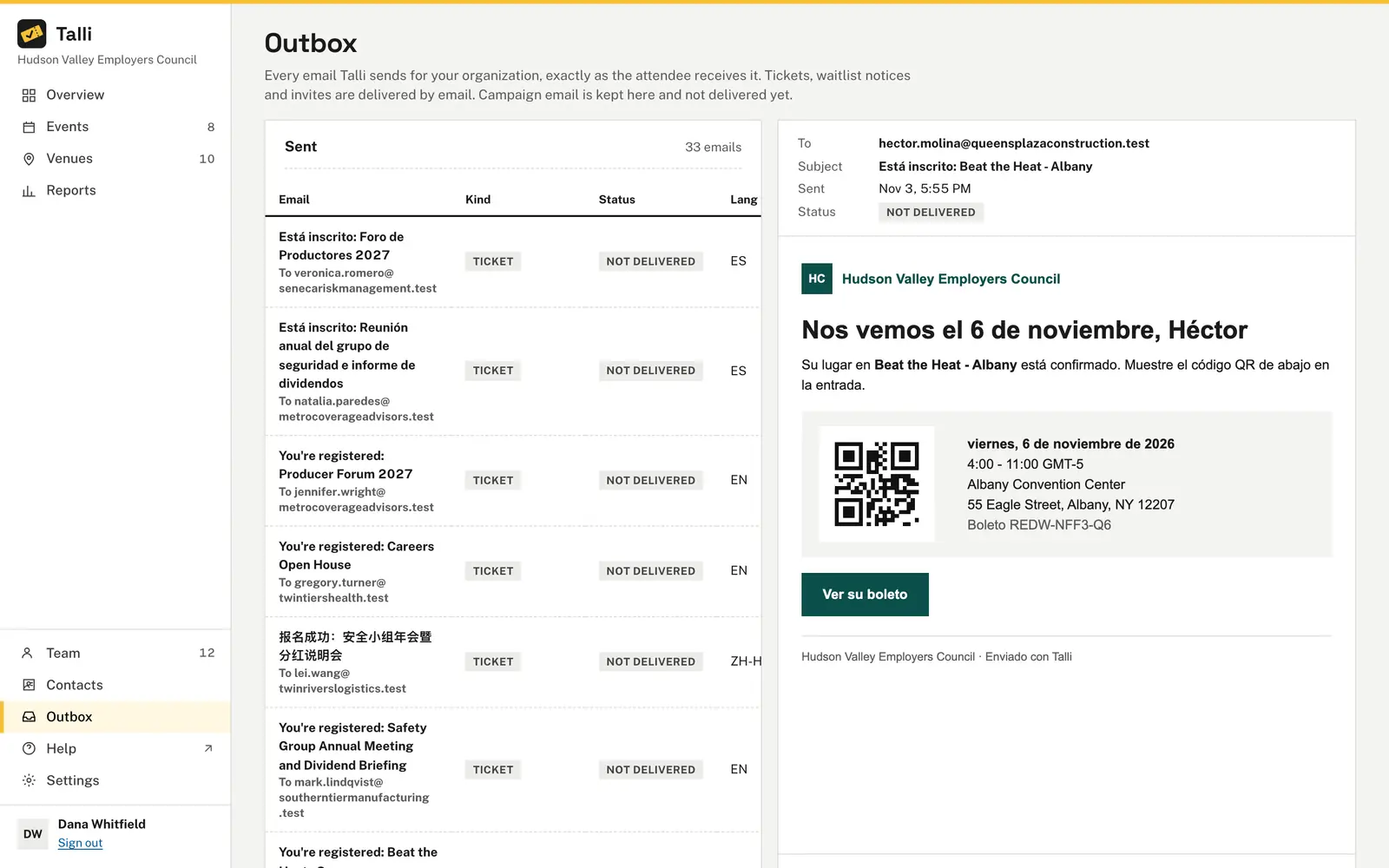
Branding is set once for the whole organization. The display name, logo and brand color appear on registration pages, tickets and emails, so every new event looks like yours from the start.
Nobody sees the result until it is live
As you type, the page shows a live preview of a registration page and a confirmation email. Nothing is saved unless every field is valid, so a problem with one field never leaves a half-saved result.
A brand color makes buttons hard to read
White text sits on your brand color, so Talli measures the contrast and requires at least 4.5 to 1, the WCAG 2.1 AA standard for normal text. The page shows the measured ratio, and a color that fails cannot be saved.
A logo file causes trouble
Logos can be PNG, JPEG or SVG, up to 1 MB. Talli checks the file itself, not only its name, and refuses SVG files that contain scripts. Without a logo, Talli shows your organization's initials in your brand color.
Anyone can change how you look
Only owners and admins can change branding. Staff can open the Branding page but see it view only.
How it works
Set up your branding in a few minutes, from Settings.
Open branding
Open Settings in the left sidebar and choose Edit name and branding.
Add your logo
Drop a PNG, JPEG or SVG file on the upload area, or choose one. The preview updates right away.
Pick your color
Choose a swatch such as Teal, Blue or Maroon, or enter your own color, for example #0B4F4A. The page says whether it passes WCAG 2.1 AA.
Save changes
Choose Save changes. A Branding saved message appears, and your pages, tickets and emails use the new branding.
Frequently asked questions
Which logo files can I upload?
PNG, JPEG or SVG, up to 1 MB. At least 256 px wide is recommended for a sharp result. SVG files that contain scripts or event handlers are refused.
Why can't I save my brand color?
White text appears on your brand color, so it must be dark enough to read. Talli requires a contrast of at least 4.5 to 1 for white text, the WCAG 2.1 AA standard. Pick a darker color and the page will say it passes.
What do attendees see if we have no logo?
Talli shows your organization's initials in your brand color. If no color is chosen yet, Talli uses a near-black ink.
Who can change our branding?
Owners and admins. Staff can open the Branding page but cannot save changes.
Can an AI assistant update our branding?
Yes. An owner's or admin's assistant can change the name and brand color, and set or remove a logo already uploaded in Talli. An assistant cannot upload a logo itself.
Make every event look like yours
See your name, logo and color on a registration page and ticket.