 Talli
Attendees
Everyone registered, in one list.
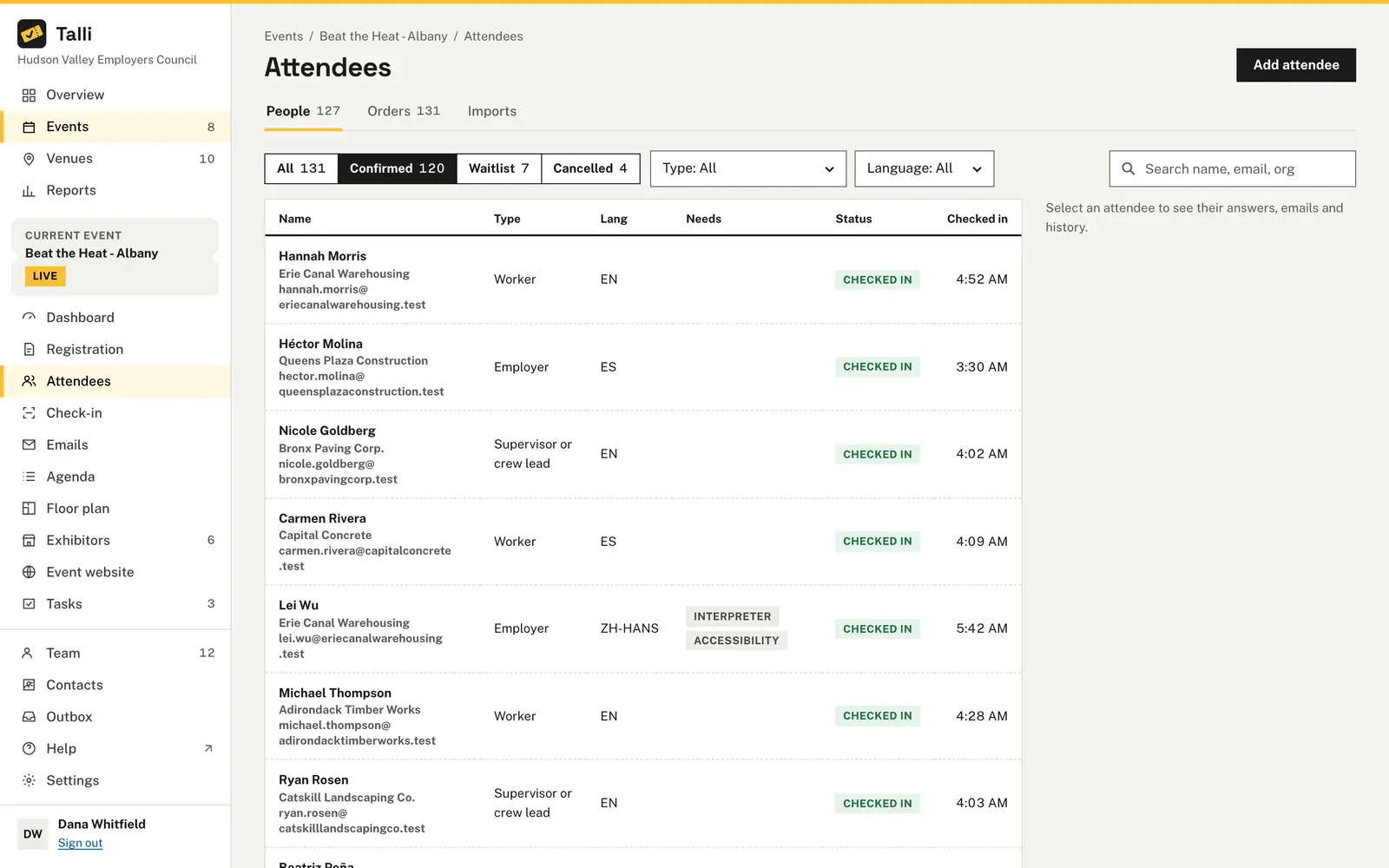
The Attendees page lists everyone who registered for an event, with their type, language, needs, status and check-in time. Filter and search to find anyone, open their details, and add, correct or cancel registrations.
What makes an attendee list easy to work with?
Common problems with attendee lists, and what Talli does about each one.
Answers and emails are scattered
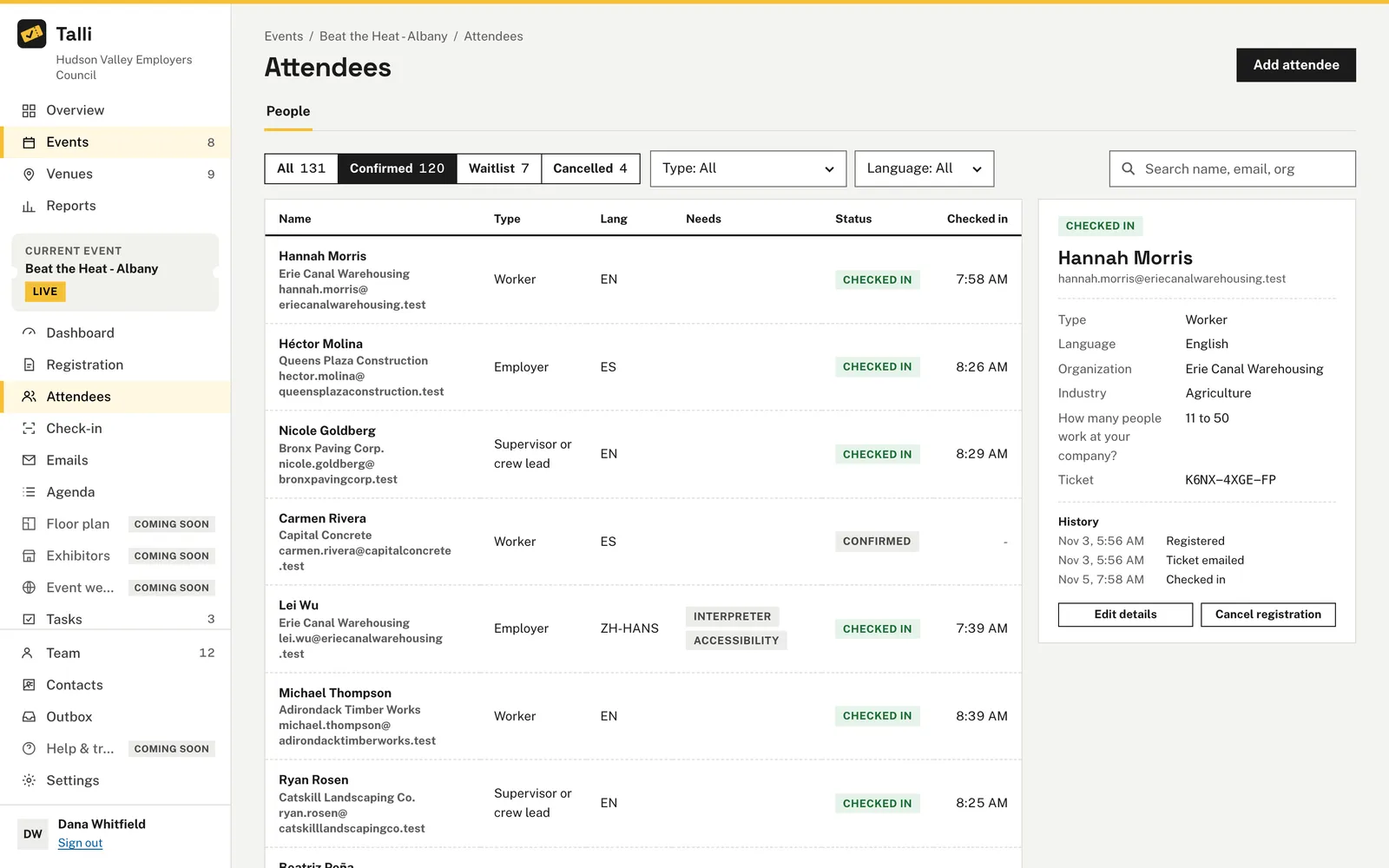
Select a row to see the attendee next to the list: type, language, organization, their answers, their ticket code and a short history of when they registered, which emails Talli sent them and when they checked in.
Group orders are missing names
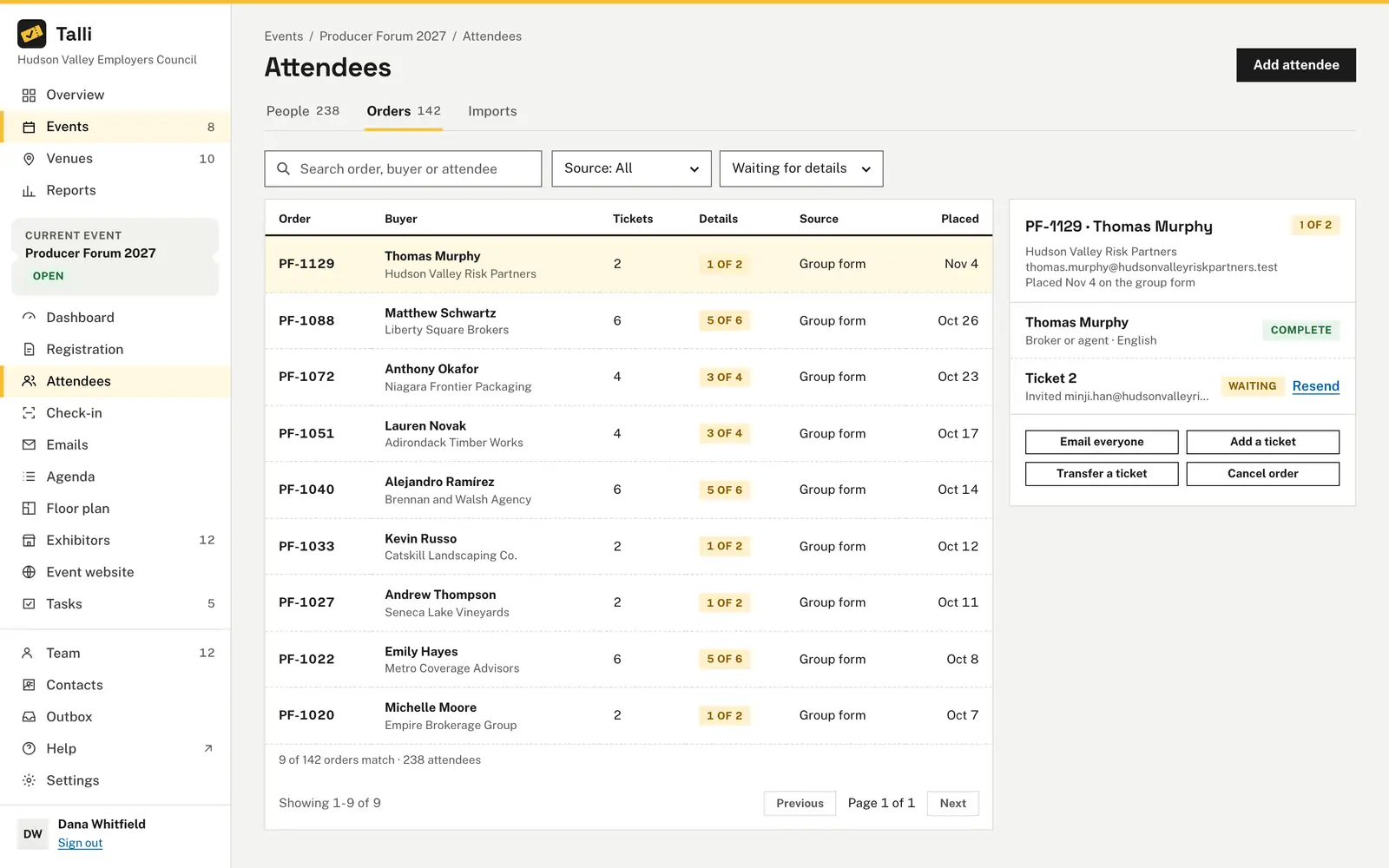
Someone in a group order who was sent a link to fill in their own details shows as Details pending, with their seat held. A Details pending filter appears while there are any, and orders have their own tab.
Finding one person takes too long
Filter by Confirmed, Waitlist or Cancelled, each with its count, or by attendee type or language. Search by name, email or organization. Each row shows the person's needs, such as Interpreter or Accessibility, and their check-in time.
Phone and walk-in registrations are messy
Use Add attendee with only a first name, last name and email. The same capacity rules as the public page apply, and with Email them their ticket ticked, Talli asks you to confirm before it emails them. An email already registered for the event is refused.
A cancelled seat sits empty
Cancel a registration and nobody is emailed or moved up on their own. Select someone on the waitlist and choose Give a seat: they are confirmed and emailed their ticket. If no seat is free, Talli says so and changes nothing.
How it works
Open the list from the event and work through it.
Open Attendees
Open the event and choose Attendees in its section of the sidebar.
Filter or search
Pick a status, attendee type or language, or search by name, email or organization.
Open a person
Select a row to see their answers, ticket code and history next to the list.
Make the change
Choose Edit details, Cancel registration or Give a seat. Owners and admins can also use Add attendee for phone or walk-in registrations.
Frequently asked questions
Who can see and change the attendee list?
Everyone in your organization can see the list. Owners and admins can add attendees, correct their details, cancel registrations and give waitlisted people a seat.
Is anyone emailed when I edit or cancel a registration?
No. Editing details and cancelling never email anyone. Giving a waitlisted person a seat confirms them and emails their ticket.
Does someone on the waitlist move up on their own?
No. When a seat opens, select someone on the waitlist and choose Give a seat. If no seat is free, Talli says so and changes nothing.
Can I export the attendee list?
Yes. Choose Export registrations on the event's dashboard.
What does Details pending mean?
Someone in a group order was sent a link to fill in their own details and has not yet. Their seat is held while they do.